Skip to content

Designer plugins

Plugins

Plugins and integrations for Designer.

by Disguise

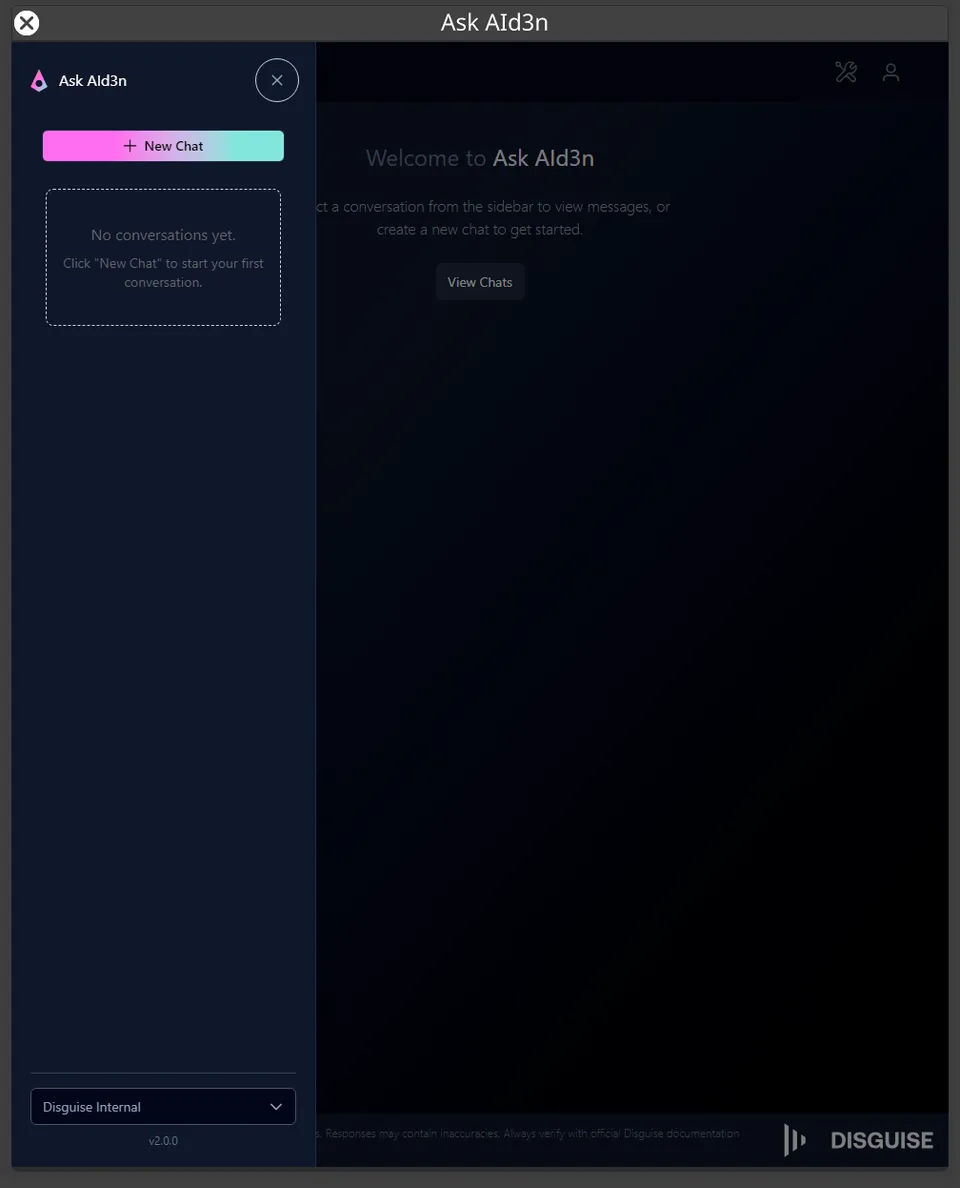
An AI workflow assistant built into Designer, with a deep understanding of Disguise workflows. Ask it about Designer, search the User Guide, and generate Python tools that work with your project.
Needs: Designer Pro license, internet connection, MyDisguise account

Workflow toolsv2.4.1

by Disguise

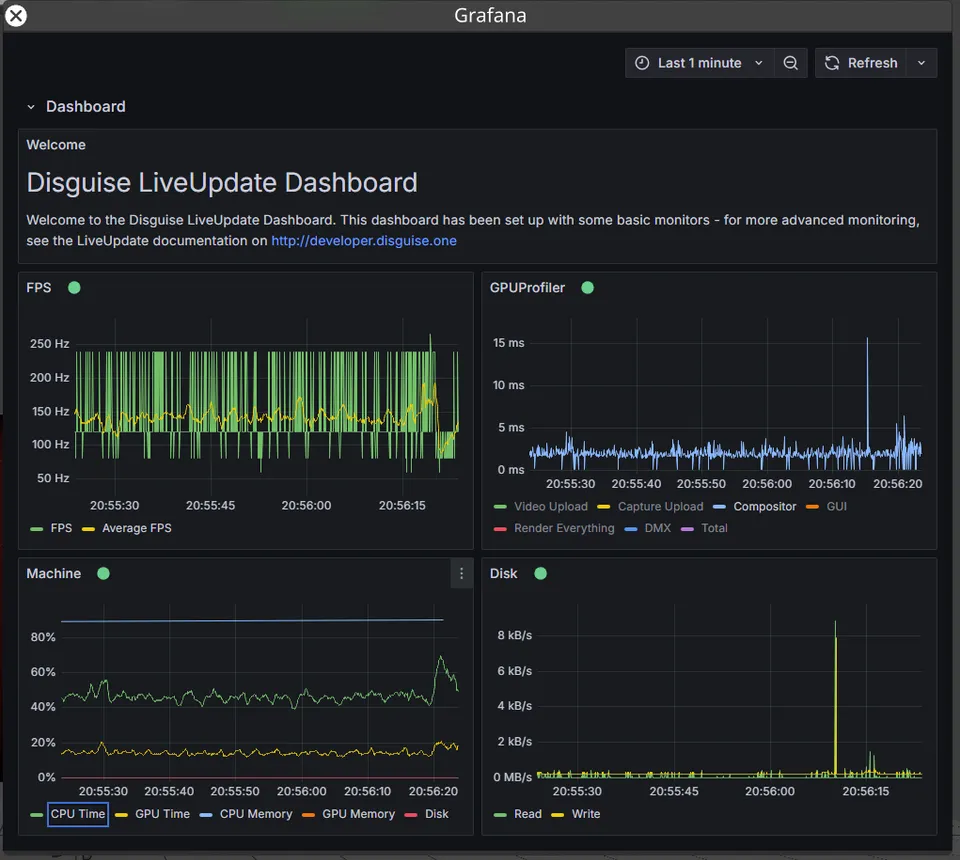
Stream live CPU, GPU, memory and frame-rate metrics to Grafana dashboards, with sub-second latency. Grafana runs in Docker, and one dashboard can monitor several machines.

Needs: Docker, and a Grafana instance with Live streaming

MonitoringDesigner r31+

by Disguise

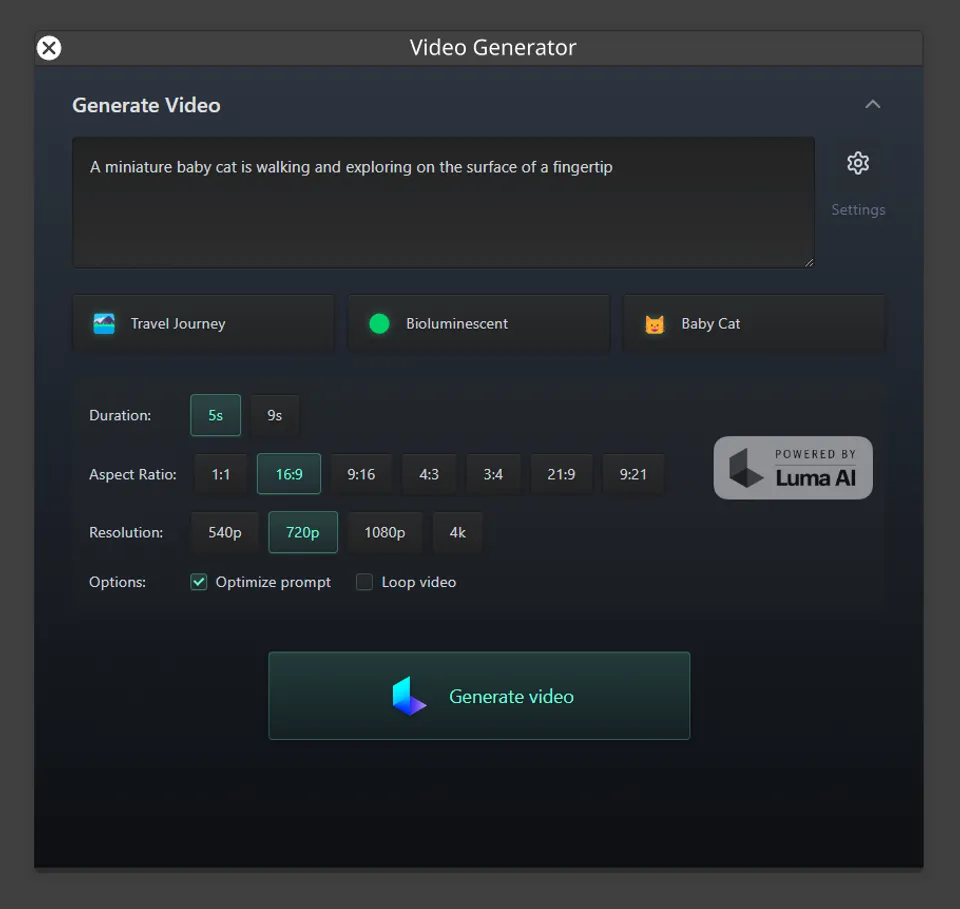
Generate video from text prompts with Luma AI's Dream Machine, without leaving Designer. Choose the duration, aspect ratio and resolution, up to 4K, and the clip is saved to your project.

Needs: A Luma AI account with credits, and an API key

Contentv1.0.1

by Disguise

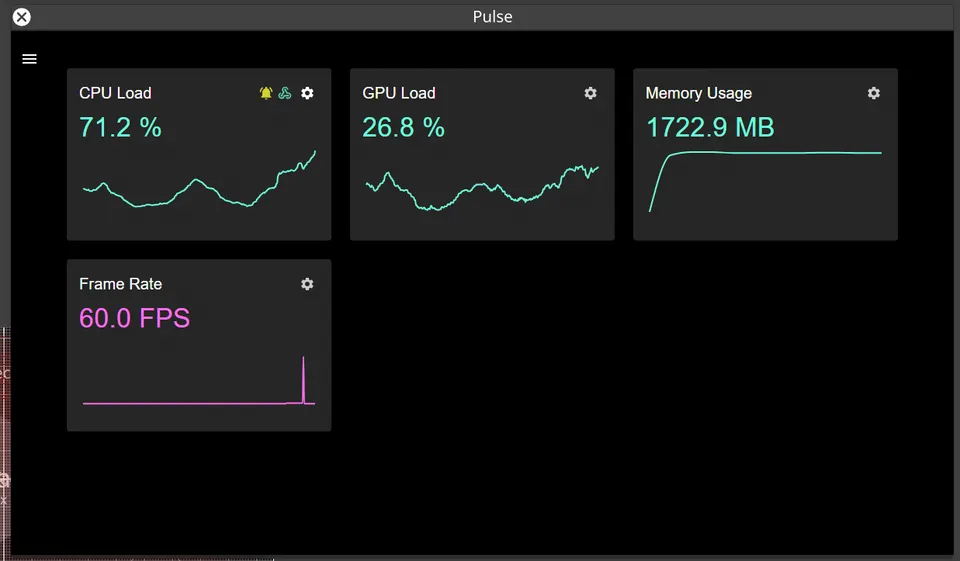
Live health checks for your project, without interrupting your work. Pulse graphs CPU load, GPU load, memory and frame rate, and sends alerts to services such as Slack or Teams when a threshold is crossed.

Monitoringv1.0.0Designer r31+

by Disguise

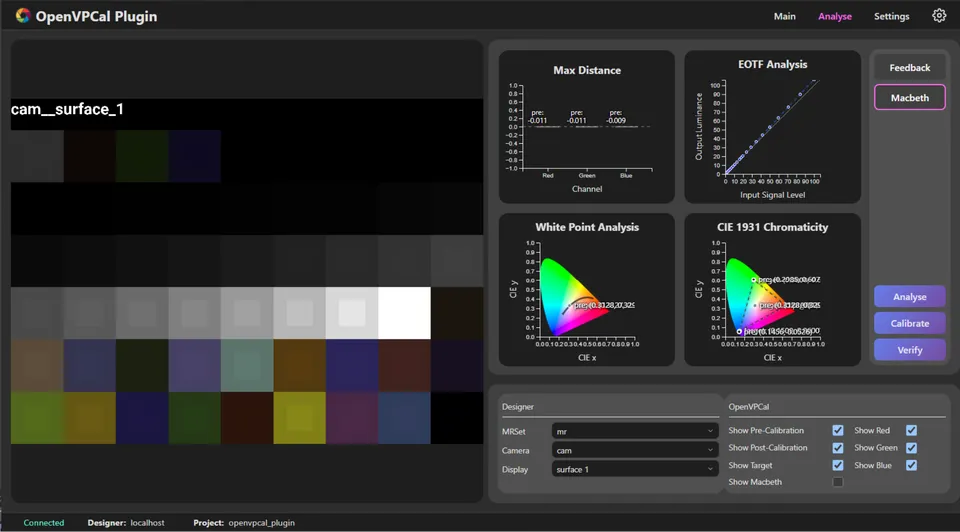
Analyse and calibrate LED wall colour, then load the generated OCIO config into your project. Calibration is powered by OpenVPCal, developed by Netflix.

Needs: A Disguise server, LED wall and camera

CalibrationVirtual productionv1.2.0Designer r31.4+

by Dylan Law

Run QuickCal and OmniCal from a laptop, phone or tablet. Move lineup points live, switch projectors between content and lineup, and run a RigCheck.

Calibration

by Dylan Law

Imports CuePilot notes and camera cuts into the Designer timeline, from the CSV that CuePilot exports.

Needs: A CSV export from CuePilot

IntegrationsShow control

by Dylan Law

A handheld interface for camera observations on an MR set.

Virtual production

Built a plugin for Designer? Send it to the Disguise team for review, and approved plugins are listed here.

  1. Build and test it

    Follow the plugin guides on the Developer Portal, and test it on every Designer version you support.

    Plugin developer guides
  2. Gather the details

    • A name and a short description
    • A link to your GitHub repository or website, where people can get it
    • Its main features
    • Installation steps
    • High-quality screenshots
    • A support contact
    • The Designer versions it works with
  3. Email the Disguise team

    Send everything to integrations@disguise.one. The team reviews each submission and lists suitable plugins on this page.

    By submitting, you agree to the plugin listing terms and conditions.

    Email your submission

Open a ticket with Disguise Support, or take a certified course on Disguise Learn.

How to create a support case