

RenderStream - Unreal Engine
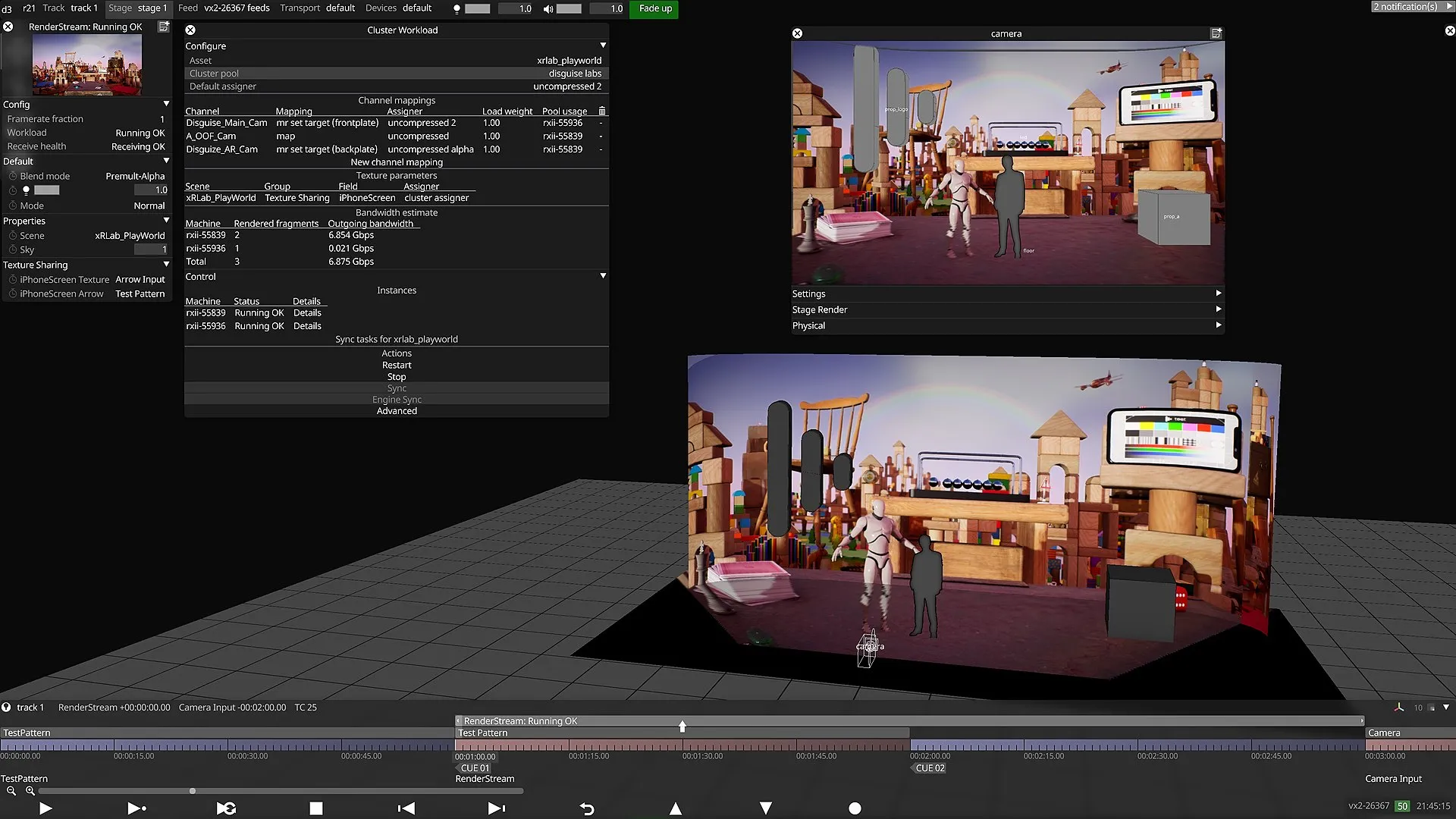
RenderStream is the proprietary Disguise protocol for controlling third party render engines from Designer. This set of topics covers the steps needed for configuring Unreal Engine for use with RenderStream.
Unreal Engine is the third party render engine developed by Epic Games.
This section covers a range of workflows to help implement real-time graphics for virtual production and xR.
Phase 1: Project & system foundation
Section titled “Phase 1: Project & system foundation”Get your Unreal Engine project built and ensure the foundational Disguise plugins and directories are configured correctly.
-
UE Project Setup Learn how to correctly structure a Blank Game or Film project, install the RenderStream plugin, set up your CineCamera Actor, and add a RenderStream Channel Definition.
-
DDC Setup (Derived Data Cache) Optimise load times and performance by configuring your Derived Data Cache. This is essential for ensuring your render nodes don’t spend unnecessary time compiling shaders.
-
OCIO Setup (OpenColorIO) Set up precise colour management pipeline rules ensuring what you see in Unreal Engine perfectly matches the output on your LED volumes or displays.
Phase 2: Scene configuration & control
Section titled “Phase 2: Scene configuration & control”Learn how to pass commands, textures, and parameters back and forth between Unreal Engine and the Designer software.
- Scene Levels Understand how to manage Unreal Engine maps/levels and ensure the right environments are loaded via RenderStream.
- Exposed Parameters Expose blueprint variables and properties so you can control your Unreal environment in real-time directly from the Designer timeline.
- 3D Object Transforms Link transformations so you can manipulate the position, rotation, and scale of 3D objects in your Unreal scene directly through Disguise.
- Remote Textures Send live video feeds or dynamic imagery from Designer straight into materials inside your Unreal Engine environment.
- Remote Text Parameters Update text objects dynamically from Disguise: perfect for live broadcast graphics or easily changeable virtual signage.
- Level Sequences Trigger and control pre-animated cinematic sequences (Sequencer) inside UE directly from the Disguise timeline.
- Controlling Skeletons in Unreal Engine Pass a Skeleton’s joint data from Designer to Unreal Engine over RenderStream, so a skeleton in the engine mirrors the one in Designer.
Phase 3: Optimisation & troubleshooting
Section titled “Phase 3: Optimisation & troubleshooting”Ensure your project is running smoothly, beautifully, and without framerate drops across your cluster.
- Multi-User Editing Configure your environment for collaborative workflows so multiple artists can work within the same Unreal Engine scene simultaneously on a live stage.
- Scene Optimisation Configure alpha, frontplates and post-processing so your scene renders correctly when frames are split across render nodes, without seams.
- Verification Checklist Run through this critical checklist to guarantee your scene hits the target framerate without dropping frames during a live shoot.
- UE RenderStream Troubleshooting Encountering unexpected errors or dropped connections? Check this page for common issues, error logs, and immediate fixes.
Related links
Section titled “Related links”- RenderStream Overview: How RenderStream plugs partner applications, such as real-time render engines, into Disguise, with remote and local rendering.
- RenderStream Layer: Control third-party render engines from Designer, including the cluster workload, the assigner and receive-health monitoring.
- RenderStream Networking: Network requirements for RenderStream, including compressed and uncompressed transport, bandwidth, and network interface card, SFP and fibre guidance.
- RenderStream Resources: RenderStream versions, downloads and release notes.