

Depth Map Mesh
A Depth Map Mesh is a mesh which takes its shape from a depth map image or video. Depth maps can be applied to the mesh using a Depth Map Mapping or Depth Video Layer. The mesh updates based on the depth map, occupying a space within the frustum defined by the Min/Max depth and the Field of view values.
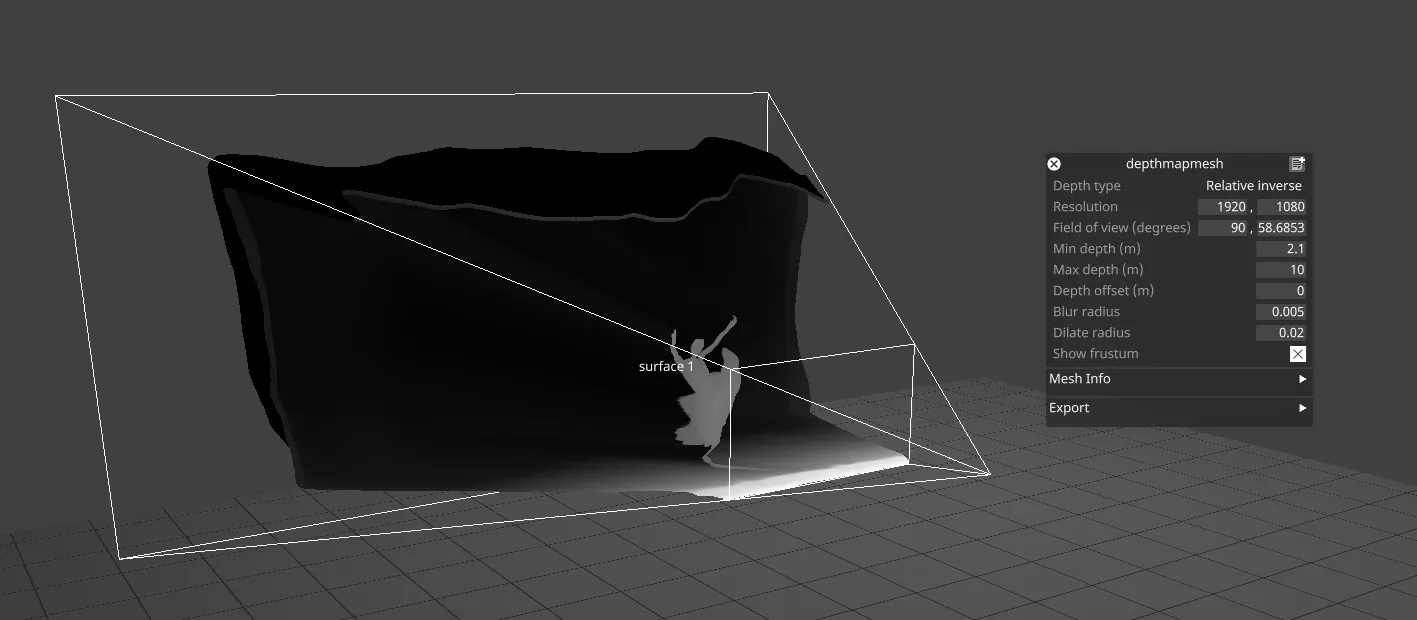
The depth map should be a black and white texture encoding the depth values of the image. By default this is defined as an inverse normalised depth, where black (0) is the maximum depth and white (1) is the minimum depth.
Workflow
Section titled “Workflow”- Click on the mesh property of the desired stage object (screen, prop etc.), and create a new Depth Map Mesh.
- Map a depth map to the mesh using a Depth Video Layer, or another module with a Depth Map Mapping.
- The mesh should now update based on the depth map mapped to it.
- To resize the mesh frustum adjust the Field of view or Min/Max depth values.
- Use the object as normal, e.g. mapping corresponding video content to the surface.
Properties
Section titled “Properties”Depth type
Section titled “Depth type”The type defining how the depth map is interpreted:
- Raw: Normalised between 0 and 1, with 0 being near plane and 1 far plane.
- Relative inverse: Inverse normalised depth, with 0 being far plane and 1 near plane.
Resolution
Section titled “Resolution”The resolution of the mesh. This is the size of the grid of vertices which are updated by the depth map content. Typically, this should be set to the same resolution as the depth map content.
Field of view
Section titled “Field of view”The vertical and horizontal field of view encompassed by the frustum, in degrees. Adjust to scale the mesh relative to the rest of the stage.
Min/Max depth
Section titled “Min/Max depth”The depths of the near and far planes of the frustum, in metres. The depth map is converted from normalised to absolute depth based on these values.
Depth offset
Section titled “Depth offset”The offset of the eye point of the frustum relative to the origin of the mesh, in metres. This can be adjusted to set the mesh origin close to the average of the depth map content.
Blur/dilate radius
Section titled “Blur/dilate radius”These values change the amount of blur and dilation applied to the depth map content, which can help reduce artifacts, particularly around the edges of objects. Between 0 and 1, where 1 sets the radius equal to the width of the texture.
Show frustum
Section titled “Show frustum”Tick to render the outline of the frustum in the stage, in addition to the mesh itself.