Missing and Unused Media
In large projects, it is common to end up with lots of iterations of things like videos, meshes, notch blocks and other on-disk media. All on-disk media that you place in the objects folder of your Designer project will generate an in-designer representation of that object. This is very convenient, but because these objects are generated automatically, it is common for them to become a pain over time on more complex projects with lots of media revisions.
Designer has some special tools to allow for the management of the in-Designer representations of this on-disk media and keep your projects simple and un-cluttered. For this guide we will focus on Video Clips which are the in-Designer representation of on-disk media files, but the same principals apply to all objects.
The relationship between Video Clips and Video Files on-disk
Section titled “The relationship between Video Clips and Video Files on-disk”Whenever a video file is placed in the objects/VideoFiles folder on disk of a Designer project on ANY machine in session, Designer will automatically create an in-project representation of that media called a Video Clip. This clip has a range of user configurable settings, but it also is the in-project representation of the on-disk media, and as such it can be in a few different states based on the state of your on-disk media and your project file:
- Missing - At least one machine in the session that NEEDS that media does not have it on-disk.
- Unused - No video layers, layer stacks, video inputs, or other parts of Designer need this Video Clip to do their function (It’s not sequenced anywhere).
Missing Media
Section titled “Missing Media”Missing media means that an on-disk asset is missing on a particular server but it is needed by that server to play that content. For example:
In a 2 server session with a Director and an Actor, I have a single video layer where I have Ada.jpg as my video clip. The Ada.jpg file only exists on the Director, so this content is Missing on the Actor.
When media is missing the layer that uses it will be highlighted in red like this and if you mouse-over the layer a tooltip will explain which content is missing on which machine:

The Director machine reports the missing status of any media missing on Undertudies and Actors only. Editor machines are not included, however they do report their own missing media on their own GUIs, but this information does not get shared with other Editors or the Director to avoid visual clutter.
When media is Missing AND the media is not Unused you should make sure to sync that content to the machines where it is missing. This can be done via the Designer native Content Management tool, or can be performed with 3rd party tools like Free File Sync for more granular control.
Unused Media
Section titled “Unused Media”Unused media means that a Video Clip exists, but no machines in your session need that media for anything. For example:
In a 1 Non-Dedicated Director setup, I have a video in my folder called George.jpg but I only have 1 video layer and it has a different video seqenced, so this content is Unusued on my Non-Dedicated Director and indeed across my session.
Designer does not explicitly report unused media like we do for missing media, but we do provide a few tools for identifying it and removing it:
- Archive Unused Media is a legacy workflow for moving unused media to another folder location.
- Once Unused media has been archived, it will now also be Missing and you can Remove Missing Resources following these steps:
- Open any video layer.
- Left-click on the Video thumnail to open the Video Clip library.
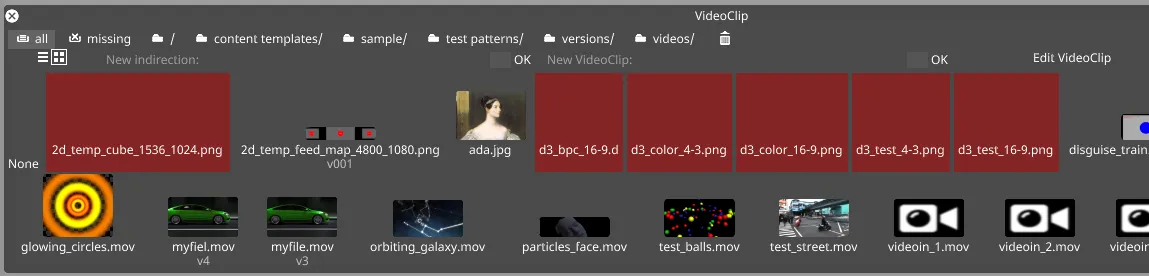
- Right-click on the missing box at the top of the VideoClip library window.
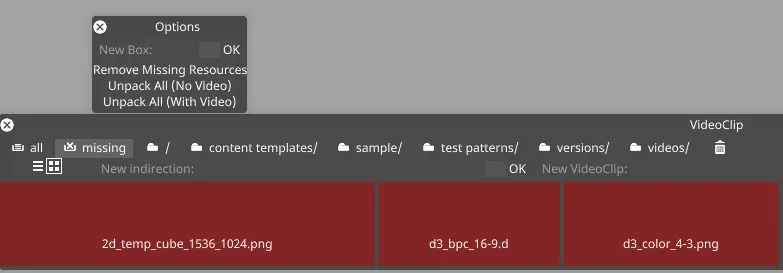
- Left-click on Remove Missing Resources. All missing media that is not referenced in any layer within the project will be removed from the VideoClips library.
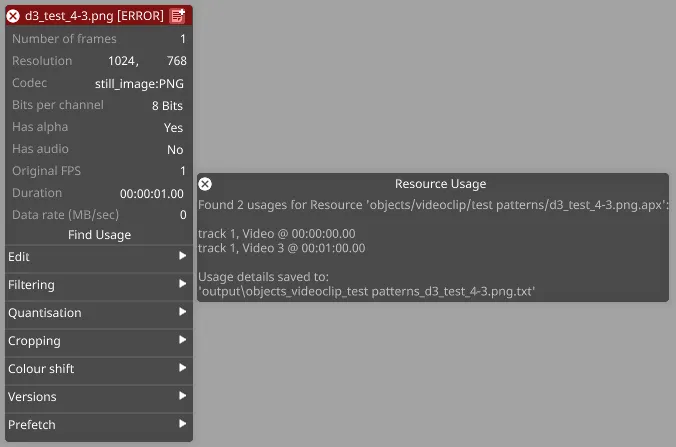
- If missing media is not removed from the VideoClips library at this point, this means that the clip is being referenced elsewhere in the project. Right-click on the red box for that media, and then left-click on Find Usage to locate the instances where the media is still being referenced in the project.