

Collaboration
Mapping Matter scenes are collaborative documents. A scene lives inside a Production, a shared unit that you decide who can open. Once people are on the Production, anyone with read access can open the scene, anyone with write access can edit it live, and edits stream to other clients within a second.
Productions and access
Section titled “Productions and access”Each scene lives in a Production. A Production has a visibility (who can see it) and a list of shares (specific people and teams who have access).
- Private (only me): the default for new Productions. Only the people listed in the share dialog can see it.
- Organisation: every member of the owning organisation can open and edit the Production as an Editor. Admins still control sharing, scope changes, and deletion.
A user’s role on a Production is the highest of:
- Their explicit role on the Production (Admin / Editor / Viewer).
- The org scope (Contributor / Editor if visibility is Organisation and they’re in the owning org).
- Membership of a Team that is shared onto the Production.
You can change visibility at any time. Flipping a Production from Private to Organisation grants every org member Editor access; flipping back removes that access immediately. Both directions prompt for confirmation.
Inviting people
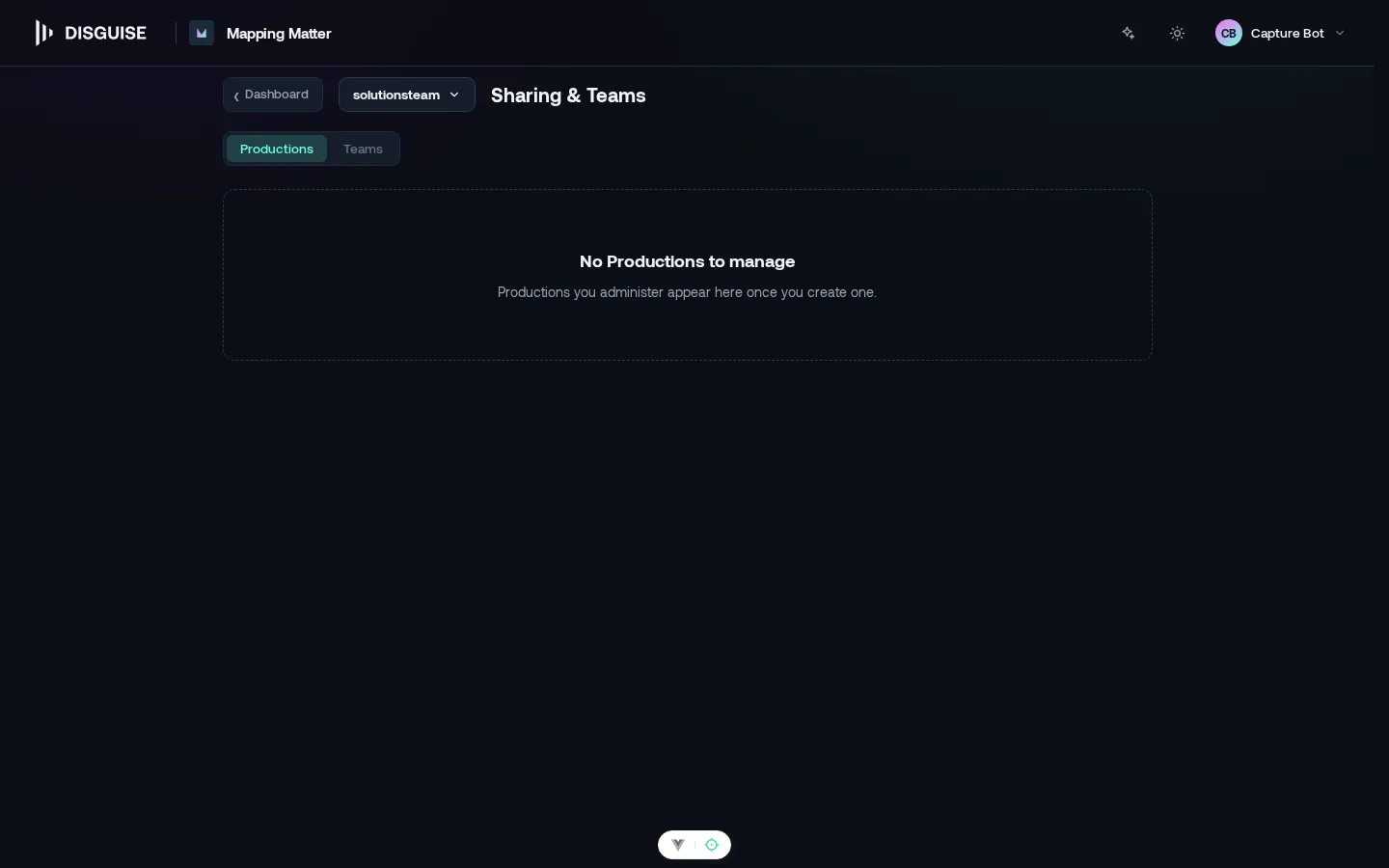
Section titled “Inviting people”Open Publish & Share in the editor and switch to the Collaborate tab to invite users to the current Production. You can also manage Productions from the launcher’s Sharing & Teams dashboard (header menu).
- By email: type an email address. If the address belongs to a Disguise Cloud user, they’re added immediately as the chosen role. If not, they receive a branded invitation email with a sign-in link, valid for 14 days; once they sign in with that email, they’re auto-added to the Production.
- Editor or Viewer: pick the role at invite time. Editors can change scene content; Viewers can open the scene but can’t edit. The role on an existing member can be changed inline.
- Cross-organisation: you can invite someone in another organisation. Cross-org invites land as Editor or Viewer (never as Admin); they can be revoked at any time.
Pending invitations and accepted members are listed together. Revoke an invite to invalidate the link, or remove a member to drop their access immediately. The owning org’s Admins can manage the share list; Editors and Viewers cannot.
When the same group of people needs access to multiple Productions, set up a Team in the Sharing & Teams dashboard. A Team is a named group of users that you share onto a Production in one step rather than adding the same five people to ten Productions. Teams support external (cross-org) members the same way Productions do: invite by email, and the email-verified invitee joins on first sign-in.
A Team share grants Editor or Viewer (never Admin). To remove a Team’s access from a Production, delete the Team share; to remove a person from every Production they’re sharing into, take them out of the Team.
Real-time editing
Section titled “Real-time editing”Once two or more people are on a scene, edits stream live and presence shows up in the editor header.
The header shows an avatar for every user currently in the same scene. Hover an avatar to see the user’s name. Each collaborator’s view focus appears as a coloured cursor in the viewport, fading after a few seconds of inactivity.
To prevent conflicting edits, Mapping Matter takes a short-lived lock on the scene whenever a user is actively editing. If you try to edit while another user holds the lock, the toolbar shows a notice and your input is queued briefly. If a true conflict is detected (two users dragging the same object), Mapping Matter resolves by accepting the last write and surfacing a conflict toast with a quick undo to the affected user.
View-only and entitlements
Section titled “View-only and entitlements”Mapping Matter is free to read: any signed-in user can browse demo Productions and any Production they’ve been shared into. Creating and editing scenes requires an active Mapping Matter entitlement on the user’s organisation.
If you open a scene without an editing entitlement (for example, you’re an Editor on a shared Production but your own org doesn’t have Mapping Matter), Mapping Matter shows a View-only notice once per session, and the editor hard-blocks every write action. People who only ever had Viewer access don’t see the notice; they just open the scene read-only as expected.
Every mutation entry point is disabled and greyed in view-only mode: Properties sidebar inputs, toolbar copy / paste / duplicate / delete, transform gizmos, scene-tree drag-drop, layer add / remove, and every keyboard shortcut that would edit the scene. There are no controls that appear active but silently fail on write.
Sharing outside the editor
Section titled “Sharing outside the editor”Productions are for ongoing collaboration. To share a frozen view with a client or external reviewer, without granting them access to live editing or scene history, publish a snapshot and create a link or user share.
See also
Section titled “See also”- Publish & share: snapshots, link shares, and user shares
- Snapshots & revisions
- Plan entitlements