

Remote Texture Parameters in Unity
The Unity plugin offers support for sharing textures remotely through the use of exposed parameters. This allows a two-way flow of video content between Designer and the Unity engine.
Remote Texture Parameters setup
Section titled “Remote Texture Parameters setup”- [Optional] Add a Plane (or any other 3D GameObject) to the scene.
- Create a new Render Texture: Select Assets in the Project panel. Right-click inside and select Create > Render Texture.
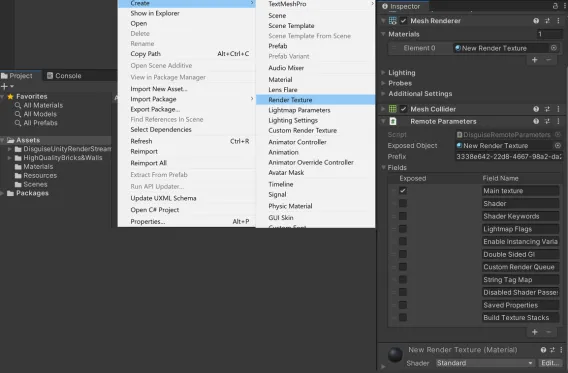
- Drag and drop the new Render Texture onto your Plane (or 3D GameObject of your choice) in the scene. Confirm that the new Render Texture has been added as a Material component to your GameObject.
- Add a Remote Parameters component to the Plane (or 3D GameObject of your choice). Drag and drop the new Render Texture (Material) component into Exposed Object. Open the Fields separator and ensure that Main Texture is enabled (no need to enable any other fields).
- Build the Unity project.
- Save and close Unity.
- Open the RenderStream layer in Designer and start the workload.
- Create a new layer (e.g. Video) and assign media (e.g. Ada).
- Move the new layer underneath the RenderStream Layer with Ctrl+Alt+down arrow.
- Alt+drag to arrow the newly created layer into the RenderStream Layer.
- Confirm arrowed input appears in the RenderStream content.