

Disabling Layers
You can disable a layer to exclude it from rendering, sequencing, and state updates. Unlike muting, which is a temporary session-level control, disabling a layer is a project-level setting that persists across track changes, project saves, and restarts.
Use disable when sequencing isn’t currently needed by the show, but took significant time to implement and may be needed again later. This allows you to preserve your work without it affecting show playback or performance.
Disabled layers are excluded from:
- Rendering and prefetch operations
- Sequencing and state updates
- Timecode-related transport behavior
- Layer stack processing
Visual indicators
Section titled “Visual indicators”When a layer is disabled:
- The layer appears with dimmed colour in the timeline
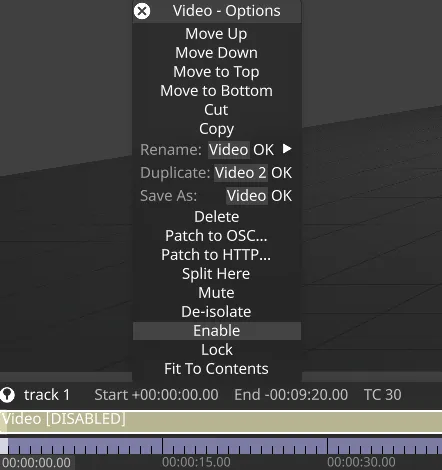
- [DISABLED] text is appended to the layer name
- The layer remains visible in the timeline but does not affect output
Disabling a layer
Section titled “Disabling a layer”- Hold down the D key and left-click the layer.
Or alternatively
- Right-click on the layer to open the Layer menu.
- Select Disable.
The layer will display with dimmed colour and show [DISABLED] in the timeline.
Enabling a layer
Section titled “Enabling a layer”- Hold down the D key and left-click the disabled layer again.
Or alternatively
- Right-click on the disabled layer to open the Layer menu.
- Select Enable.
The layer will return to its normal appearance and resume normal operation.
Disabling group layers
Section titled “Disabling group layers”When you disable a group layer, all child layers within that group are also disabled. This allows you to quickly disable entire sections of your timeline structure.
Disabled vs Muted
Section titled “Disabled vs Muted”Disabled and muted layers serve different purposes:
| Feature | Disabled | Muted |
|---|---|---|
| Purpose | Persistent exclusion from rendering and sequencing | Temporary visual toggle |
| Scope | Project-level (affects all machines) | Session-level (per machine) |
| Persistence | Saved with project, survives track changes and restarts | Resets on track change or restart |
| Visual indicator | Dimmed colour + [DISABLED] text | Dark grey colour |
| Activation | D + click or right-click > Disable/Enable | M + click or right-click > Mute |
Use Disable when you need to preserve complex sequencing that isn’t currently needed by the show but may be required later. Use Mute or Isolate when troubleshooting to check whether specific layers are behaving as expected.
Temporary layer control
Section titled “Temporary layer control”If you need a quick temporary toggle to hide a layer during the current session without affecting the project file, use the Mute or Isolate features instead of Disable. These are particularly useful for troubleshooting and checking whether specific layers are behaving as expected during show development. See Muting Layers and Isolating Layers for more information.