

Porta Manager Overview
Porta Manager is a web-based interface for managing your Porta On Prem installation. It provides an installer wizard for installing and updating Porta On Prem, as well as user-friendly tools to manage Porta and its machines.
Requirements
Section titled “Requirements”There are no additional requirements for running Porta Manager beyond the base requirements for Porta VM, which are as follows:
- A copy of the latest Porta On Prem Virtual Machine release as a zip file.
- This zip contains the
setup_vm.ps1script and the.ovaVM image file. - The image is an
.ovafile, which is a virtual machine image that can be imported into VirtualBox. - The image is a pre-configured Ubuntu image with Docker and Porta Manager already installed.
- This zip contains the
- VirtualBox 7.1.8 installed.
- Latest copy of the Porta On Prem application as a zip file.
- Minimum of 3 physical machines if running database replication.
| Component | Specification |
|---|---|
| Windows 11 64-bit | |
| VirtualBox 7.1.8 | |
| Intel i7 4th Generation (required: CPU with AVX2 support) | |
| 8GB RAM | |
| 100+GB free disk space |
Features
Section titled “Features”- Porta Configuration Management: Tools to help you store and manage your Porta On Prem technical settings, such as machine IP addresses.
- Porta Installation Wizard: A step-by-step guide to help you install Porta On Prem.
- Dashboard: A central hub to administrate and monitor the status of your Porta On Prem installation.
- Helpers: User-friendly tools to assist with common administrative tasks.
- Logging: Various logs of installations, updates, and other administrative actions performed through Porta Manager.
Architecture
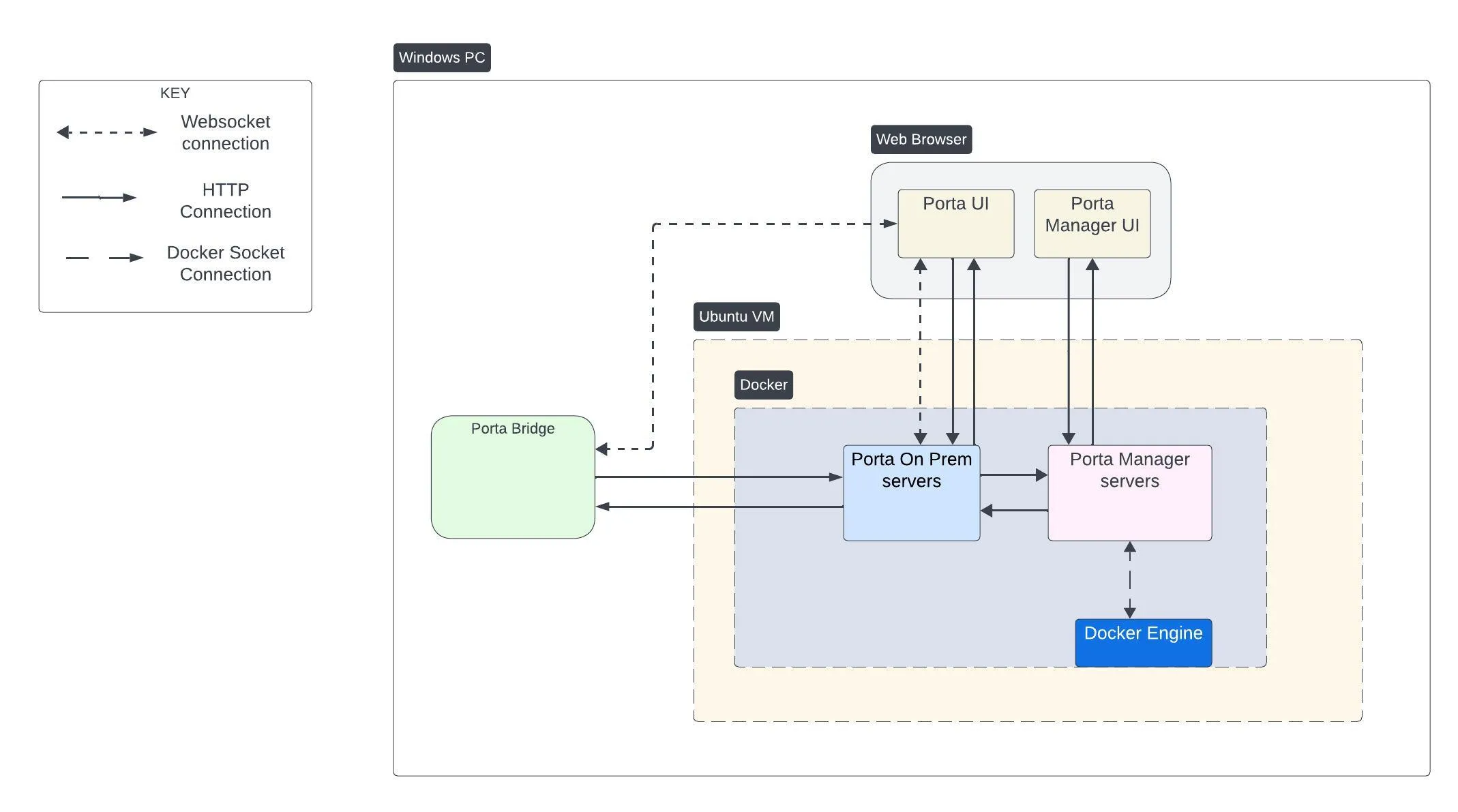
Section titled “Architecture”Porta Manager is deployed with the Porta Virtual Machine (Ubuntu 24.04 server) and run using Docker.
Docker Containers
Section titled “Docker Containers”Porta Manager uses Docker containers to run its services. These container names are often appended by a -1, i.e., porta-manager-app-1, but the base names are as follows:
porta-manager-app Container
Section titled “porta-manager-app Container”| Role | Porta Manager Web Application |
|---|---|
| Description | Runs the Porta Manager web application, which provides the user interface for managing Porta On Prem. This is what you interact with when you access Porta Manager in the browser. |
| Published Ports | 88 |
porta-manager-horizon Container
Section titled “porta-manager-horizon Container”| Role | Porta Manager Horizon (Queue) Service |
|---|---|
| Description | Long running process that handles queued jobs, such as installer wizard processing. |
| Published Ports | None |
porta-manager-task Container
Section titled “porta-manager-task Container”| Role | Porta Manager Scheduled Tasks Service |
|---|---|
| Description | Long running process that handles scheduled background tasks. |
| Published Ports | None |
porta-manager-db Container
Section titled “porta-manager-db Container”| Role | Porta Manager Database Server |
|---|---|
| Description | Porta Manager’s MySQL database server. |
| Published Ports | 3310 |
porta-manager-redis Container
Section titled “porta-manager-redis Container”| Role | Porta Manager Redis Server |
|---|---|
| Description | A Redis server that is primarily used as a cache driver and jobs queue. |
| Published Ports | 6378 |
Updating Porta Manager
Section titled “Updating Porta Manager”The latest Porta Manager comes pre-installed on the Porta VM, but if you need to update it, you can do so by following these steps:
- Open Windows Powershell or Terminal.
- Connect to the Porta VM using SSH (replace the command below with your own values)
portavmis the username you will be connecting asVM-IPis the VM’s IPv4 address on the network
Terminal window ssh portavm@<VM-IP>- For example:
Terminal window ssh portavm@192.168.50.9
- Run the following command to update Porta Manager:
Terminal window update_manager - The terminal will begin to display information about shutting down the existing manager and fetching a list of versions available to install. You will then be prompted with the list of available versions.
- Select the version you wish to install by entering the corresponding number and pressing
Enter. - The script will proceed to download and unzip the selected version of Porta Manager.
- After unzipping and loading the new version, the script will prompt you to confirm that this is the version you wish to install. Confirm the version by entering the corresponding number and pressing
Enter. - The update will then finalize, boot the Porta Manager, and wait for it to come online.
- Once the update is complete, you can access Porta Manager by opening a web browser and navigating to
http://<VM-IP>:88, replacing<VM-IP>with the actual IP address of your Porta VM.