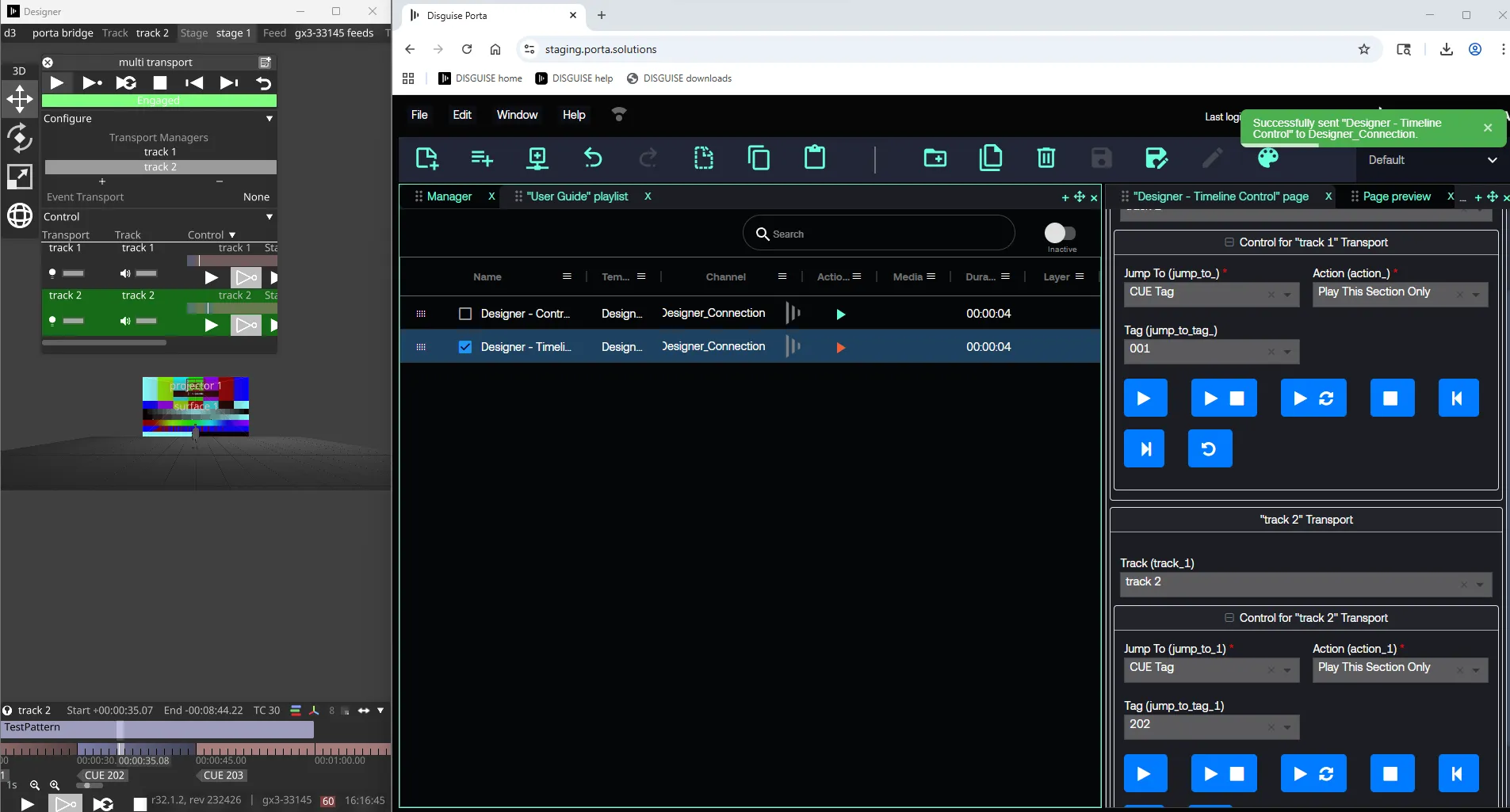
Designer Timeline Control
Once the connection is established using Porta Bridge, Porta can access the timeline and transport controls programmed in Designer. This allows user to pre-programme cues in Designer and trigger them without interacting with Designer during operation.
Designer Timeline & Transport control setup
Section titled “Designer Timeline & Transport control setup”Step 1: Create a Template
Section titled “Step 1: Create a Template”- In Porta, navigate to File -> New -> Template to open Template Builder.
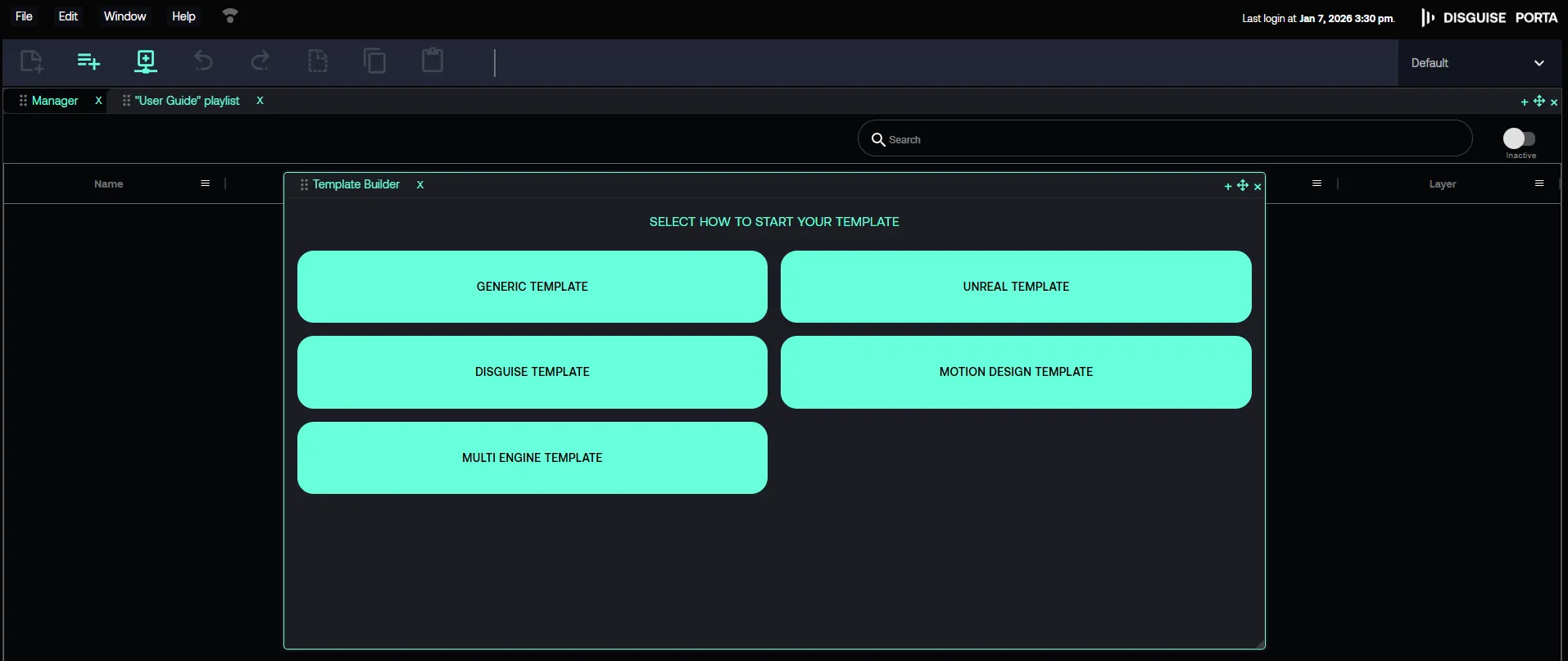
- In Template Builder -> SELECT HOW TO START YOUR TIMELINE, click DISGUISE TEMPLATE.
Step 2: Select the Channel
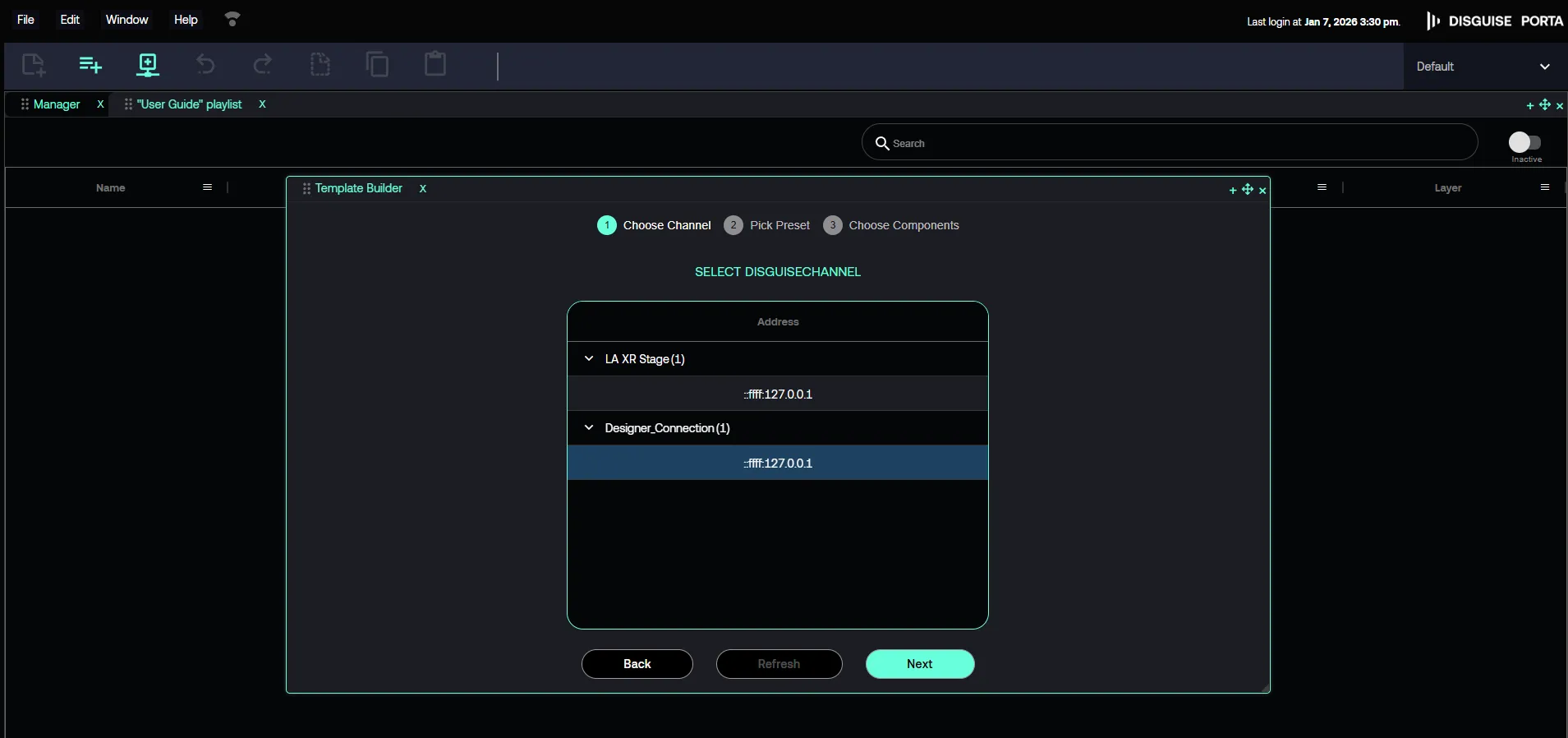
Section titled “Step 2: Select the Channel”- Find and select the established Channel.
- When prompted to select exposed parameters, click Next without making a selection. This is not necessary for Timeline and Transport control.
Step 3: Fetch the available Timeline and Transport controls
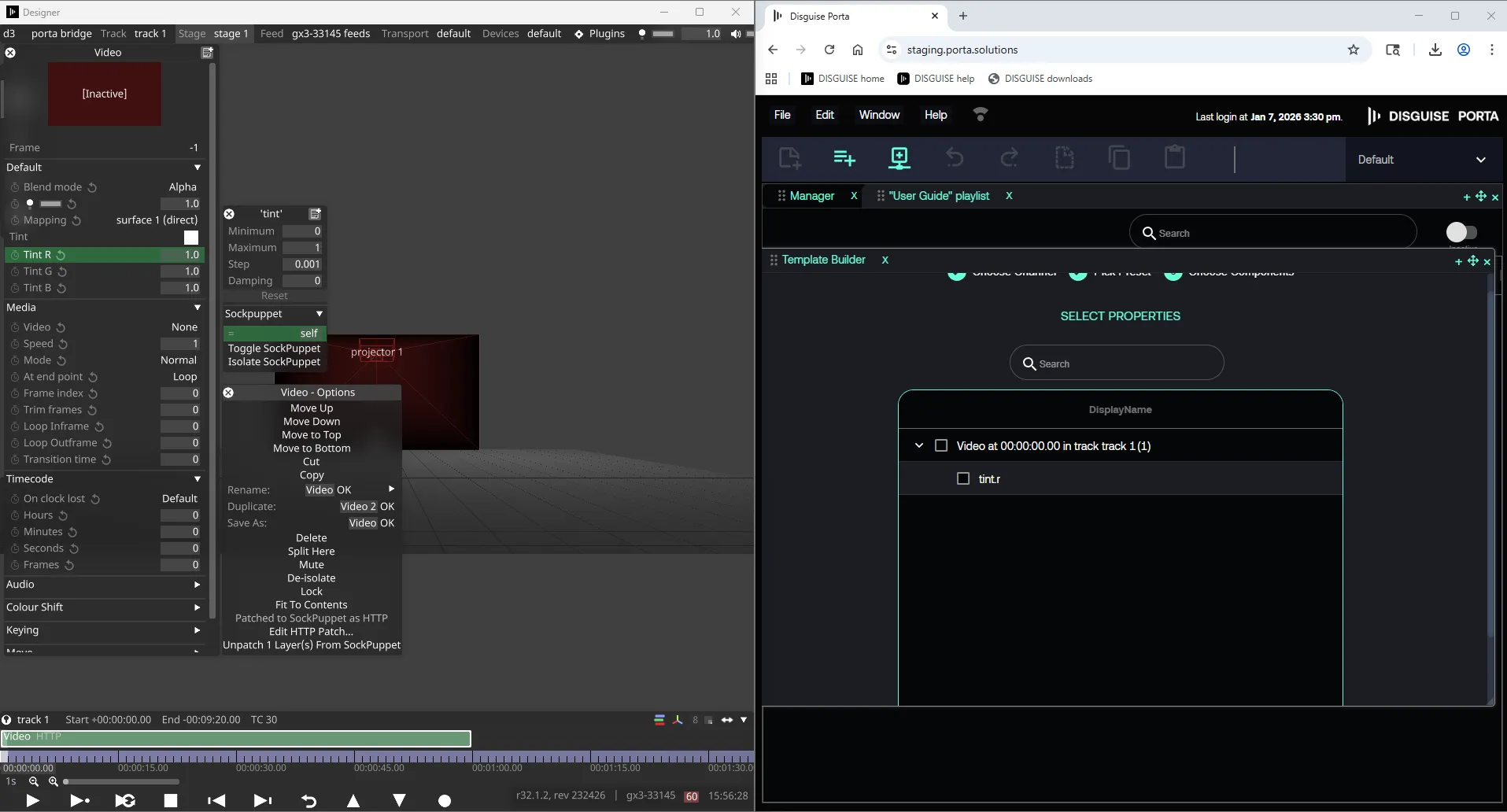
Section titled “Step 3: Fetch the available Timeline and Transport controls”Fetch the available Timeline and Transport controls from Designer.
Step 4: Add the Timeline control component
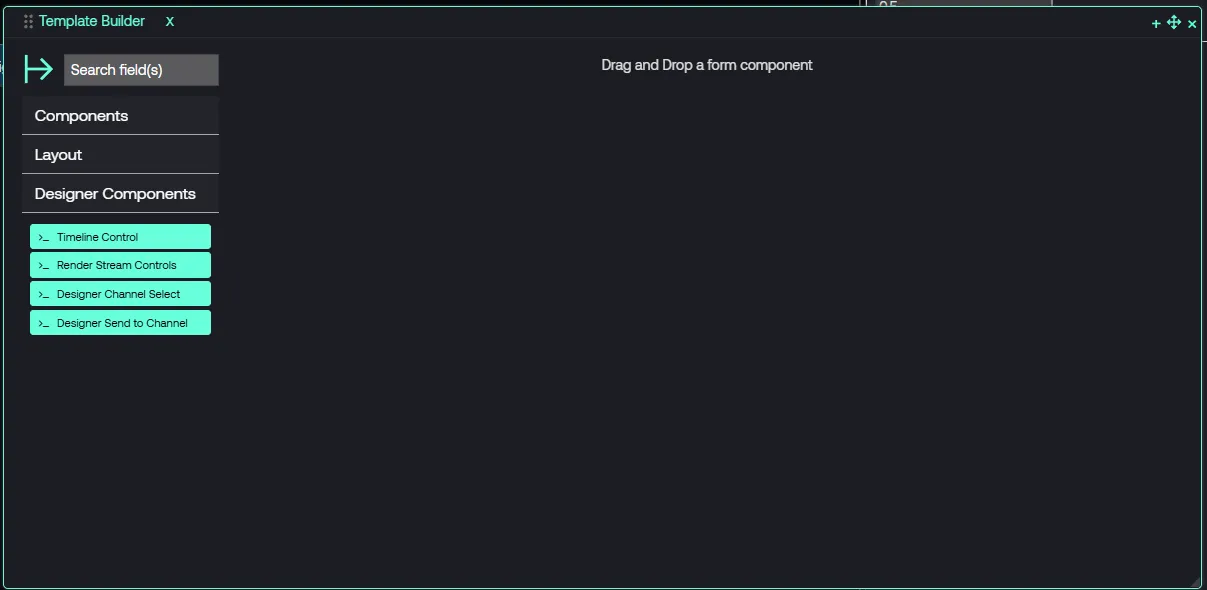
Section titled “Step 4: Add the Timeline control component”Drag the Timeline Control component from below Designer Components component and drop into the right-hand form panel of Template Builder.
This will expose the available Timeline and Transport controls.
Step 5: Save the Template and create a Page
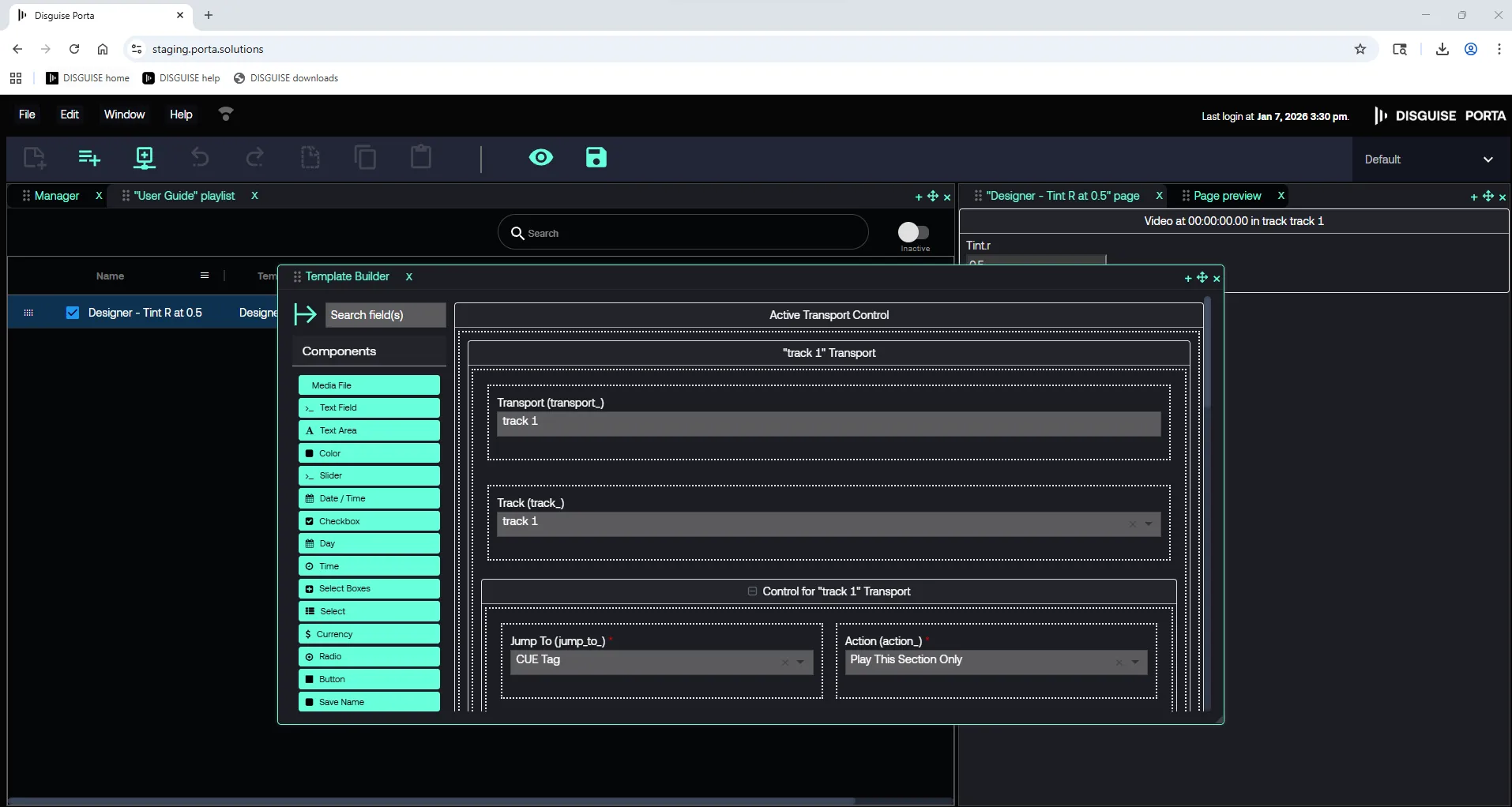
Section titled “Step 5: Save the Template and create a Page”Save the template, then create the page Active Transport Control using this template to store the specific programming.
In the example below, the page triggers:
- CUE 001 on Track 1
- CUE 202 on Track 2
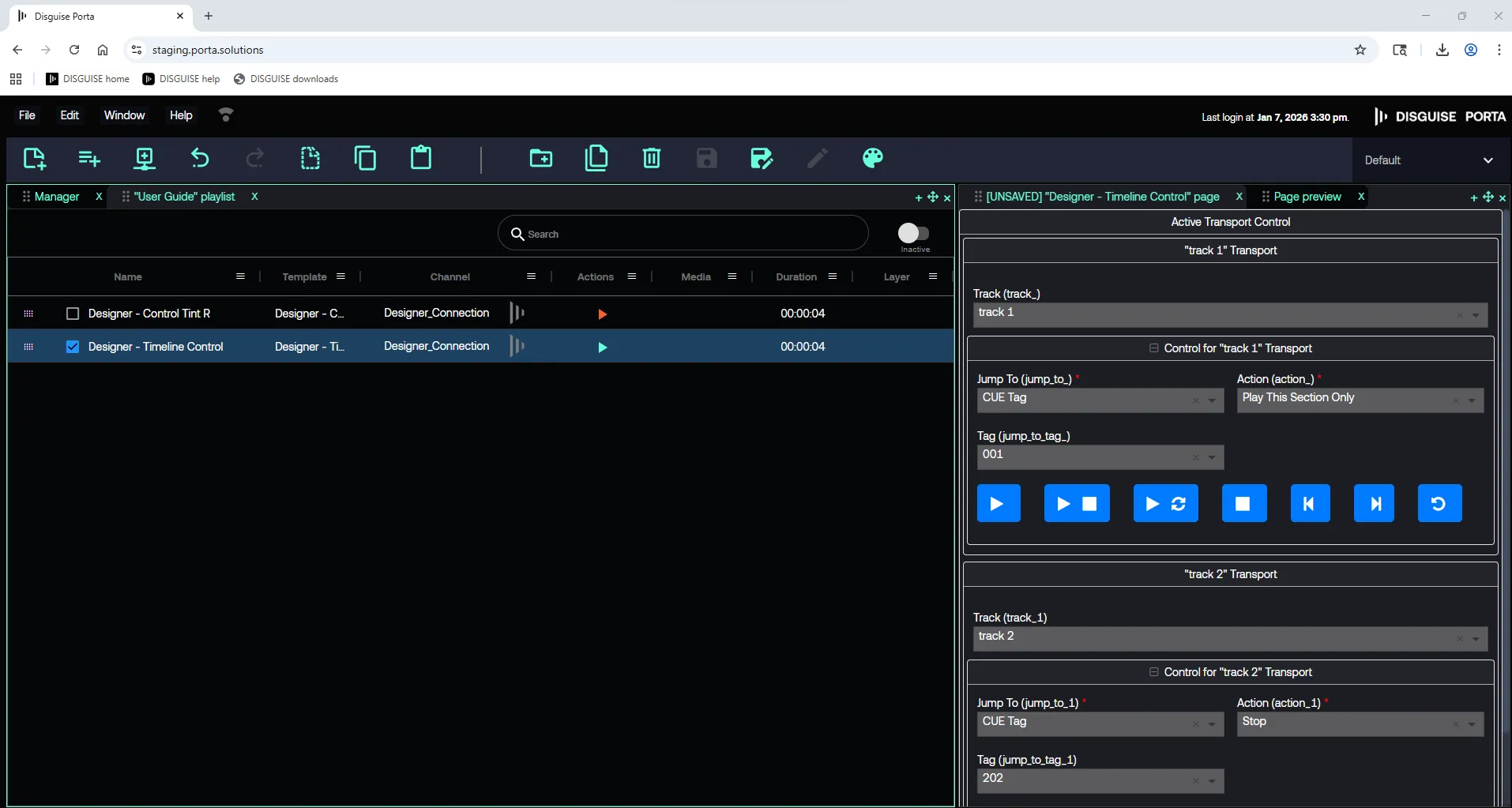
By adding a page to a playlist, the Active Transport Control panel is available.
Step 6: Trigger Timeline Cues
Section titled “Step 6: Trigger Timeline Cues”Trigger the CUE changes directly in Designer using the playback controls in Porta.