

MoveAI Driver
The MoveAI Driver integrates real-time markerless motion-capture data from MoveAI systems into Disguise.
MoveAI generates high-quality skeletal tracking data using computer vision, allowing performers’ movements to drive virtual characters, animation systems, and automation workflows within a Disguise project.
The driver provides controls for how Disguise interprets and visualises incoming skeletal data, including optional automatic creation of tracked points for each joint.
The workflow includes configuring the Position Receiver device and adding a Position Driver > MoveAI.
Use the MoveAI Driver when bringing MoveAI’s markerless performance capture into Disguise for real-time animation, visualisation, or interactive control.
This driver is especially useful when:
- Driving virtual characters or digital doubles using live performer movement.
- Controlling scene objects, effects, or logic with joint-based motion.
- Integrating MoveAI tracking into AR, xR, or virtual production workflows.
- Previewing live skeletal poses inside Disguise during rehearsal or setup.
- Creating interactive systems where body motion triggers events or behaviours.
- Recording movement sequences for Previz or real-time playback.
MoveAI’s skeletal data is well-suited for high-precision movement, full-body performance capture, and real-time character animation.
Workflow
Section titled “Workflow”Connecting MoveAI to Disguise involves both Designer-side and MoveAI-side configuration:
- Add a Position Receiver device in Disguise.
- Add a MoveAI Position Driver to the Position Receiver — select MoveAI from the driver picker.
- Configure the driver — see Driver Properties below.
- Configure MoveAI — in MoveAI Studio/Live, enable network streaming, set the Destination IP to the Disguise machine, and ensure the output port matches the Port property below.
- Verify the connection — check the Position Receiver status to confirm packets are arriving. With Create tracked points enabled, skeleton joints appear in the Stage tree and update in real time.
Driver Properties
Section titled “Driver Properties”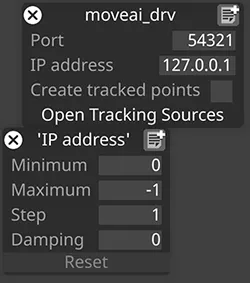
Default: 54321
The UDP network port on which Disguise receives MoveAI skeleton data.
This must match the port configured in the MoveAI streaming settings.
IP address
Section titled “IP address”Specifies the source IP address of the MoveAI system streaming skeletal data.
Set this if you want to filter incoming data to a specific device — leave blank to accept data from any IP on the network.
Create tracked points
Section titled “Create tracked points”When enabled, Disguise automatically creates a Tracked Point for every joint in the MoveAI skeleton.
This allows you to:
- View and inspect each joint position directly within Disguise.
- Reference individual joints in automation, logic, or timeline sequence.
- Drive scene objects, alignment markers, or VFX elements based on skeletal data.
- Visualise the entire body structure within the stage environment.
Disable this option if:
- You only need body-level/global movement.
- You want to reduce scene clutter.
- You want to optimise performance for complex scenes.
Open Tracking Sources
Section titled “Open Tracking Sources”These settings define how incoming tracking values are processed before being applied to axes or objects.
IP address
Section titled “IP address”Specifies which MoveAI source IP is used for this tracking entry.
Minimum / Maximum
Section titled “Minimum / Maximum”Sets the input value range used to normalise incoming motion data.
Useful when calibrating individual joints or limiting movement ranges.
Configures the initial alignment or offset between the incoming data and your scene setup.
Damping
Section titled “Damping”Reduces sudden or rapid movements by applying smoothing to the incoming data.
Useful for stabilising jittery joint motion.
Developer Documentation