

ONNX AI Models in Notch
From Notch 2026.2 you can run ONNX (Open Neural Network Exchange) AI models in Notch through the AI Model Post-FX node, processing video in real time on your Disguise media server’s NVIDIA GPU. This page covers what runs on Disguise hardware and the things to watch for. For the full setup and usage instructions, refer to Notch’s own documentation and follow the videos.
Notch also ships with built-in AI integrations, such as the YOLO, AI Hand Tracker and AI Face Tracker nodes not covered here.
What is supported
Section titled “What is supported”- New in Notch 2026.2, through the AI Model Post-FX node. This first implementation supports image-to-image models only.
- On import, Notch compiles the model into a TensorRT engine file (
.trt) optimised for the exact GPU, driver and CUDA version of the machine. The.trtfile is therefore machine-specific, so moving a project to another media server triggers a recompile. - Some models import and run straight away. Others use dynamic tensors and need their dimensions set in the Notch Inspector.
Requirements on a Disguise media server
Section titled “Requirements on a Disguise media server”- A supported NVIDIA GPU. See the Notch v1.0+ Compatibility Table for which servers can run Notch. AMD GPUs do not support CUDA and cannot run AI models in Notch.
- CUDA, TensorRT and a compatible NVIDIA driver. On launch, Notch 2026.2 requires CUDA 12.9, TensorRT 10.15.1 and NVIDIA driver 576.02 or newer. Check Notch’s documentation for the current versions and installation steps.
- Sufficient video memory (VRAM) to load, convert and run the model.
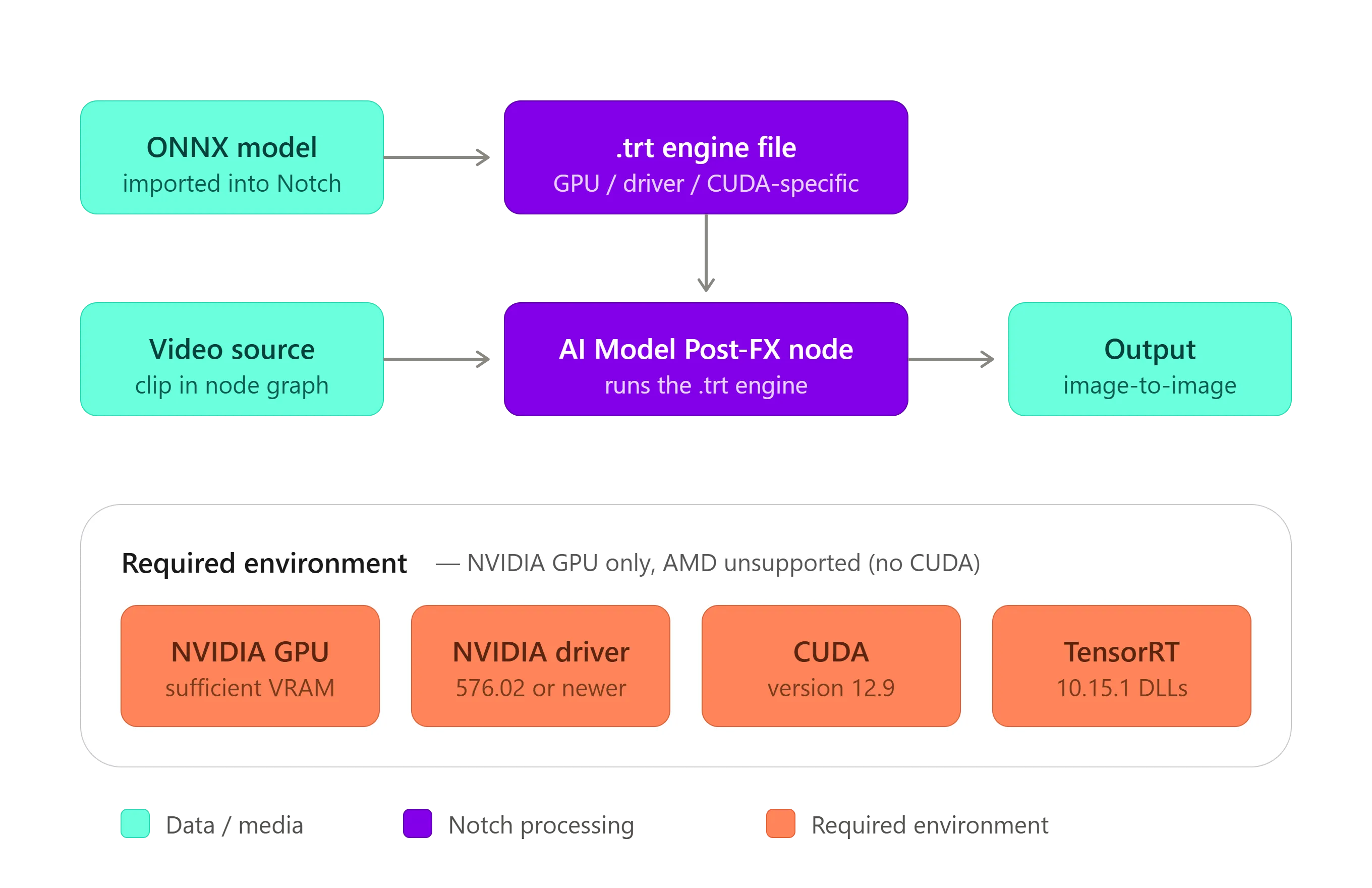
The Notch 2026.2 AI model workflow and required environment on a Disguise media server.
Advisories
Section titled “Advisories”- NVIDIA Background Removal may not function correctly when used alongside the Notch ONNX model workflow.
- Some Disguise media servers have locked NVIDIA driver versions that may not meet the requirement, so check your server can run the driver Notch needs.
- Sufficient VRAM must be available to load, convert and run AI models.
- AMD GPUs are not supported.
Setup and usage
Section titled “Setup and usage”For the full, current instructions, follow Notch’s official documentation. This covers installing CUDA and TensorRT, setting the TENSORRT_DIR environment variable, importing a model through Import Resource > AI > ONNX Model, managing dynamic tensors in the Inspector, and troubleshooting a model that will not run.
Troubleshooting
Section titled “Troubleshooting”ONNX models have fairly strict requirements, so implementing them can be challenging. The issues below are the most common, along with the steps to identify and resolve them. For general Notch block issues that are not specific to AI models, see Notch Troubleshooting.
Block load times
Section titled “Block load times”When you use an ONNX model, Notch compiles it into a .trt file for use within the block. This conversion is unique to the GPU, driver version and CUDA version installed on the machine, and generating the .trt file can take a considerable amount of time depending on the complexity of the model.
Be aware of this when loading a block, particularly in production, where media servers may use different GPU models. In these cases the model must be converted for each unique hardware configuration.
- Pre-load the block. Load it onto your media servers ahead of rehearsals.
- Check VRAM. Confirm you have the VRAM required to load, convert and run the model.
For more on media server integration, see the Notch Manual on AI in Notch blocks.
The model is not working within a block
Section titled “The model is not working within a block”This is typically caused by one of three issues:
- CUDA version. Confirm the correct CUDA version is installed and that it is compatible with the installed GPU drivers. If the CUDA installation or driver version is incorrect, the
.trtfile will not generate successfully. - TensorRT DLLs. Verify that the environment variable is configured correctly and that the TensorRT DLLs are available at the specified path. The DLLs must also match the version of CUDA installed on the machine.
- AI model path. The Notch block must be able to access the AI model file at the same path used when the block was created. If the model has been moved, or the path has changed, the block cannot generate the required
.trtfile.
For detailed setup instructions, see the Notch Manual on AI models.
Genlock or output has stopped working after installing the CUDA Toolkit
Section titled “Genlock or output has stopped working after installing the CUDA Toolkit”The CUDA Toolkit installer offers two options:
- Express installs both the CUDA Toolkit and the recommended NVIDIA GPU drivers. This is usually the right choice for development workstations, as it installs CUDA with compatible drivers.
- Custom installs the CUDA Toolkit without updating the existing GPU drivers. This matters on media servers, where specific driver versions may be required for compatibility with media server software.
When working with media server hardware, choose Custom so the installer does not replace the qualified GPU driver.
Some machines play back the ONNX model while others cannot
Section titled “Some machines play back the ONNX model while others cannot”In production it is common to synchronise folders across machines using third-party file synchronisation software. If you synchronise your ONNX models, target only the model files themselves (the .onnx files). Do not synchronise the entire folder.
The generated .trt files are stored in the same directory as the ONNX model. Since .trt files are specific to the GPU, driver version and CUDA version of each machine, every system may need its own .trt file. A .trt file generated on one machine and copied to another with a different configuration may fail to load or behave unexpectedly.
© 2026 Disguise