

Exposed Parameters in Unity
The Unity plugin allows you to expose certain options for each component of an object available within the scene. These options will be presented as parameters within the RenderStream Layer in Designer. Modifying the value of a parameter in turn changes the value of the corresponding option in Unity thus altering the options of the selected object within the scene.
Exposing any parameter in Unity
Section titled “Exposing any parameter in Unity”- Select an object from within the scene (e.g. any light source).
- Select Add Component at the bottom of the Inspector panel.
- Add the Remote Parameters component.
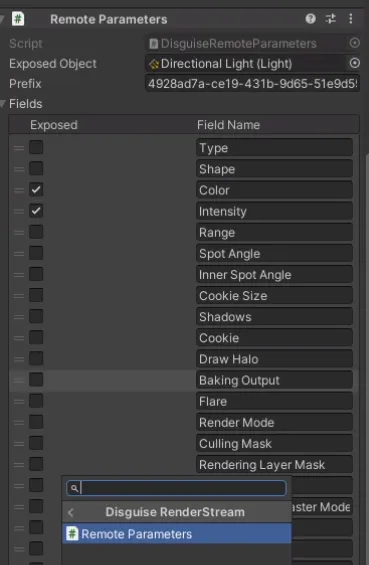
- Drag and drop the component you wish to expose (e.g. Light) into the Exposed Object field.
- Expand the Fields separator.
- Select all options you wish to expose (e.g. Colour and Intensity).
- Save all changes.
- Build the project.
- Save and close Unity.
- Ensure that the build folder is copied to your RenderStream Projects folder.
- Open the RenderStream layer in Designer and start the workload.
- Modify parameter value(s) in the RenderStream widget in Designer.