

Checkpointing Projects
A checkpoint locks a project to the Designer version it was built with. The project keeps running on its own copy of Designer even after you upgrade the installed version, so you can upgrade freely without changing how a finished project behaves. You can return the project to the installed version at any time.
Checkpoints are intended for archiving and demonstration, such as keeping a portfolio project or a known-good demo runnable on a machine that has since been upgraded. Create them only once a project is finished. They are not intended for running shows.
What a checkpoint contains
Section titled “What a checkpoint contains”Creating a checkpoint saves all open resources, then copies the running Designer build, its bundled scripts and shaders, and every .d3 project file in the project folder into the project’s checkpoint folder. Because this is a complete copy of Designer, expect it to use a similar amount of disk space as an installation.
Media, plugins and the installed d3Manager and d3service are not included. See Limitations.
Creating a checkpoint
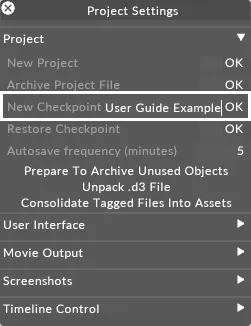
Section titled “Creating a checkpoint”- Open Project Settings by right-clicking d3 on the dashboard and selecting Project Settings.
- In the Project section, type a name for the checkpoint into the New Checkpoint field and press
Enter. - Wait for the confirmation message,
Designer checkpoint <name> complete. - Relaunch the project.
The checkpoint becomes active when the project next launches, not at the moment you create it. Once it is active, Designer displays Running from checkpoint <name> above the logo. If that text is absent, the project is running on the installed version.
Checkpoint names become folder names on disk, so keep them short and avoid characters that Windows does not allow in file paths.
Reverting to the installed Designer version
Section titled “Reverting to the installed Designer version”- With the checkpointed project open, open Project Settings.
- In the Project section, select Revert To Installed Designer. This button only appears when the project is running from a checkpoint.
- Relaunch the project.
The checkpoint is kept so that you can restore it later. Do not disable a checkpoint by renaming or deleting the checkpoint folder by hand unless you want to lose all record of it.
Restoring an earlier checkpoint
Section titled “Restoring an earlier checkpoint”- Open Project Settings.
- In the Project section, type the name of the checkpoint into the Restore Checkpoint field and press
Enter. - Relaunch the project.
The checkpoint that is currently active cannot be restored, so revert it first if you want to swap to a different one.
Limitations
Section titled “Limitations”A checkpoint locks Designer alone, which is worth understanding before you rely on one.
- Designer only. d3service, d3Manager, graphics drivers and firmware always run at the installed version. A checkpoint reproduces the Designer build a project was authored with, not the state of the whole machine. A long-archived checkpoint may not be able to communicate with the installed software at all.
- One machine at a time. Checkpoints are not copied between machines by project sync. In a Director and Actor session, each machine decides independently whether it has a checkpoint, so unless every machine has the same one, the session can run a mixture of Designer versions with only a warning. Revert the checkpoint if you have trouble starting a session.
- Media and plugins are not covered. A checkpointed project reads media from the current project folder, so later changes to your media will show up in it. Plugins are not captured.
- Not available in Designer Starter. Starter cannot create, revert or restore checkpoints. It can open and run a project that already carries one, provided the correct Designer license is available on that machine.
Troubleshooting
Section titled “Troubleshooting”If a project does not launch on the build you expect, check console_d3stub.txt. To find it, open d3Manager and select Help > Open Console folder. That file records which build was chosen and reports any mismatch between the project file version and the Designer version.
© 2026 Disguise