

Libraries and Assets
Mapping Matter splits content into per-project libraries (private to your project) and a platform demo library (read-only, available to everyone). Meshes, textures, projectors and layouts all share the same browser overlay pattern, with grid/list display and search.
Scenes are managed from the Disguise Cloud launcher, not from inside Mapping Matter; see Open or create a scene.
3D asset library
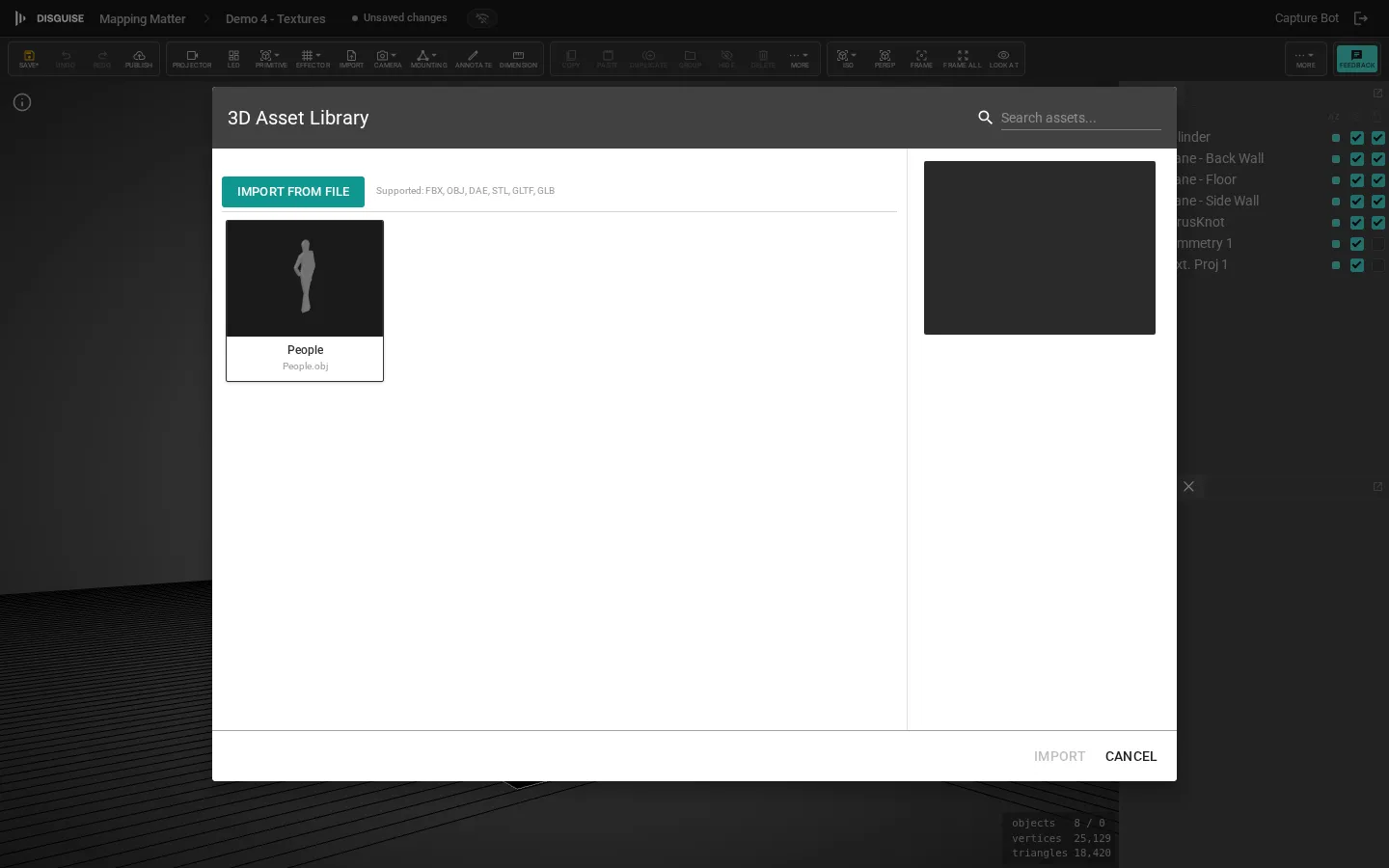
Section titled “3D asset library”The 3D asset library holds imported meshes. Click Import in the toolbar add cluster to open the library overlay.
Supported formats: .fbx (binary), .obj, .dae, .stl, .gltf/.glb. Maximum saved size is 100 MB; larger files can still be loaded locally for the current session.
Import Settings
Section titled “Import Settings”When you pick a file the Import Settings overlay opens. Set the file unit, the scale, and the rotation before confirming. The Bounds block shows two rows so you can sanity-check both the scene scaling and the picker:
- Bounds: the mesh extent expressed in the scene’s current dimension unit. Switch the scene’s dimension unit and this row’s magnitude rescales.
- In Source: the raw bounding-box value in the unit you picked under Original File Units. Switch the picker and this row’s unit label changes but the numbers stay the same.
A Scale Reference dropdown drops a translucent fixed-size helper next to the mesh while the overlay is open so you can eyeball its size before committing:
- Yellow Human: a 1.8 m figure (default).
- 1 m³ Cube: a one-metre wireframe cube.
- None: no helper.
The helper renders at 50% opacity (so scene geometry remains visible through it) and sits a sensible distance from the import: small mm-scale imports get a 500 mm gap so the figure isn’t on top of the origin, larger imports scale proportionally. The helper disappears on confirm or cancel.
Editing an imported mesh’s colour
Section titled “Editing an imported mesh’s colour”When a mesh has a single default material (no named material groups from the source file), the Properties panel shows its material controls inline, right below the Edit Reference button, so you can recolour, retexture or tweak opacity without switching modes. As soon as an imported mesh has named material groups, the inline panel disappears and the material controls move back inside Edit Reference, where you can pick which group to affect.
Delete an asset
Section titled “Delete an asset”The details pane of a user-imported mesh has a Delete asset action. Deleting removes the mesh from the library and stops it appearing in future scenes; instances already placed in your scenes keep their geometry until Disguise’s background sweep runs (currently a 90-day retention window), so a mistaken delete is recoverable inside that period. The platform demo library is read-only, so Delete is only exposed for meshes your organisation owns.
Optimisation tips
Section titled “Optimisation tips”For best performance:
- Reduce unused geometry: delete loose vertices and hidden meshes.
- Merge meshes by material where possible.
- Export as
.fbxbinary or.glb(compact, fast to load). - Avoid embedded textures over 4096 × 4096; assign textures separately from the texture library.
Texture library
Section titled “Texture library”Textures cover stills (.jpg, .png, .webp, .gif, .bmp) and short clips (.mp4, .webm, .ogg). Maximum size 50 MB.
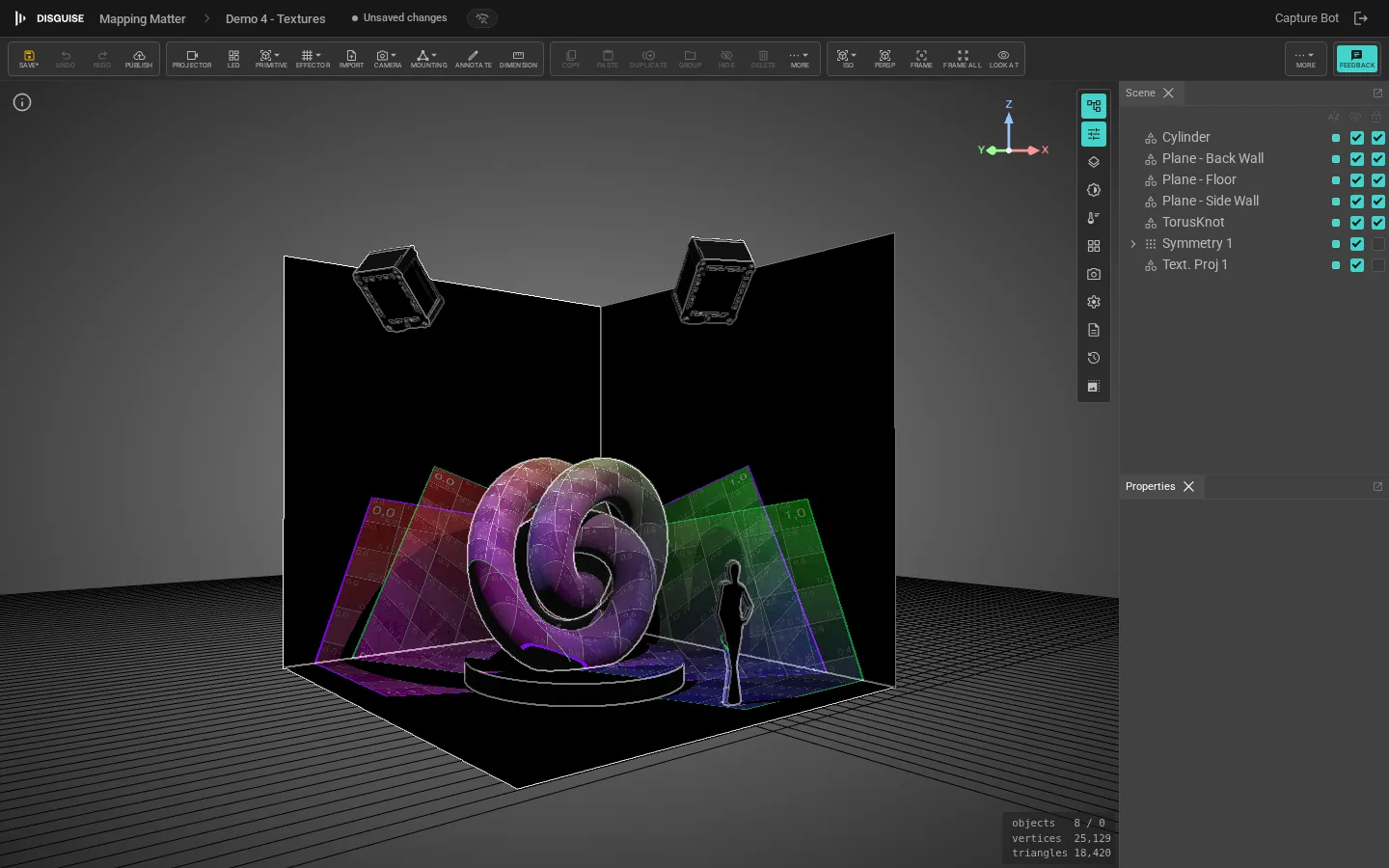
Textures are assigned to projectors (as the projector image) or to meshes (as base map or projection map) via the Properties panel.
Projector library
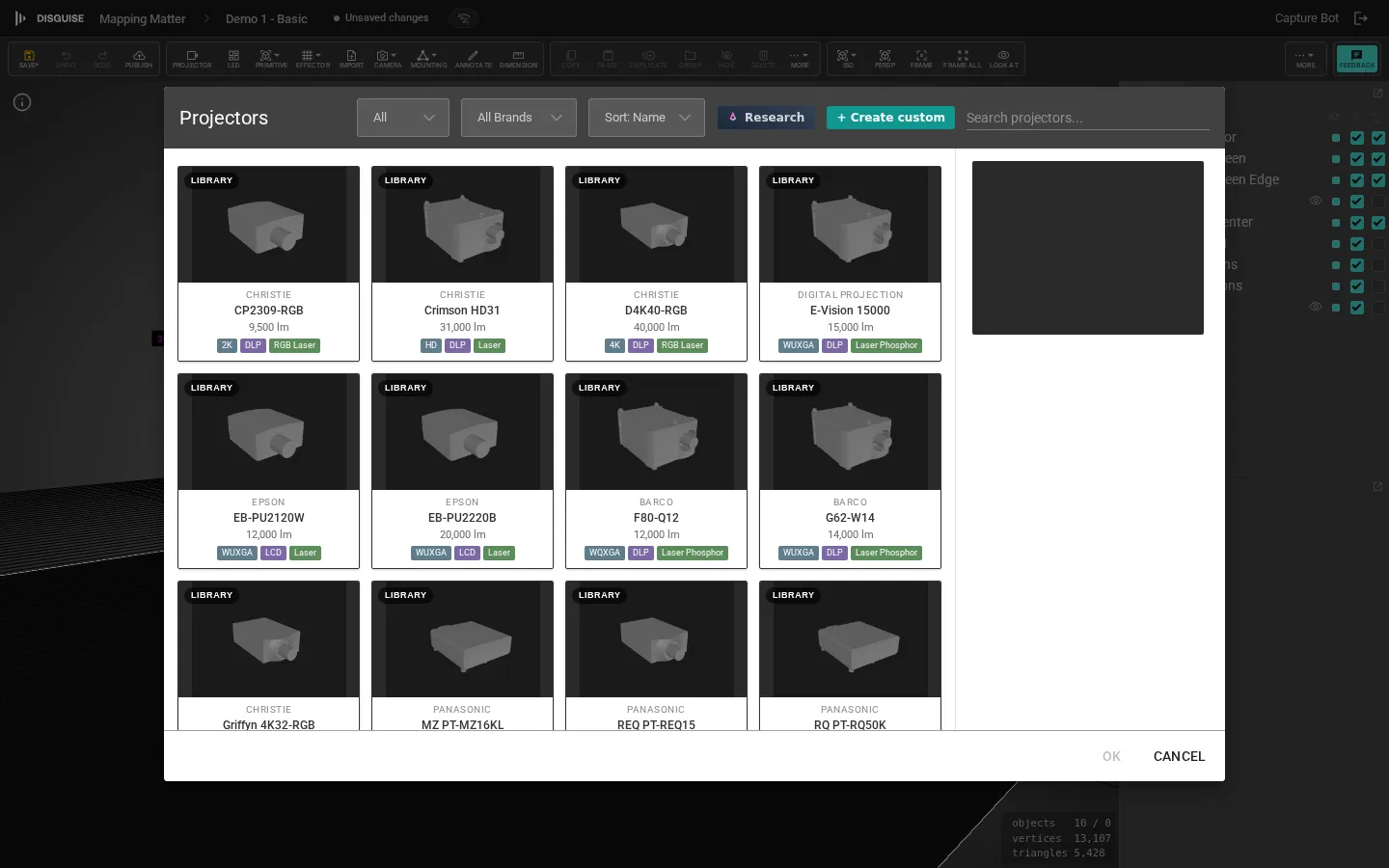
Section titled “Projector library”The projector library lives in the same overlay pattern. Catalogue models are read-only; your project can also contain custom projectors that appear alongside catalogue entries.
Each card has a small flag icon; click it to report wrong specifications (incorrect throw ratio, missing lens, wrong lumens). The pre-filled dialog routes to the Disguise team via the same pipeline as the toolbar Feedback button.
Ownership scope
Section titled “Ownership scope”Every custom projector has an ownership scope that determines who sees it:
- Project: private to the current Production. Only members of the Production see the projector.
- Organisation: shared with every Production in your organisation. Anyone in the org sees the projector in the library, whether or not they’re on the current Production.
- Global: the read-only platform catalogue. New custom projectors can’t be added here.
When you create a new custom projector the ownership scope defaults to Project. Use the scope selector in the projector’s edit dialog to promote it to Organisation so the rest of your team can pull it into any of their scenes without re-creating it. The launcher’s Sharing & Teams area exposes the whole org projector library as its own section, where organisation admins can rename, delete, or scope-move entries from one place.
Legacy Mapping Matter customers can also import their existing custom projectors directly into the org library from the launcher, without having to open a scene.
LED library
Section titled “LED library”The LED library opens from the toolbar LED button. It uses the same overlay pattern as projectors: filter by brand, sort by name or pixel pitch, switch between catalogue tiles and your project’s own entries. If a tile model isn’t in the catalogue, use + Create custom to add it to the project.
Truss library
Section titled “Truss library”The truss library opens from the toolbar Mounting popover’s Truss library… entry, and covers both truss profiles and mounting bases. Filter by cross-section or by the TRUSS / BASE toggle, then double-click an entry to add it to the scene. Custom trusses and bases are project-scoped and appear alongside the catalogue.
AId3n in the libraries
Section titled “AId3n in the libraries”The Mapping Matter libraries are wired into AId3n, the Disguise AI assistant, so you can ask it to research a piece of kit and produce a custom entry rather than typing every field by hand.
- Each library overlay has an Ask AId3n to research call-to-action and a persistent Research button in the projector and LED library toolbars.
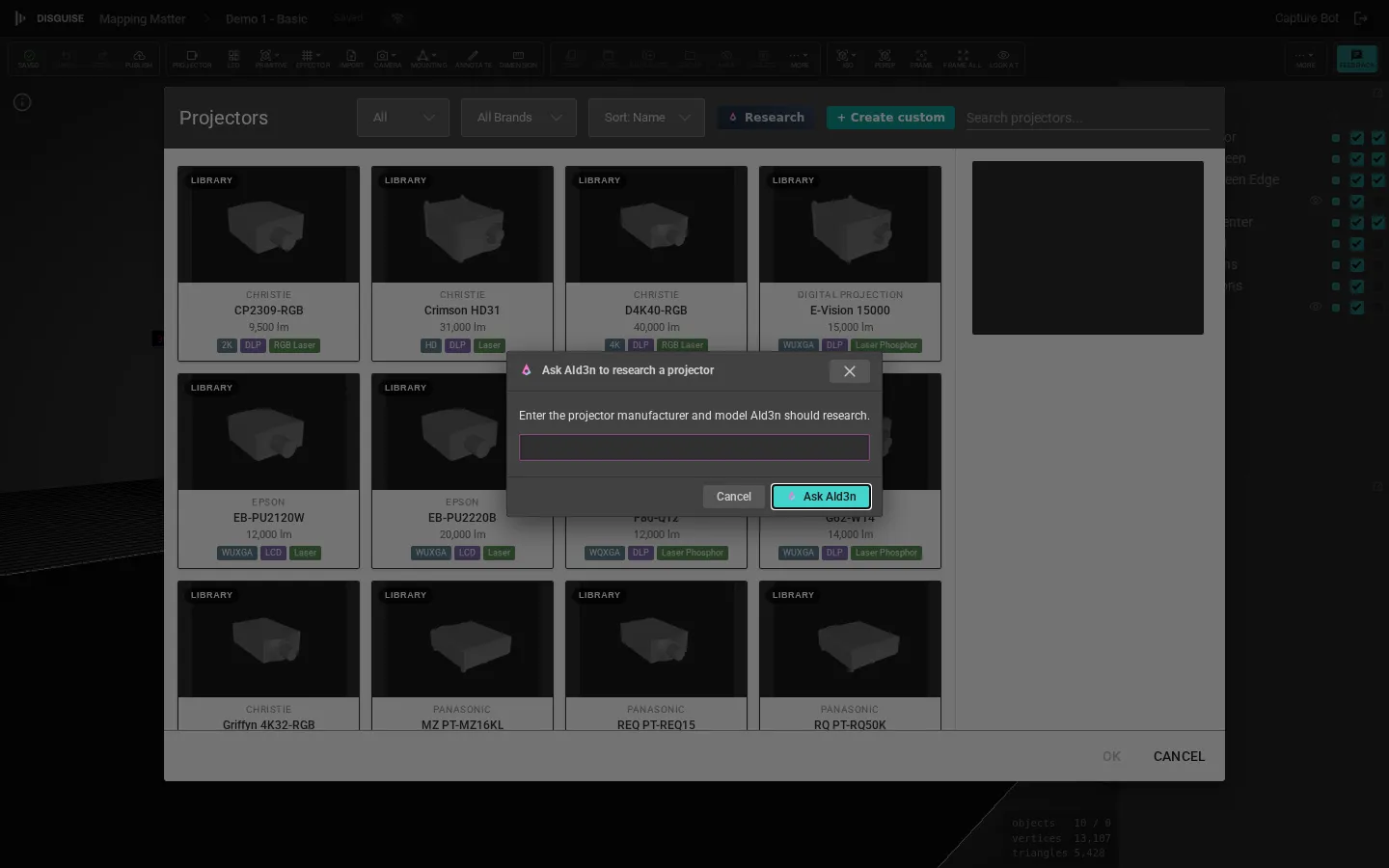
- Give AId3n a model name or paste a datasheet; it’ll suggest spec values, propose a mesh, and surface them as an “AId3n suggests” banner you can accept, tweak, or discard.
- For meshes, a phase indicator shows progress (research → mesh search → preview).
- AId3n suggestions never overwrite catalogue entries; they create or update custom entries in your project, so the platform-wide catalogue stays trustworthy.
AId3n usage is metered against your organisation’s credits; see your Disguise Cloud dashboard for the running total.
Layouts
Section titled “Layouts”A layout is a reusable PDF template with a title block, table of projector specs, page size, and viewport pose. Save the current PDF layout from the toolbar Export dropdown to add it to the layout library, then reuse it on other scenes.
See Export & PDF layouts.