

Measurements and Annotations
Mapping Matter has two markup tools, both reached from direct buttons in the viewport toolbar’s add cluster: Dimension (numeric measurement labels) and Annotate (freehand drawing). Both create real scene objects that persist across save and load, and both can be included in published snapshots and PDF layouts.
Dimensions
Section titled “Dimensions”Click Dimension (or press T) on the toolbar, then click two points in the viewport to place a distance label. For an angle, click three points.
Vertex snap works across objects: pick the first point on one mesh and the second on a different mesh, and the tool will still snap to the nearest vertex on whatever’s under the cursor. You can also orbit and pan while placing points; small drags (under about four pixels) are treated as a click, larger drags are treated as camera moves and don’t drop a stray point when you release the mouse.
Each dimension carries:
- Value: the live numeric reading in the scene unit (mm, cm, m, ft, in).
- Label: optional free text.
- Style: leader colour, font size, decimal places.
- Visibility: toggle from the dimension’s properties or hide via the Scene panel.
Dimensions are attached to scene geometry by default, so moving the underlying object moves the dimension with it.
Annotations
Section titled “Annotations”Click Annotate (or press A) on the toolbar to start a freehand annotation. Draw on screen; release to commit.
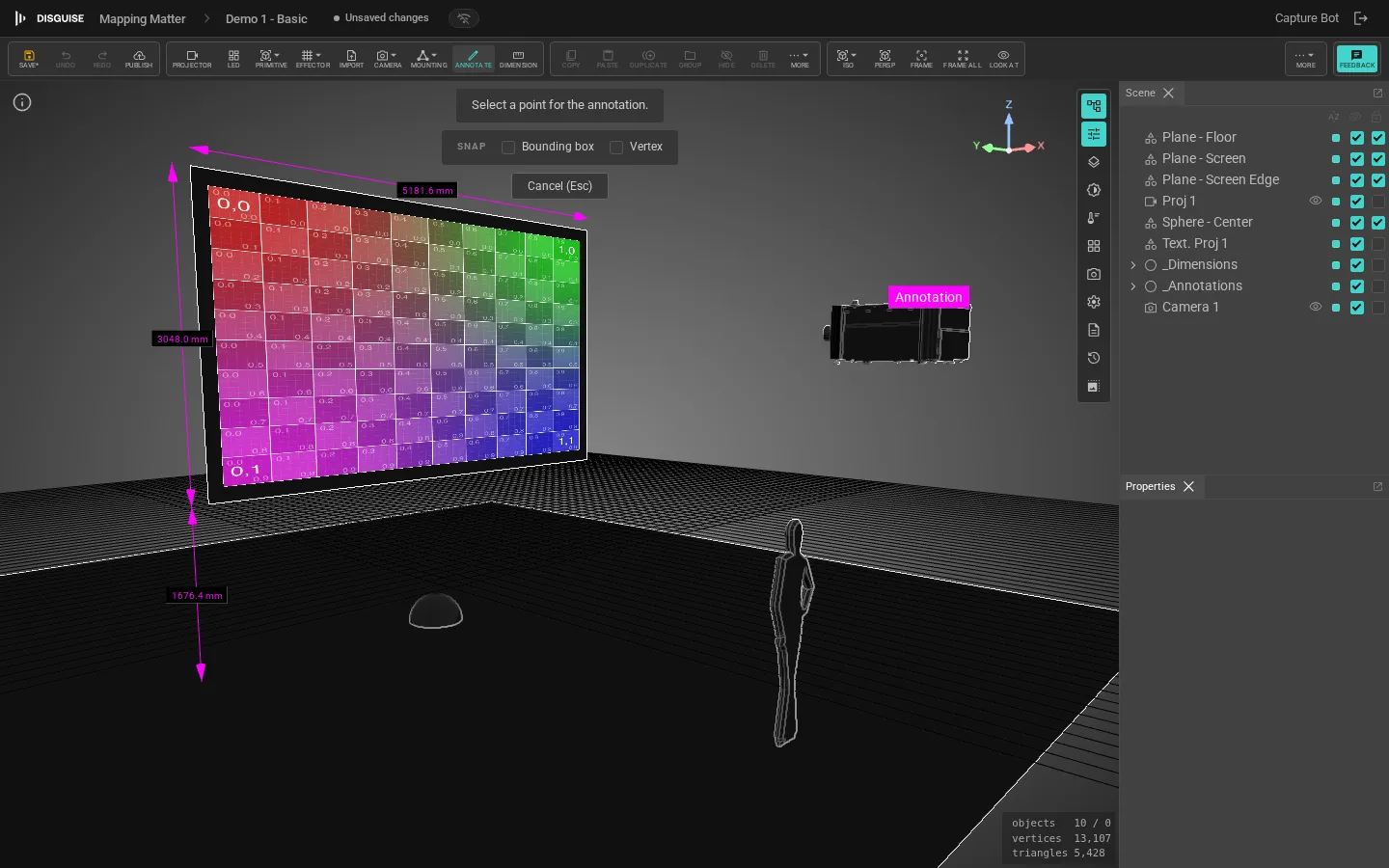
Annotations live on a layer in the Scene panel and can be hidden or excluded from snapshots like any other layer.