

Publish and Share
When a design is ready for review, publish a snapshot and share it. Shares come in two flavours: link shares are anonymous and can be opened by anyone with the URL (with an optional password), and user shares invite specific people by email.
Publish a snapshot
Section titled “Publish a snapshot”Click Publish & share on the toolbar (the cloud-upload icon, far-left cluster) to open the Publish & Share dialog. On the Publish tab, enter a name and confirm the title block before clicking Publish snapshot.
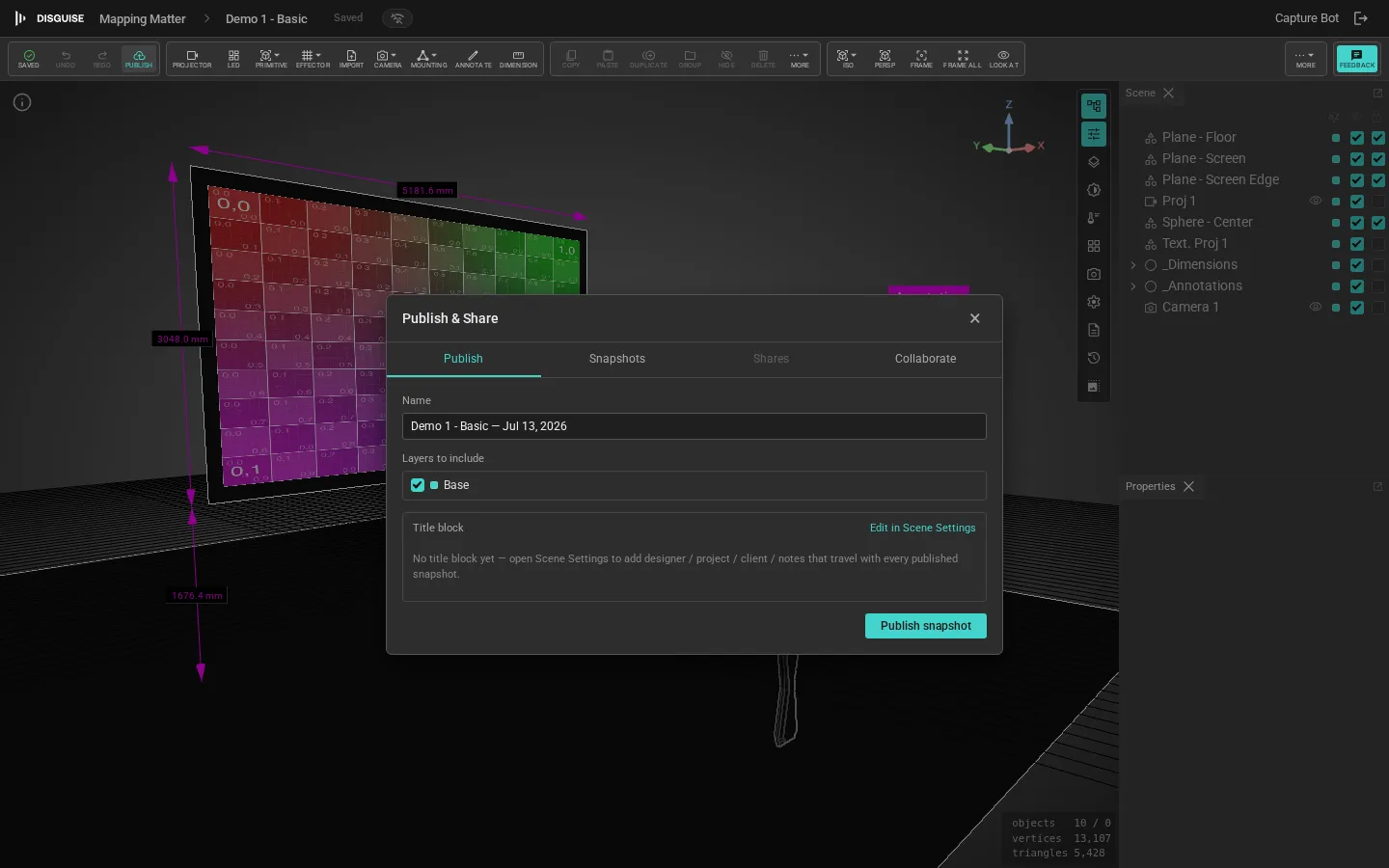
In the dialog:
- Name: a short label for the snapshot (e.g. “v1 client review”).
- Title block: project name, designer, version, date, free-text notes.
- Included layers: pick which scene layers to include in the snapshot. Hidden layers are not published.
- Visibility: read-only is the default; the viewer cannot edit, but can toggle layer visibility within the included layers.
Click Publish to create the snapshot. You can then add one or more shares.
Share a snapshot
Section titled “Share a snapshot”In the snapshot’s overflow menu, choose Add share…
Link share (anonymous)
Section titled “Link share (anonymous)”A link share generates a long, unguessable URL that anyone with the link can use. Optionally set a password; if set, the viewer must enter it before they can see the scene.
Link shares are good for client review where you don’t want to know everyone who’ll see the design, or where the recipient list is large.
User share (per-email invite)
Section titled “User share (per-email invite)”A user share grants access to a single email address. If the email matches a Disguise Cloud account, the recipient sees the snapshot in their dashboard; if not, they receive an invitation email with a sign-in link.
User shares are auditable: you see exactly who has access and can revoke individual recipients.
Manage shares
Section titled “Manage shares”The snapshot’s panel lists all of its shares with:
- View count: number of times the share has been opened.
- Last viewed: most recent open.
- Revoke: disable the share. Existing viewers lose access immediately; the share row stays visible for audit.
You can also revoke the snapshot itself to invalidate every share in one go.
The viewer experience
Section titled “The viewer experience”When a recipient opens a share, they land on a read-only viewer with:
- The scene in a navigable 3D viewport.
- The title block, designer name, and notes.
- A layer-visibility panel limited to the layers the snapshot includes.
- A switch for the brightness viewport if it’s enabled on the snapshot.
The viewer never sees the original scene, your project structure, or other users’ identities. There is no edit affordance.
Revoking and rotating
Section titled “Revoking and rotating”If a link leaks, revoke it. To replace a revoked link with a new URL, add a new share. There is no “rotate” action that keeps the URL but changes the secret.
Migration from legacy viewer-only links
Section titled “Migration from legacy viewer-only links”The old viewer-only link is replaced by link shares. Old links continue to work but no longer accept new viewer-imported content; for that workflow, use a collaboration seat instead.