

Snapshots and Revisions
Mapping Matter has two complementary forms of versioning: revisions, the rolling per-edit history of your scene, and snapshots, locked publishes used for sharing and milestones.
Revisions: your edit history
Section titled “Revisions: your edit history”As you work, Mapping Matter auto-saves the scene a few seconds after each edit, so you don’t need to save manually. A new revision is cut only when editing settles (after a couple of minutes of idle, or when you close the scene), so a long edit session produces one revision per checkpoint rather than one per save.
Click Revisions in the bottom Panels strip to see the timeline:
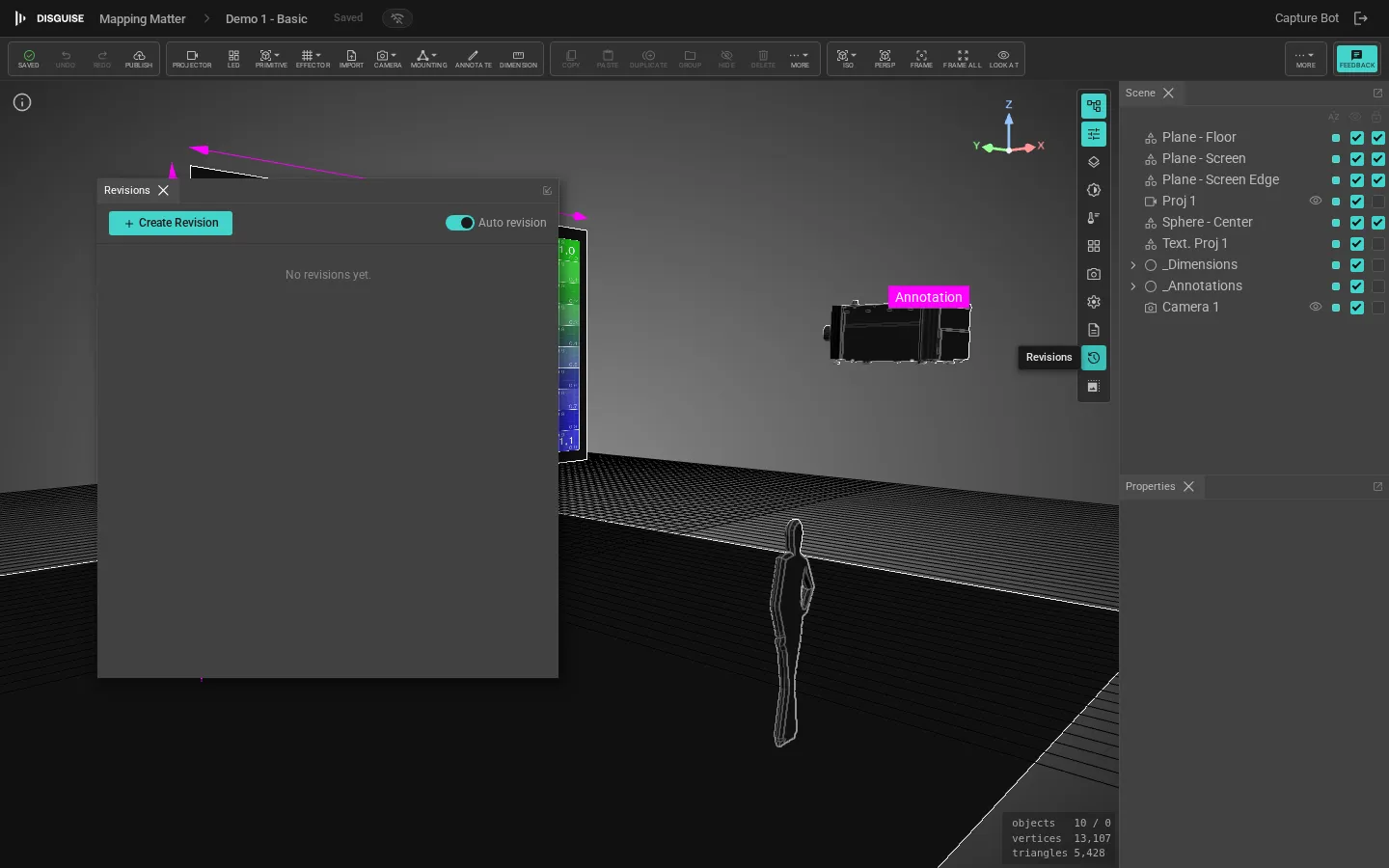
For each revision you can:
- Preview: load the scene state at that revision without committing.
- Restore: overwrite the current scene with that revision’s state. This creates a new revision so nothing is lost.
- Name: mark a revision with a label (e.g. “client review v1”) to make it easy to find later.
Revisions are retained for the lifetime of the scene. Renaming or deleting the scene removes its revisions too.
Snapshots: locked publishes
Section titled “Snapshots: locked publishes”A snapshot is a named, locked copy of the scene at a moment in time. Once published it can’t be edited, only revoked. Snapshots are how you share design intent with people outside the editor: clients, external collaborators, internal stakeholders who don’t need edit access.
A snapshot:
- Carries its own copy of all scene data, including assets. Snapshots are independent of the live scene, so editing the source scene does not change a published snapshot.
- Records a title block (project name, designer, version, date, notes) similar to a CAD drawing.
- Can include only specific layers, useful for selectively publishing the lighting layer to a sound designer, or the projection layer to a content team.
- Can be revoked, which immediately disables all of its shares.
- Tracks view counts so you know whether a client has opened the link.
To publish a snapshot, see Publish & share.
When to use which
Section titled “When to use which”| Use case | Use |
|---|---|
| Undo something I just did | Revision: restore the previous revision |
| Mark a milestone for myself | Revision: name it (“v3 - mirror added”) |
| Send a draft to a client for review | Snapshot |
| Hand off to a colleague who’ll edit further | Add them as a project member in Disguise Cloud, then they open the scene from the launcher (see Collaboration) |
| Archive the design at sign-off | Snapshot with a descriptive title block |