

Export and PDF Layouts
Mapping Matter produces field-ready documentation directly from your scene: fully customisable projection-study PDFs, projector spec CSVs, and 3D mesh exports for handoff to other tools.
Projection-study PDFs
Section titled “Projection-study PDFs”A projection study is a bound PDF report you can shape page-by-page from a set of prebuilt templates. Open PDF layouts from the bottom Panels strip.
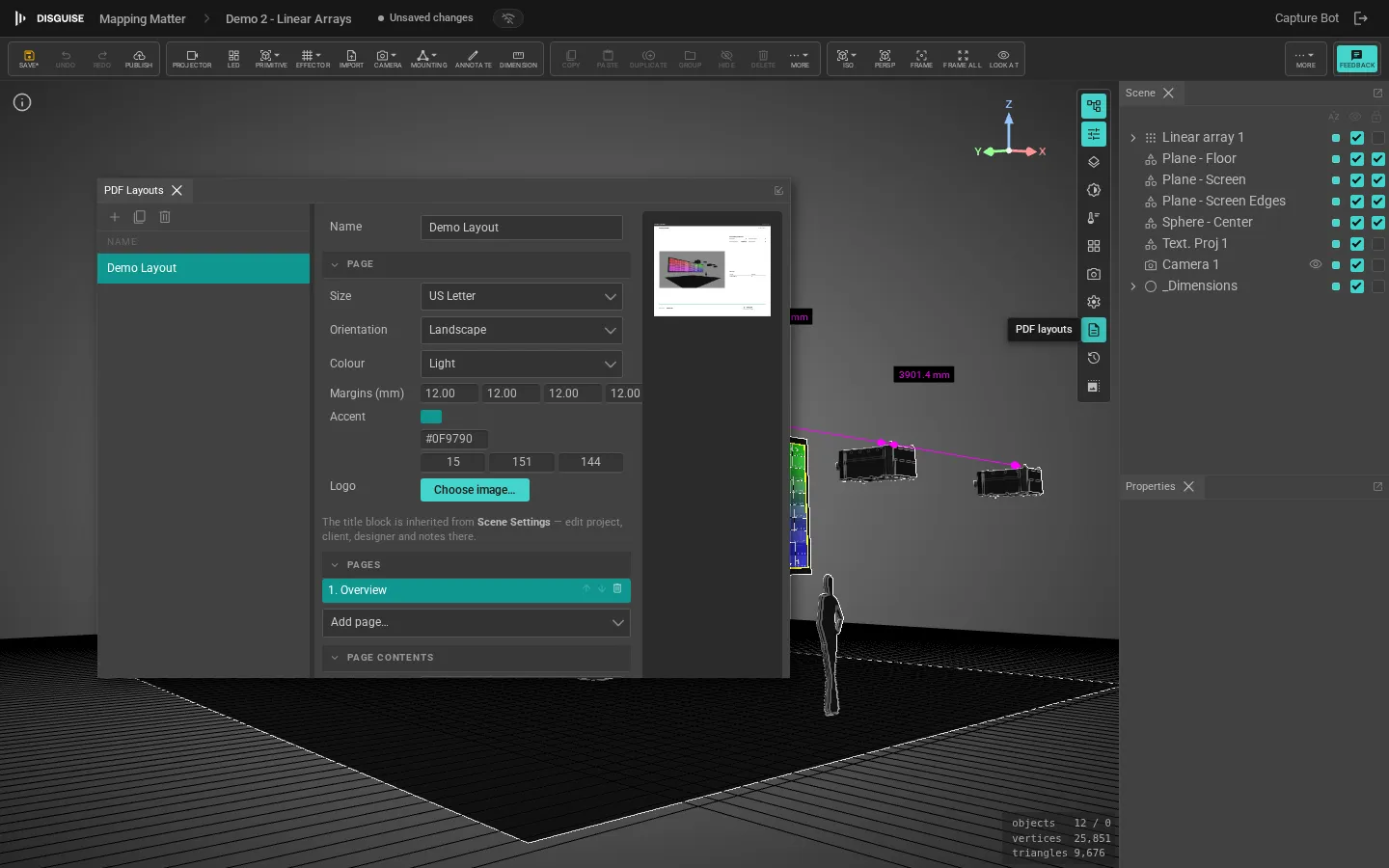
The panel has three areas:
- Global page settings: page size (ISO A4 → A0, or US Letter), orientation, and margins. Every page in the layout uses these.
- Title block: logo image, free-text title, date, version, and page-number style. Applied to every page in the layout.
- Pages list: the list of pages that will be printed, in order. Add, remove, reorder, or swap the template. Each page’s per-slot controls appear in the Properties panel when it’s selected.
Templates
Section titled “Templates”Every page picks from a set of prebuilt templates. Each template exposes typed slots that you fill:
- Cover: title block + hero render at any viewpoint.
- Scene overview: top-down or perspective render with a projector-count summary.
- Per-projector detail (repeats, one page per projector): projector’s own viewpoint, spec table, throw and lens data.
- Per-LED-screen detail (repeats, one page per LED wall): spec table, tile-layout diagram, and 3D mesh view.
- Per-observer detail (repeats, one page per Observer): POV render and human-acuity page.
- Photometric report: illuminance (lux) and luminance renders on a chosen viewpoint.
Repeat pages materialise to one page per matching object when the PDF is generated, so a scene with eight projectors and one observer produces a single Per-projector detail entry in the list but eight pages in the output.
Render slots and visualisation modes
Section titled “Render slots and visualisation modes”Any render slot on any page can be set to display one of several visualisation modes, picked per slot:
- Projection output: the beams-on-geometry view.
- Pixel density: pixels per unit length on the surface.
- Pixel stretch: the anisotropy of a projector’s pixels on the surface.
- Illuminance (lux): photometric heatmap.
- Luminance: the reflected-light view.
- Visual acuity: from an Observer’s eye position.
The colour bar and legend follow the scene’s active units and the panel’s scale settings, so a lux page in a scene set to lumens per square metre reads the same as it does in the viewport.
Live preview + generate
Section titled “Live preview + generate”The panel shows a live preview of the assembled document: swap templates or edit a slot and the preview updates in place. Click Generate PDF to render the final vector PDF using the scene’s real render pipeline (via a headless HTML→PDF service). If no render service is configured the editor falls back to a browser print preview using the same layout, so you can still produce the deliverable locally.
Generating a PDF never dirties the scene or flickers a mode to collaborators; the export uses an isolated render config that autosave and realtime broadcast ignore.
Reusing layouts across scenes
Section titled “Reusing layouts across scenes”Save a study to the layout library from the panel’s overflow menu. The whole page list, templates, slot settings, and title block are stored together, so you can drop the same study configuration onto a new project and just re-generate.
Export menu
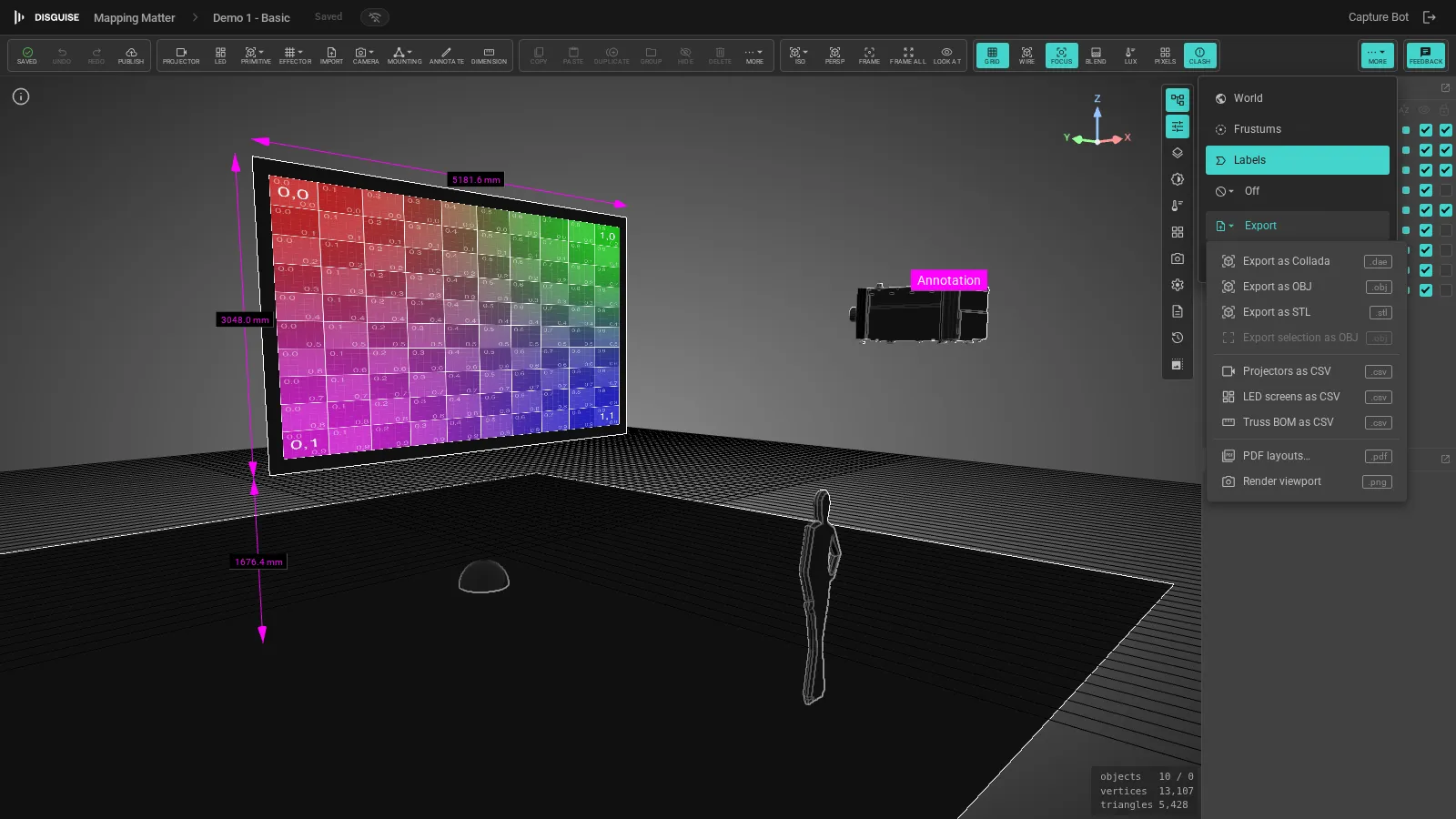
Section titled “Export menu”Click Export on the right side of the toolbar to open the export dropdown:
CSV export
Section titled “CSV export”The Projectors as CSV and LED screens as CSV actions in the Export dropdown produce row-per-object specification tables. Useful for handoff to media servers (Designer, Notch, others) that import scene metadata.
Projector and LED CSV files are written without a UTF-8 byte-order mark so the Designer importer can parse them directly. Truss BOM as CSV still includes the BOM so Excel renders the multiplication sign in dimension columns correctly.
The Truss BOM as CSV action emits a rigging bill of materials: one row per truss (type, profile, dimensions, mass), one row per base, plus per-truss attachee rollups walked through any Symmetry copies so projector and LED counts reflect what’s actually rigged. See Trusses & mounting.
3D mesh export
Section titled “3D mesh export”The Export dropdown’s Export as OBJ / Collada / STL actions emit a scene mesh containing the selected geometry (or all visible geometry if nothing is selected). Use Export selection as OBJ to limit the output to the current selection. Multi-object selections (including imported References and projector bodies) emit non-empty geometry, and the units and axis convention match the whole-scene exports (metres, Y-up).
Snapshot export
Section titled “Snapshot export”A published snapshot can also be exported as a single self-contained .zip containing the scene JSON, all referenced textures, meshes, and the title block, used for offline archives and contractual handoff.