

Timeline
What is the Timeline?
Section titled “What is the Timeline?”The terms Timeline and Track Player both refer to the section at the bottom of the interface. The reason for using two different names to describe the same section is that they suggest different meanings; whilst Timeline conveys a sense of time, Track Player refers to the function of playing a track. Therefore, both names are used synonymously within the User Guide depending on their context.
Objects within the Track Player
Section titled “Objects within the Track Player”The Track Player is a specialised object editor used to play and edit tracks. All sequencing and Timeline information is organised into tracks. The Track Player is constructed from a series of properties explained below to make playing and editing tracks more intuitive.

Track Anatomy
Section titled “Track Anatomy”- Time passed since the section started (2)
- Section name & time remaining within the section (3)
- Track collapser, makes a mini version of the Track where only Transport controls are visible (4)
- Notes & Cues on the Timeline (5)
- Timeline zoom controls allowing users to toggle between zoom levels on the timeline (6)
- Track scroll bar, which allows you to scroll the length of the Track as well as view the current location of the playhead (7)
- Machine status including name, current FPS, battery monitor and local time (8)
Customising Zoom Levels
Section titled “Customising Zoom Levels”To help you navigate the timeline more efficiently, Designer allows you to customise which zoom levels are enabled. This is useful for quickly jumping between your preferred levels of detail, skipping over intermediate zoom steps you don’t use.
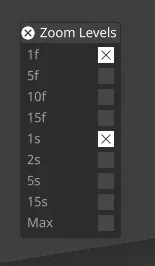
To customise the zoom levels:
- Click on the zoom level readout, located in the bottom left of the timeline widget. This will open the Zoom Levels window.
- In this window, you will see a list of all available zoom levels. Each zoom level has a toggle button next to it.
- Click the toggle to enable or disable a specific zoom level. Enabled levels are marked with an ‘x’.
Disabled zoom levels will be skipped when you zoom in or out using the ? and / keys, or by clicking the zoom buttons in the UI. This allows you to tailor the zoom functionality to your specific workflow.
Please see Tracks Overview for information on tracks.
Closing/re-opening the Track Player
Section titled “Closing/re-opening the Track Player”- Left-click the x icon in the top left corner of the Track Player to close the Track Player.
- Right-click Track in the dashboard (bar at the top of the screen) to re-open the Track Player.
This is a useful feature, particularly when you want to make screenshots and the Track Player is obscuring part of your view.
Controlling the Timeline from external sources
Section titled “Controlling the Timeline from external sources”Designer can be configured to control the Timeline with SMTPE, MTC, Art-Net, MIDI notes, OSC and more. Read the Transports chapter for more information.
Bar Widget Shortcuts
Section titled “Bar Widget Shortcuts”CTRL+1→ TC tagCTRL+2→ CUE tagCTRL+3→ MIDI tag