Mask Blending
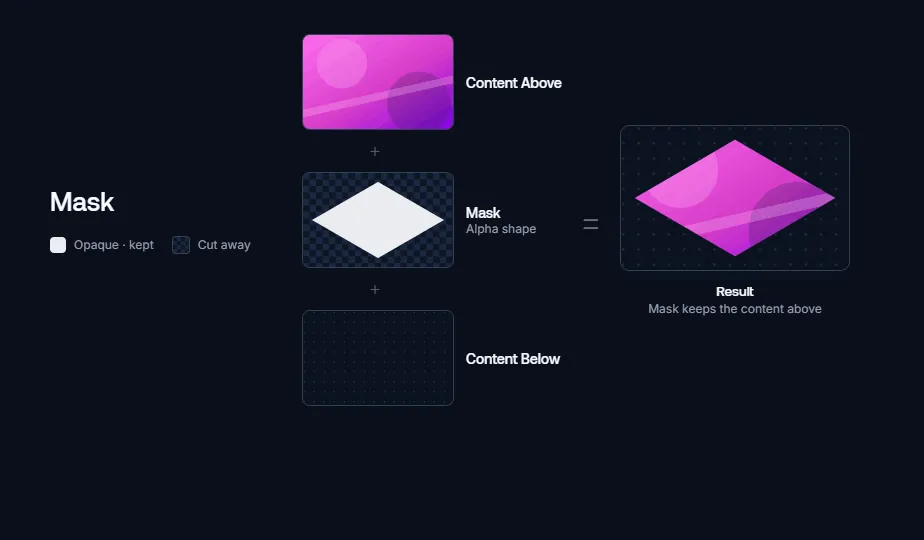
Mask ブレンドモードは Designer 内の独特なタイプのブレンドモードで、下にあるコンテンツに影響する標準のブレンドモードとは異なり、スタック内で上にあるレイヤーにマスクを適用します。このモードでは、以前に合成されたレイヤーから独立したブレンド操作が可能になり、マスキング要素をきめ細かく制御できます。Mask ブレンドはマッピングをまたいで適用されます。
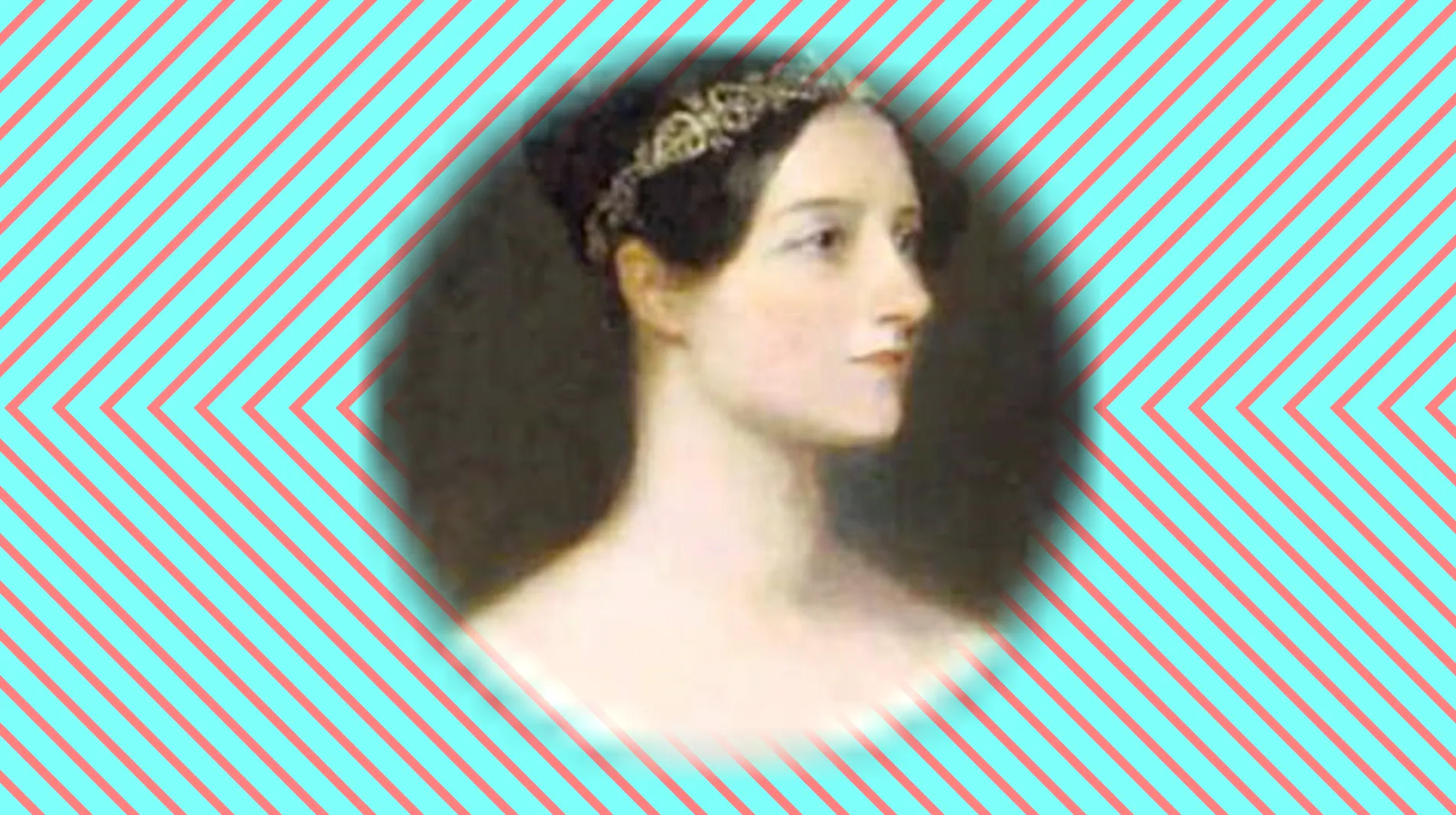
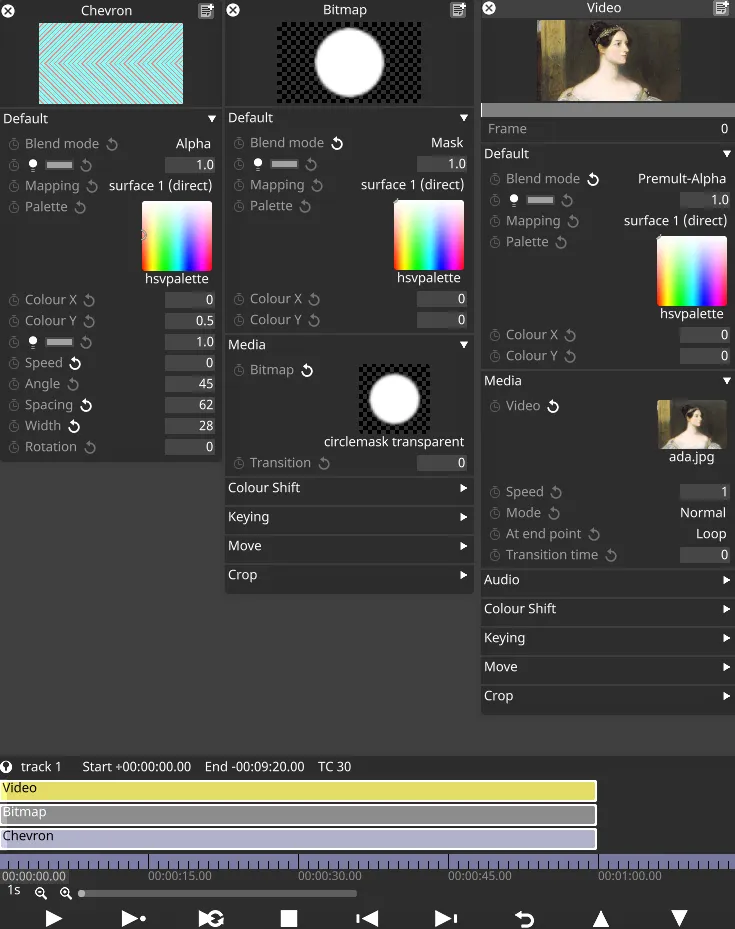
次の例では、Ada はシェブロン(山形模様)の背景の上に合成され、それ自体にはアルファチャンネルがありませんでしたが、背景と正しくブレンドされています。
r34 より前の動作
Section titled “r34 より前の動作”r34 より前のリリースでは、Mask ブレンドはスタック内でマスキングレイヤーより上にあるすべてのレイヤーに適用され、同じマッピング内のレイヤーにのみ影響しました。
r34 より前の Mask ブレンドモードの動作を後のリリースで使うには、詳細設定 useLegacyMaskBlendModeBehaviour を有効にします。
マスクの仕組み
Section titled “マスクの仕組み”Mask ブレンドモードは、レイヤーの マッピングのマスク に対する一時的な上書きを提供します。この上書きは、特定のトラック内の 1 つのレイヤーの間だけ続き、マルチトランスポートにおいてトランスポート間に波及することはありません。
マッピングのマスクの仕組みは、すべてのチャンネルがコンテンツと組み合わされるというものです。緑と青の成分がなく、不透明度アルファが完全な赤のマスクは、適用される後続のコンテンツの赤とアルファのチャンネルだけを分離し、緑と青のチャンネルを 0 に設定します。
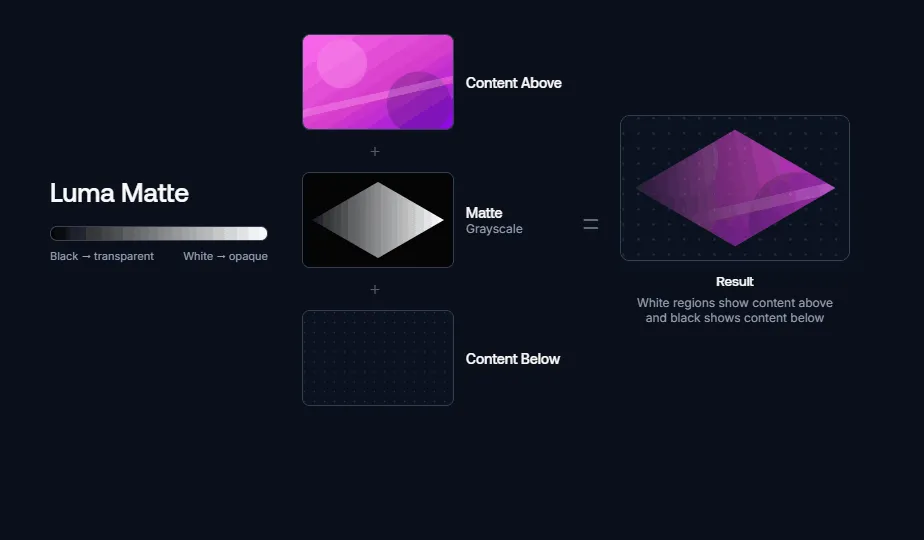
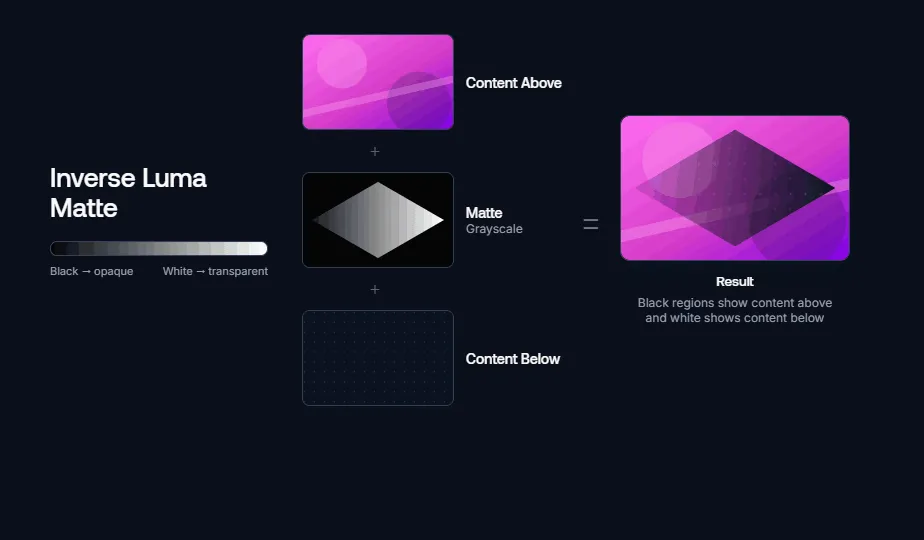
Designer は現在 3 種類の Mask ブレンドモードをサポートしています。以下に示します。
セットアップ例
Section titled “セットアップ例”Mask ブレンド
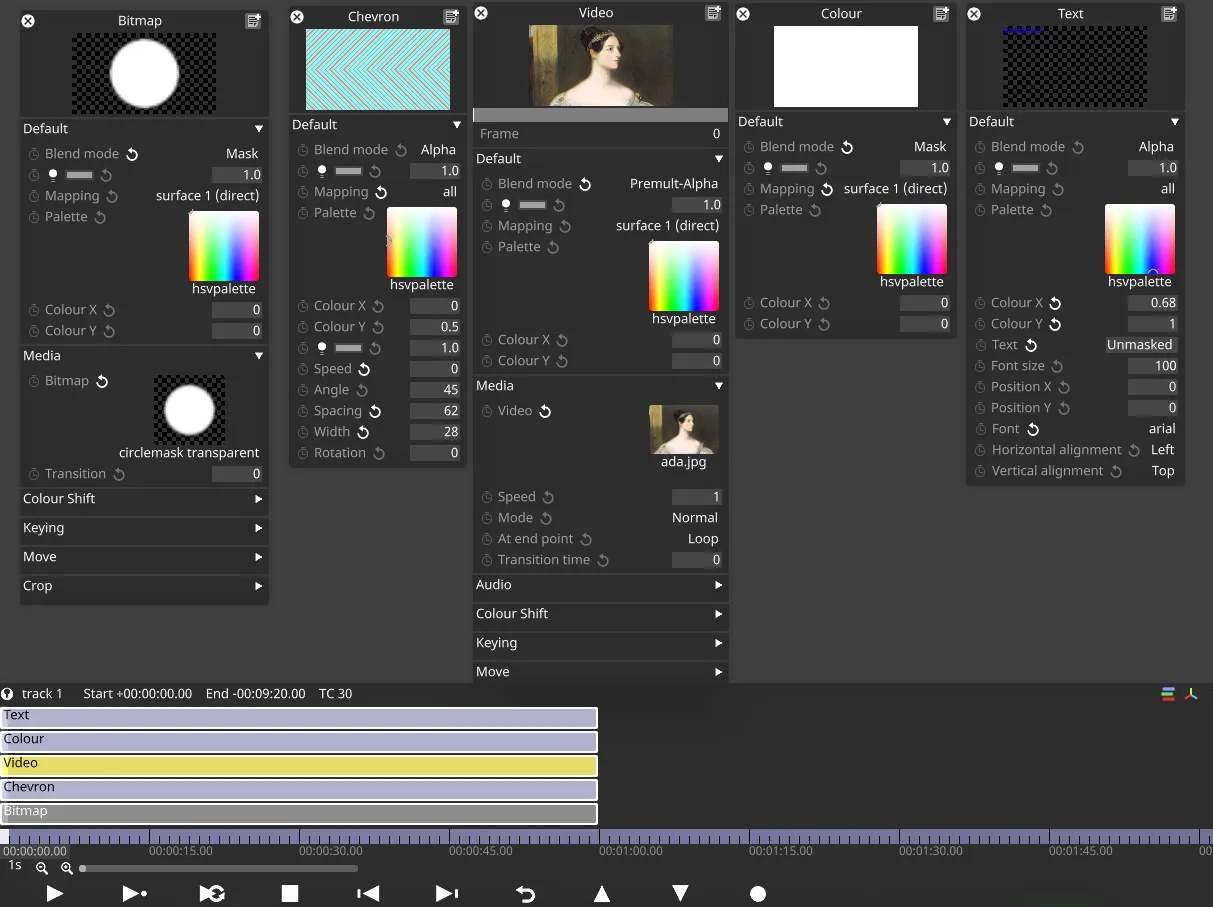
Section titled “Mask ブレンド”上記の Ada を分離した例では、次のレイヤー構成が使用されました。
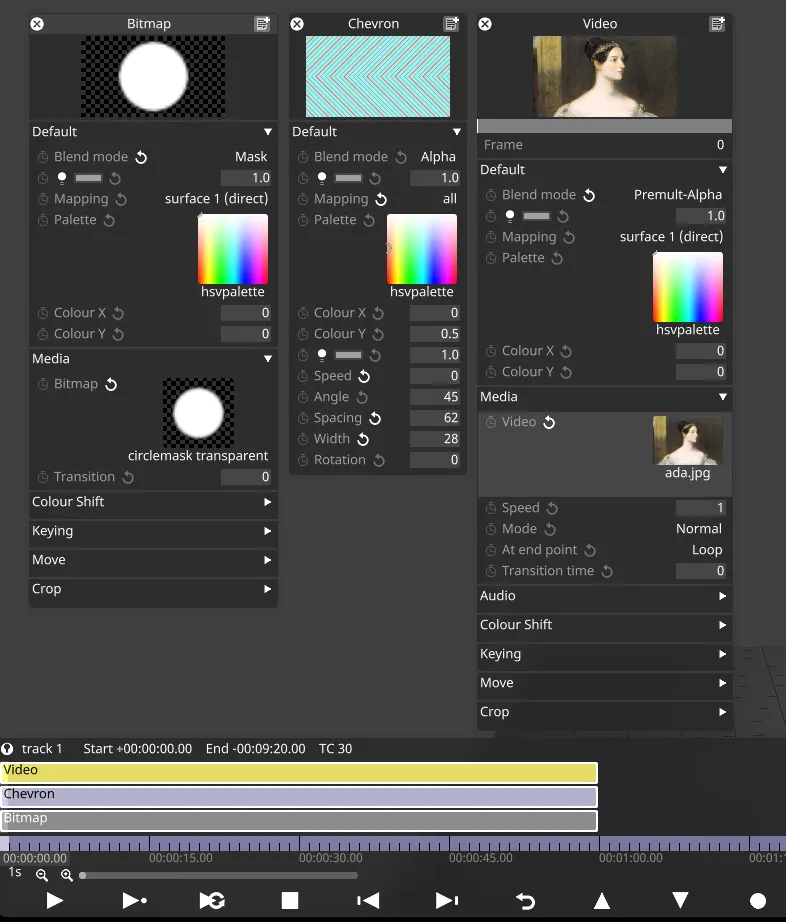
Bitmap レイヤーは Chevron の上、Video レイヤーの下にあり、その Mapping は「surface 1」に設定され、Mask ブレンドモードに設定されているため、マッピングのマスクを設定していることに注目してください。
Luma Matte ブレンド
Section titled “Luma Matte ブレンド”
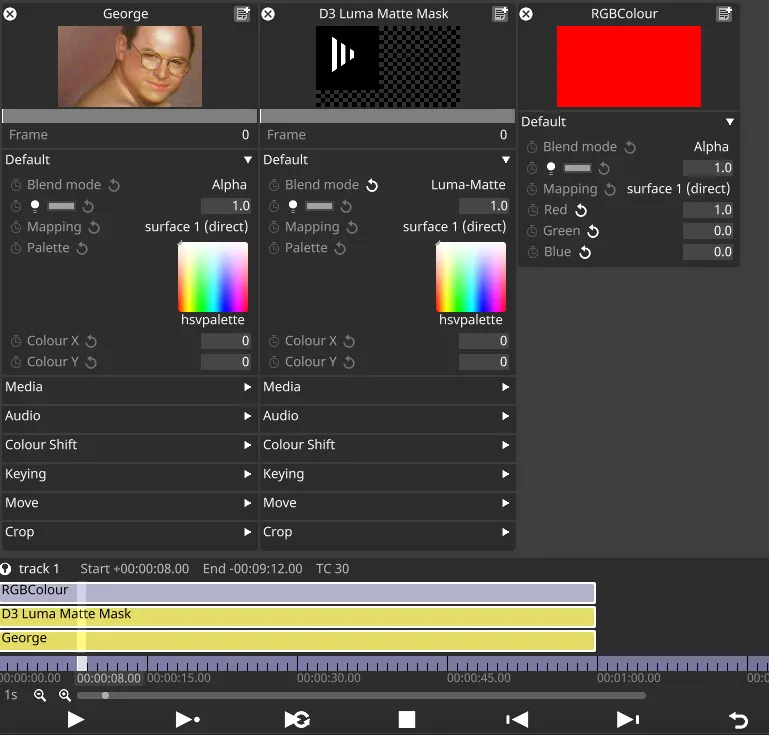
Mask ブレンドモードのもう 1 つの例は Luma Matte マスクです。上記の例では、マットの最も明るい領域が下のレイヤー(その上にさらに上のレイヤーが重ねられる)に対して不透明になり、黒い領域は透明になります。
r34 より前に関する補足
Section titled “r34 より前に関する補足”Ada の例のセットアップ
Section titled “Ada の例のセットアップ”上記の Ada を分離した例では、r34 より前では次のレイヤー構成が使用されます。
Bitmap レイヤーは Chevron と Video レイヤーの両方の下にあり、その Mapping は「surface 1」に設定され、Mask ブレンドモードに設定されているため、マッピングのマスクを設定しています。Chevron レイヤーは「all」マッピングを使用しているため、マスクの影響を受けません。
マスクのリセット
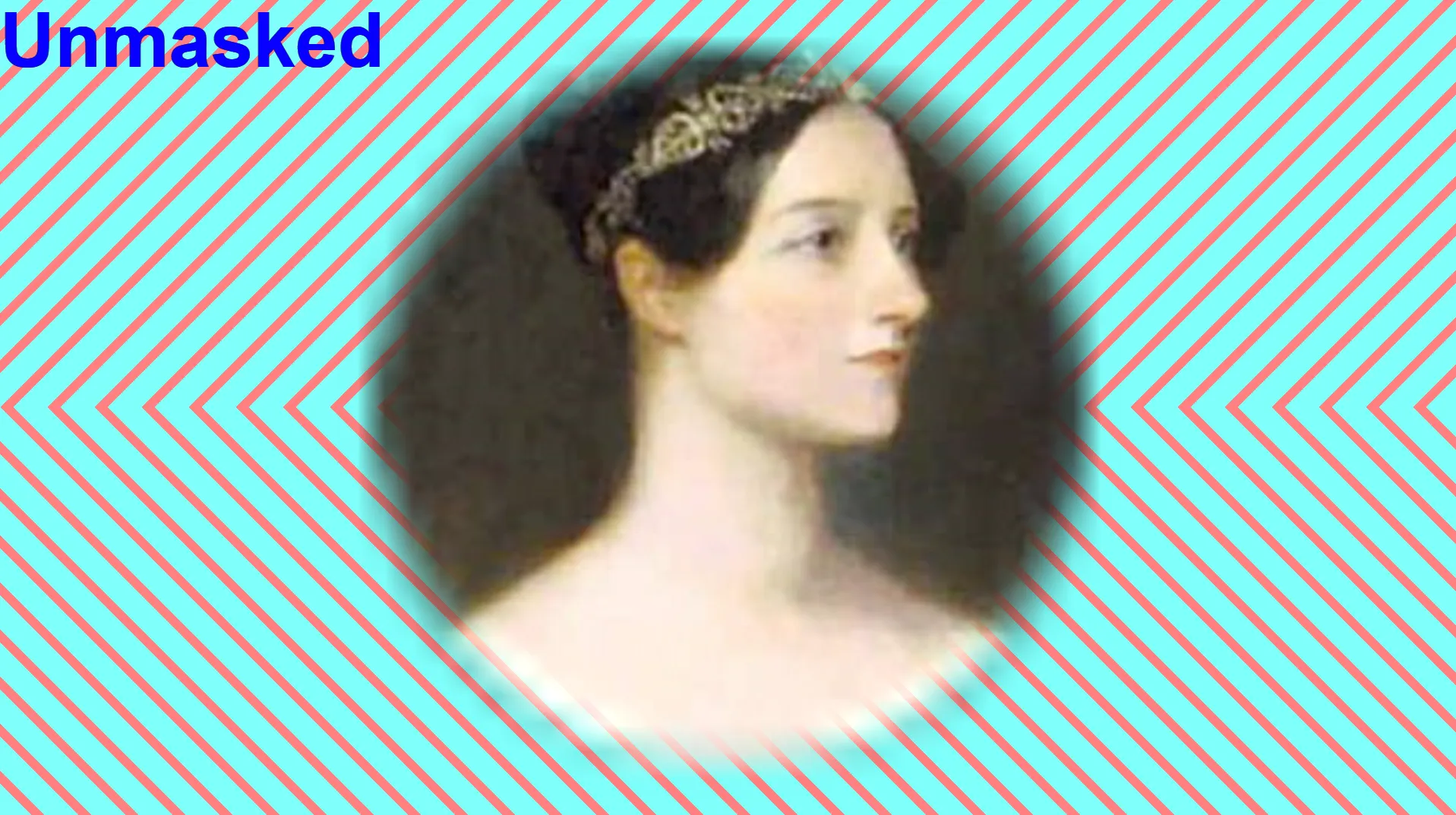
Section titled “マスクのリセット”マッピング自体に元々設定されていたマスクにマスクをリセットすることはできませんが、白い Colour レイヤーをレイヤースタックに挿入し、Mask ブレンドモードに設定して対象のマッピングを選択することで、マスクの効果をリセットすることは可能です。
この例では、Colour レイヤーの Mapping は「surface 1」と Mask ブレンドモードに設定されています。これは完全な不透明度の白を出力します。
text レイヤーも Mapping「surface 1」を使用しており、元々マスクされていた領域の外に表示できます。