Sockpuppet でのシーケンス
Sockpuppet モードで実行する場合、レイヤーのプログラムやシーケンスの方法にはいくつかの変更があります。以下のセクションでは、これらの違いについて説明します。
Sockpuppet 機能が拡張されるレイヤー
Section titled “Sockpuppet 機能が拡張されるレイヤー”以下は、Sockpuppet によって制御されるときに、追加または変更された機能を得るレイヤーです。
- Video Layer
- Notch Layer
- Gradient Layer
- Chevron Layer
Dormant レイヤー
Section titled “Dormant レイヤー”Dormant(休止)レイヤーは、タイムライン上に多数のレイヤーを積み重ねることを可能にする機能です。以前の問題点は、タイムライン上の各レイヤーが実行のために一定のシステムリソースを必要とし、多数を扱うとそれがすぐに積み重なって、大幅なパフォーマンス低下を招くことでした。現在では、レイヤーを dormant に設定すると、システムリソースを一切必要としなくなるため、タイムライン上に大量のレイヤーを積み重ねても、パフォーマンスの問題を心配する必要がなくなります。
レイヤーを dormant に設定する
Section titled “レイヤーを dormant に設定する”レイヤーを dormant にするには、単に明るさを 0 に設定します。これにより、レイヤーの色が濃い緑色に変わり、そのレイヤーが dormant になったことを示します。値を 0 より大きくすると、レイヤーがアクティブになります。
RGB カラーの概要
Section titled “RGB カラーの概要”Sockpuppet モードで実行する場合、X 値と Y 値を持つカラーパレットシステムは無視され、代わりに RGB カラーシステムに置き換えられます。これは、照明コンソールでのカラーの一般的な扱い方を反映するためです。
レイヤーフィールドのオプション
Section titled “レイヤーフィールドのオプション”Sockpuppet によって制御されているレイヤーを編集する場合、レイヤーの各フィールドの制御方法を変更するための追加のコントロールが利用できます。
レイヤーのオプション
Section titled “レイヤーのオプション”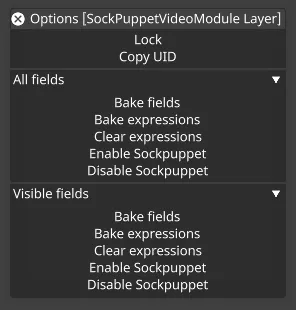
レイヤーのタイトルバーを右クリックすると、レイヤー全体にわたって Sockpuppet の有効・無効を制御する追加オプションがあります。制御できるロールアウトは 3 種類あり、以下のとおりです。
- All fields(すべてのフィールド)
- Selected fields(複数のレイヤーを編集している場合の選択されたフィールド)
- Visible fields(セクション/グループが閉じている場合、それは影響を受けません)
これらのボタンを使用すると、ユーザーはレイヤー全体にわたって Sockpuppet をすばやく無効にし、制御すべきフィールドのみを再度有効にできます。
フィールドのオプション
Section titled “フィールドのオプション”単一のフィールドを右クリックすると、レイヤーが Sockpuppet によって制御されている場合、フィールドのオプションに変更があります。
Metafield
Section titled “Metafield”Metafield は、フィールドが Sockpuppet によって制御されているときには、フィールドに影響しません。レンジとステップサイズは、代わりにパーソナリティエディターで制御する必要があります。
Toggle Sockpuppet
Section titled “Toggle Sockpuppet”Toggle Sockpuppet 機能を使用すると、パッチされたレイヤー内の任意のパラメーターについて、Sockpuppet 機能を選択的に無効にできます。
例えば、Bitmap レイヤーをパッチしていて、Brightness を除くすべてのパラメーターを Sockpuppet で制御し、Brightness はキーフレームで制御したい場合、Brightness パラメーターを右クリックして「Toggle Sockpuppet」を選択できます。
この操作により、そのパラメーターが Sockpuppet モードから除外され、独立してアニメーションやキーフレームを設定できるようになります。
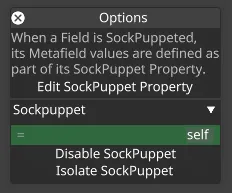
フィールドが Sockpuppet 化されると、そのメタフィールドは、レイヤーの Sockpuppet パーソナリティの一部として、Sockpuppet プロパティによって決定されます。ウィジェットはこのプロパティにリンクされており、関連するメタフィールドを直接編集できます。
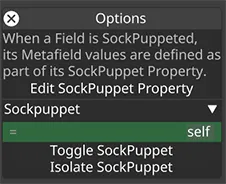
Isolate Sockpuppet
Section titled “Isolate Sockpuppet”Isolate Sockpuppet 機能は、選択したパラメーターでのみ Sockpuppet を有効に保ち、パッチされたレイヤー内の他のすべてのパラメーターでは Sockpuppet 機能を無効にします。
これにより、他からの干渉なしに、単一のパラメーターに Sockpuppet 制御を集中させることができます。
isolate がアクティブな間、レイヤー上の他の Sockpuppet 有効フィールドは、抑えた濃い緑色に色付けされ、それらが依然として Sockpuppet 制御用に構成されているものの、現在は駆動されていないことを示します。これにより、分離されたフィールドだけが通常の明るい Sockpuppet グリーンのままになるため、レイヤーが実際にどのパラメーターに応答しているかを一目で確認できます。これは、Designer が一時的に無効化された式を示すのに使用するのと同じ抑えた緑色です。isolate を解除すると、それらのフィールドは通常の緑色に戻ります。
この変更を元に戻すには、De-isolate Sockpuppet を使用します。これにより、レイヤー内のすべてのパラメーターの元の Sockpuppet 設定が復元されます。