Tuning RenderStream Active Latency (RenderStream アクティブ遅延の調整)
このガイドでは、アクティブ遅延が一定の値に落ち着かず変動する場合に、RenderStream ワークロードのアクティブ遅延を調整する方法を説明します。renderstreamActiveLatencyPercentile、renderstreamActiveLatencyOffset、renderstreamBufferSize の 3 つのオプションスイッチを扱います。
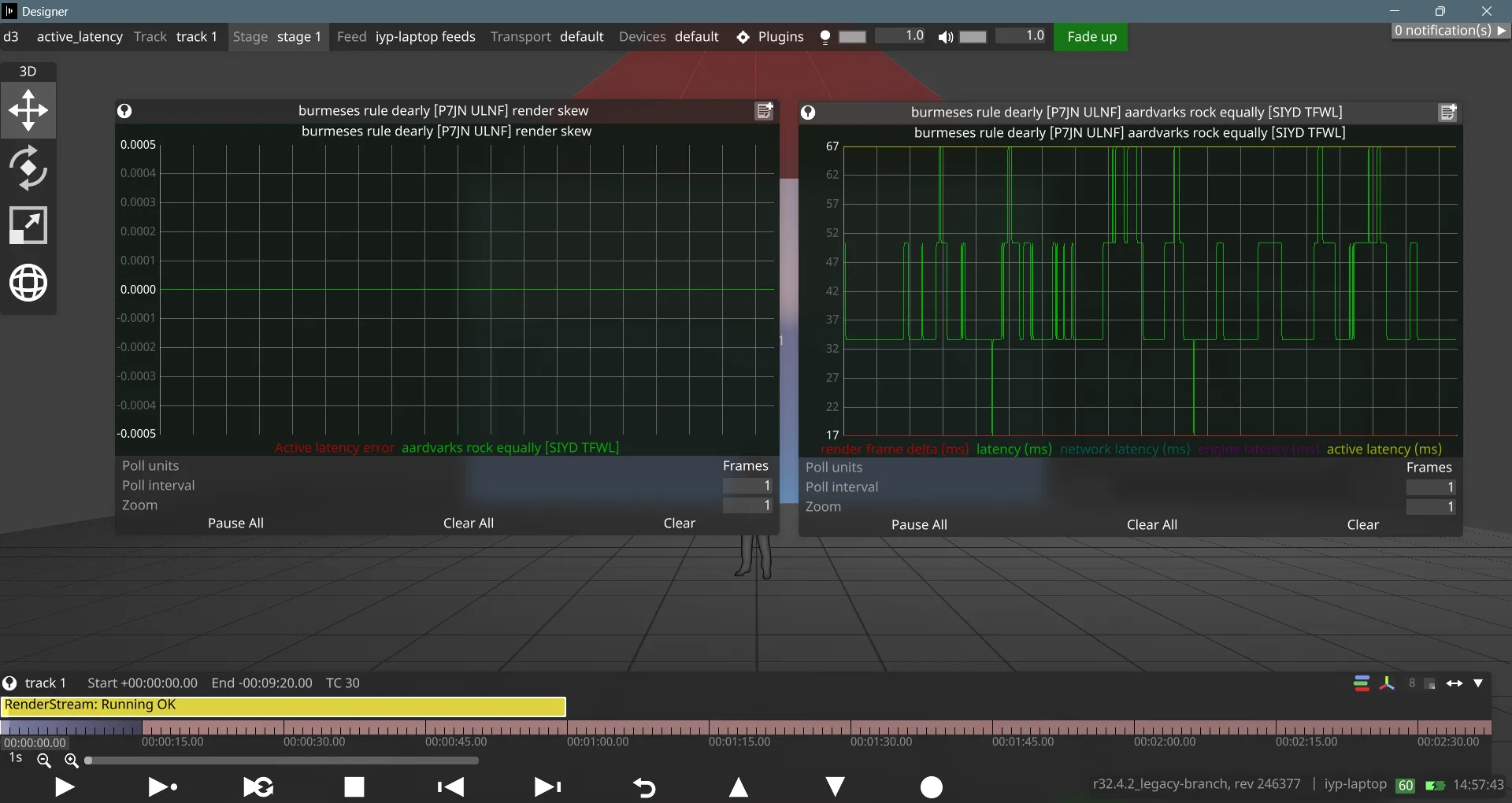
解決したい初期状態を以下に示します。アクティブ遅延が一定に保たれず、時間の経過とともに変動しています。
アクティブ遅延を安定させる
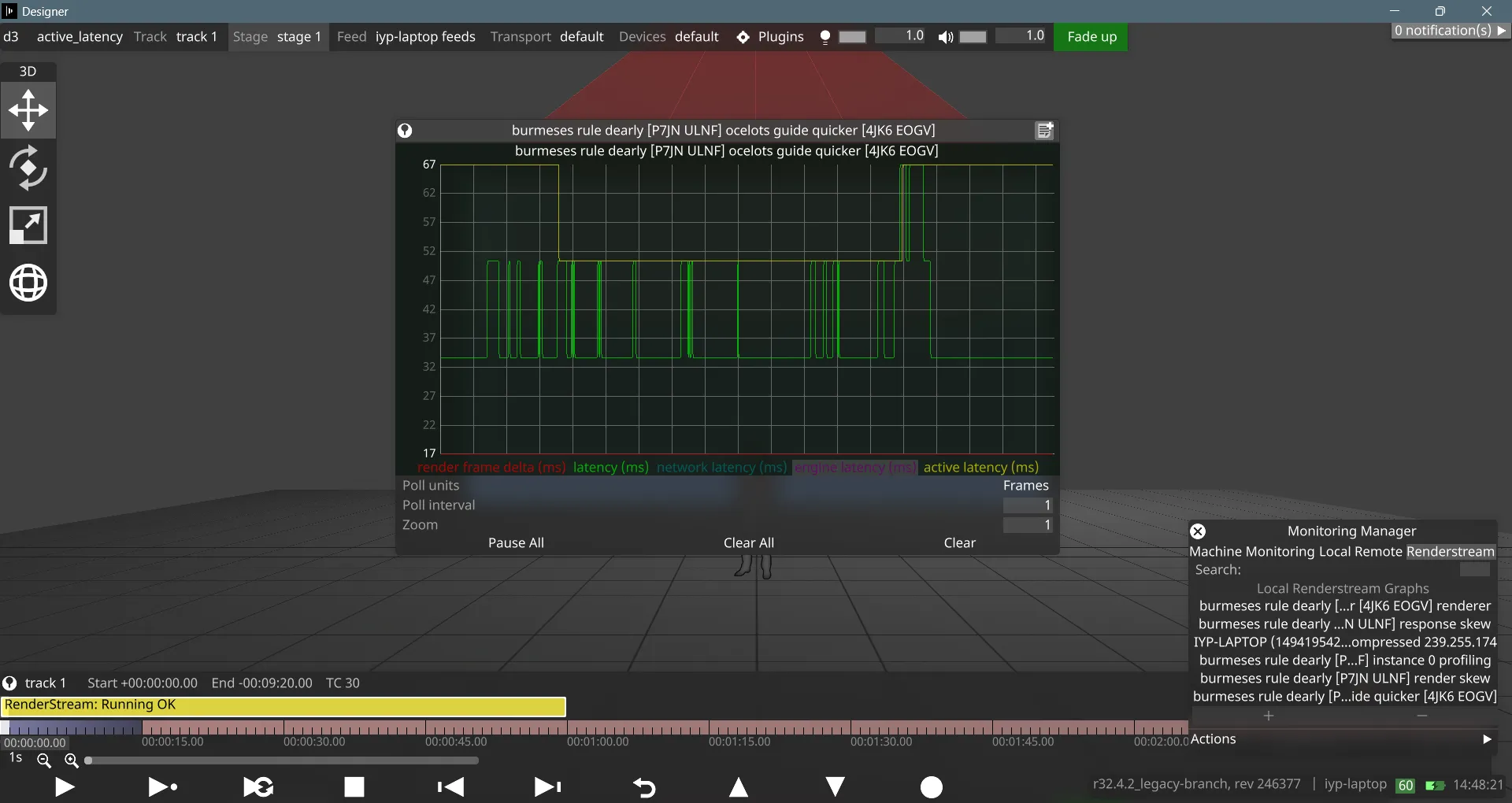
Section titled “アクティブ遅延を安定させる”RenderStream ワークロードを実行し、アクティブ遅延グラフを観察します。
- アクティブ遅延が上下に変動している場合は、アクティブ遅延のパーセンタイルしきい値を 75% または 50% に下げます。
- しきい値は、Advanced project settings 内で
renderstreamActiveLatencyPercentileオプションスイッチを使用して調整できます(値の範囲については以下の注記を参照)。 - 750(75%)および 500(50%)の値を開始点として推奨します。この 2 つの値のいずれかで、かなり安定した状態になるはずです。
RenderStream ワークロードの間、アクティブ遅延がフラットなラインになります。
遅延スパイクを補正する
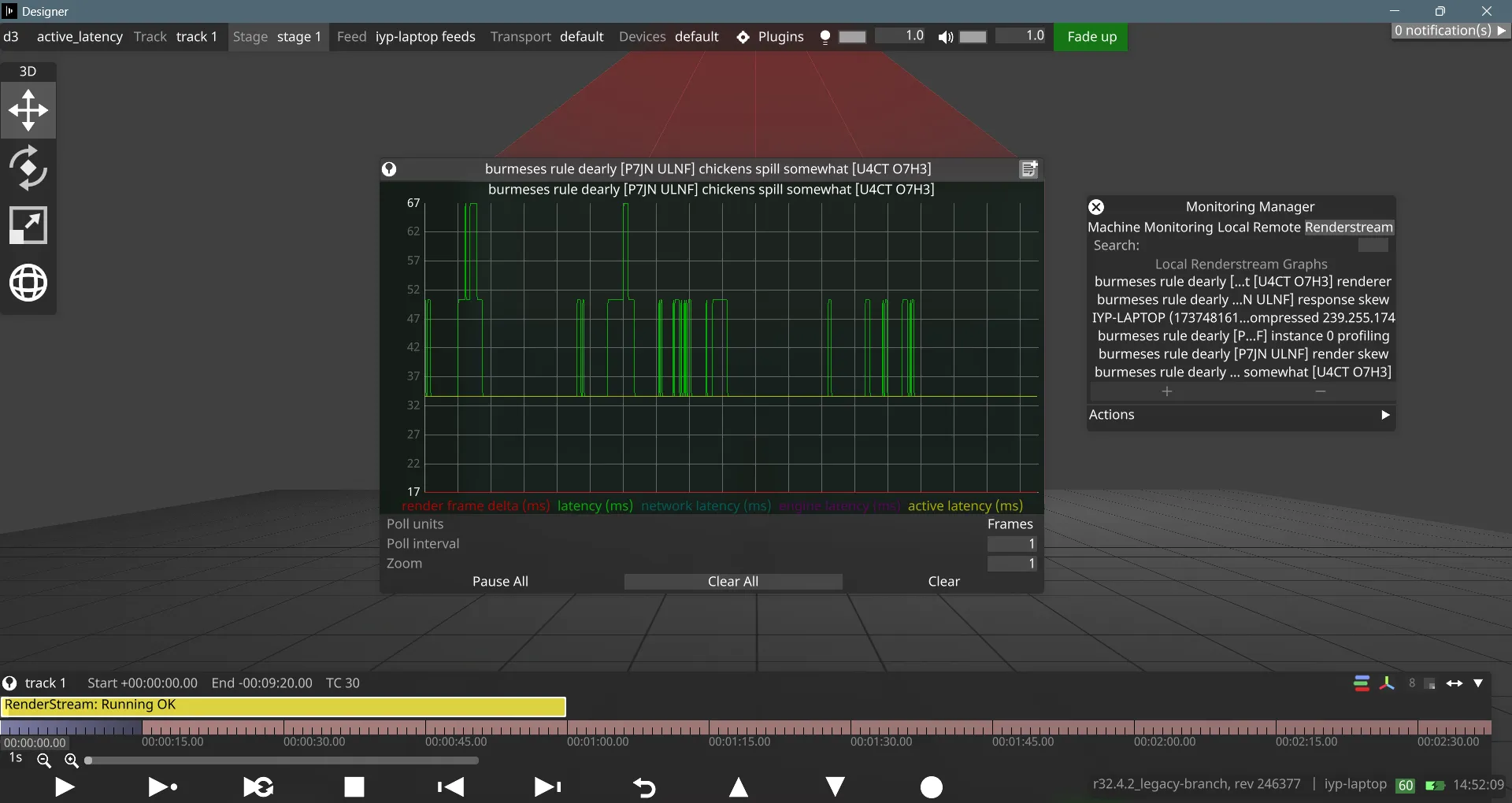
Section titled “遅延スパイクを補正する”アクティブ遅延がフラットになったら、アクティブ遅延を超える遅延スパイクに対処できるようにする必要があります。
- アクティブ遅延ラインを超える遅延スパイクの振幅を目視で測定します。
- スパイクがアクティブ遅延を超えている量を、1 フレームの長さ(ミリ秒)で割ります。これにより、オフセットすべきフレーム数の差が得られます。
renderstreamActiveLatencyOffsetオプションスイッチを、算出したフレーム数に設定します。
アクティブ遅延が、RenderStream ワークロードの最も高い遅延スパイクのすぐ上に位置するフラットなラインになります。
フレームバッファサイズを調整する
Section titled “フレームバッファサイズを調整する”デフォルトの RenderStream バッファサイズは 4 です。前のステップで算出したオフセットが大きすぎる場合、RenderStream フレームバッファの能力を超え、結局フレームのドロップが発生する可能性があります。
- この段階では、フレームの不規則性は render skew グラフのスパイクとして観察できます。
- 前のステップで
renderstreamActiveLatencyOffsetを 2 より大きい値に設定した場合は、RenderStream バッファをアクティブ遅延オフセットより大きくします。 renderstreamBufferSizeをrenderstreamActiveLatencyOffset+ 2 に設定します。
フラットなアクティブ遅延グラフと、フラットな render skew グラフになります。