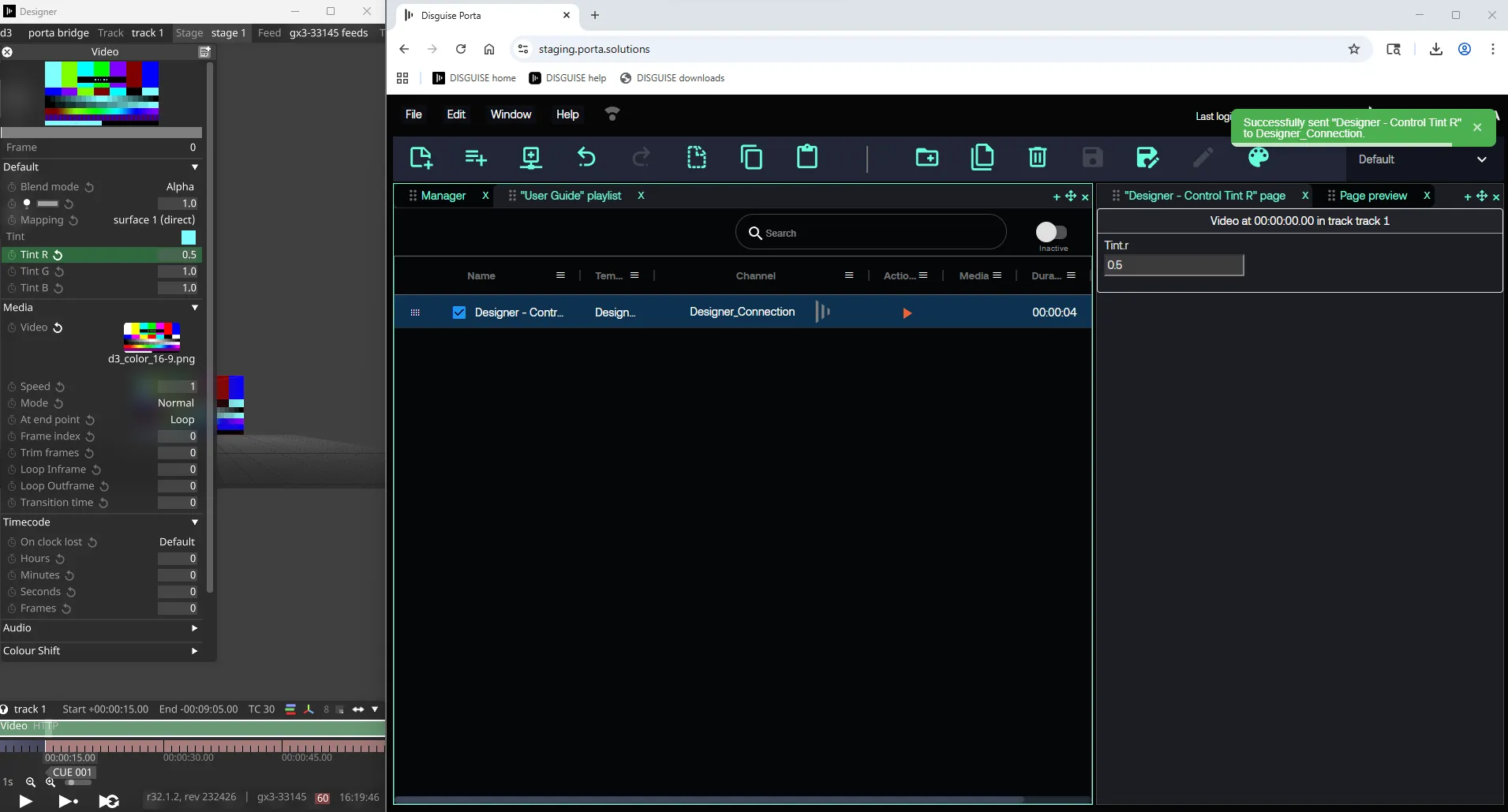
Designer HTTP Sockpuppet
Porta Bridge を使用して接続を確立すると、Porta は HTTP Sockpuppet(HTTP ソックパペット)を介して公開された任意のパラメーターにアクセスできます。
Porta での HTTP Sockpuppet パラメーターの制御
Section titled “Porta での HTTP Sockpuppet パラメーターの制御”ステップ 1: 新しいテンプレートを作成する
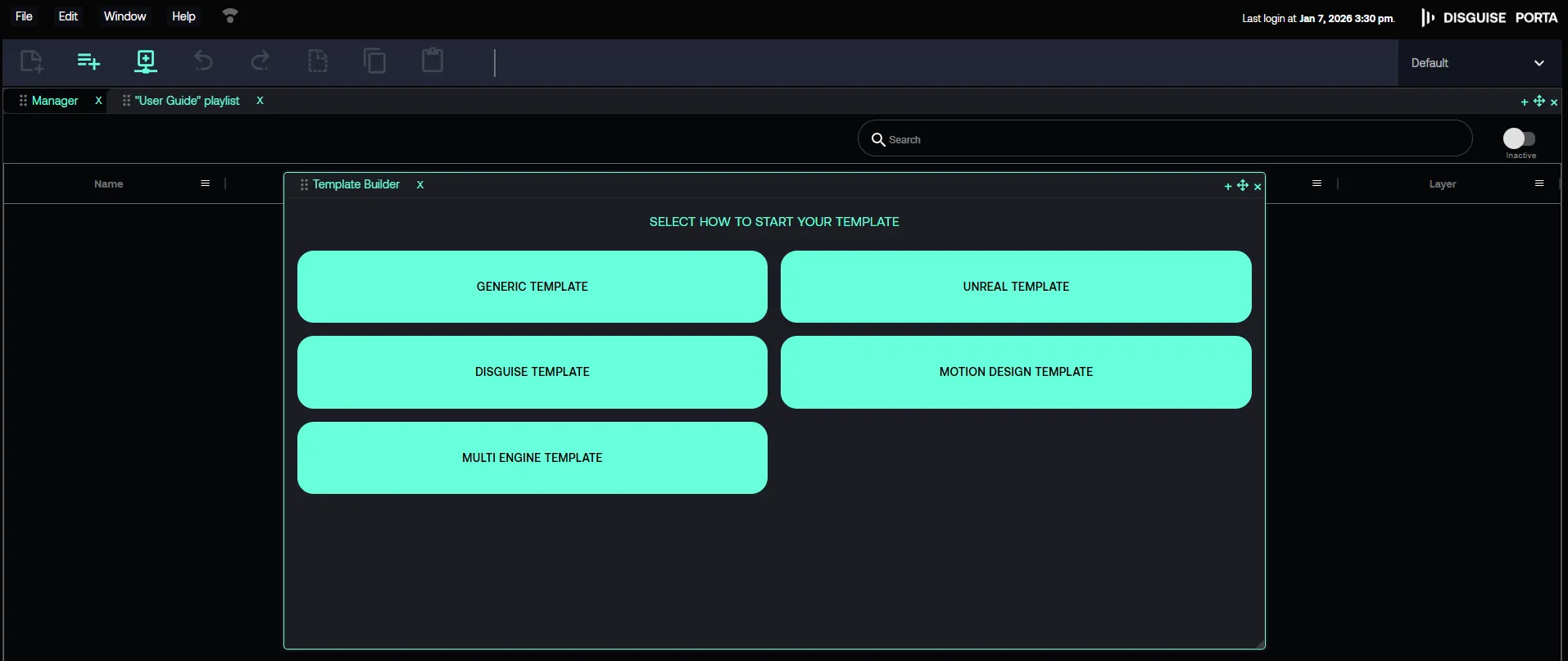
Section titled “ステップ 1: 新しいテンプレートを作成する”- Porta で File -> New -> Template に移動します。
- Template Builder > SELECT HOW TO START YOUR TIMELINE で、DISGUISE TEMPLATE をクリックします。
ステップ 2: チャネルを選択する
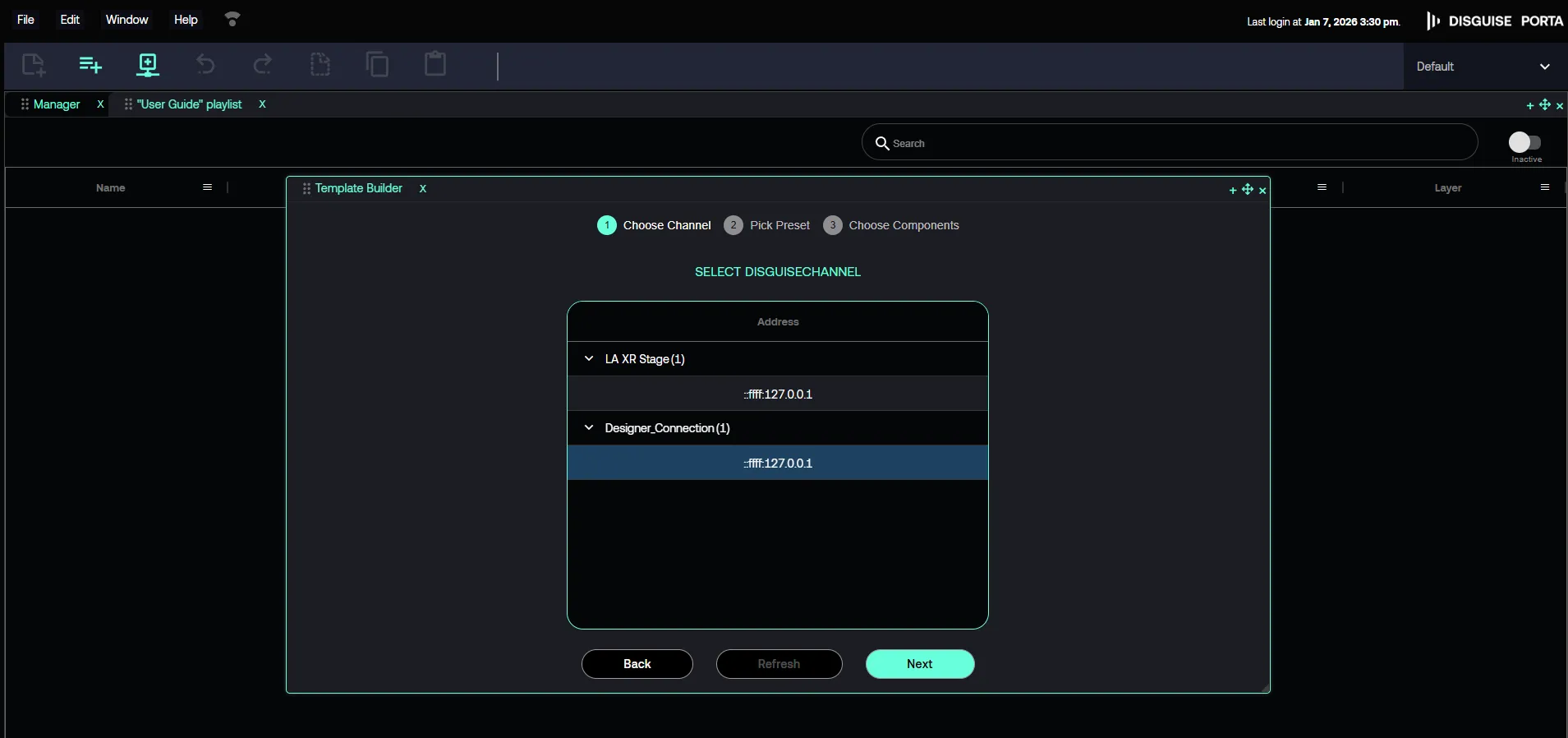
Section titled “ステップ 2: チャネルを選択する”- 確立済みの Channel(チャネル)を見つけて選択します。
ステップ 3: 公開された HTTP Sockpuppet パラメーターを選択する
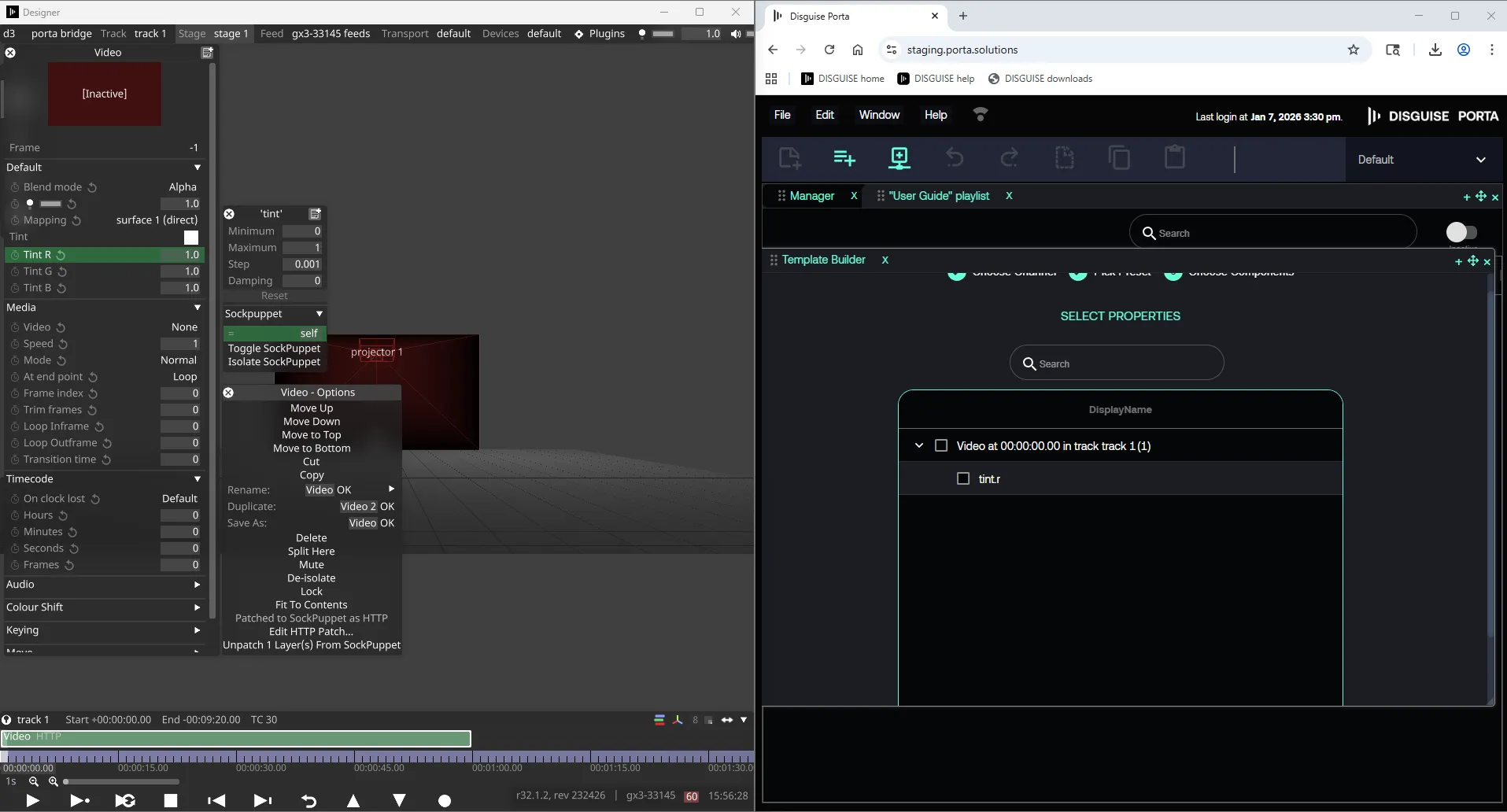
Section titled “ステップ 3: 公開された HTTP Sockpuppet パラメーターを選択する”- Designer で公開されたパラメーターを見つけます。HTTP Sockpuppet を介してパラメーターを公開する方法
ステップ 4: テンプレートを保存する
Section titled “ステップ 4: テンプレートを保存する”Designer で公開されたパラメーターを見つけて、テンプレートを保存します。
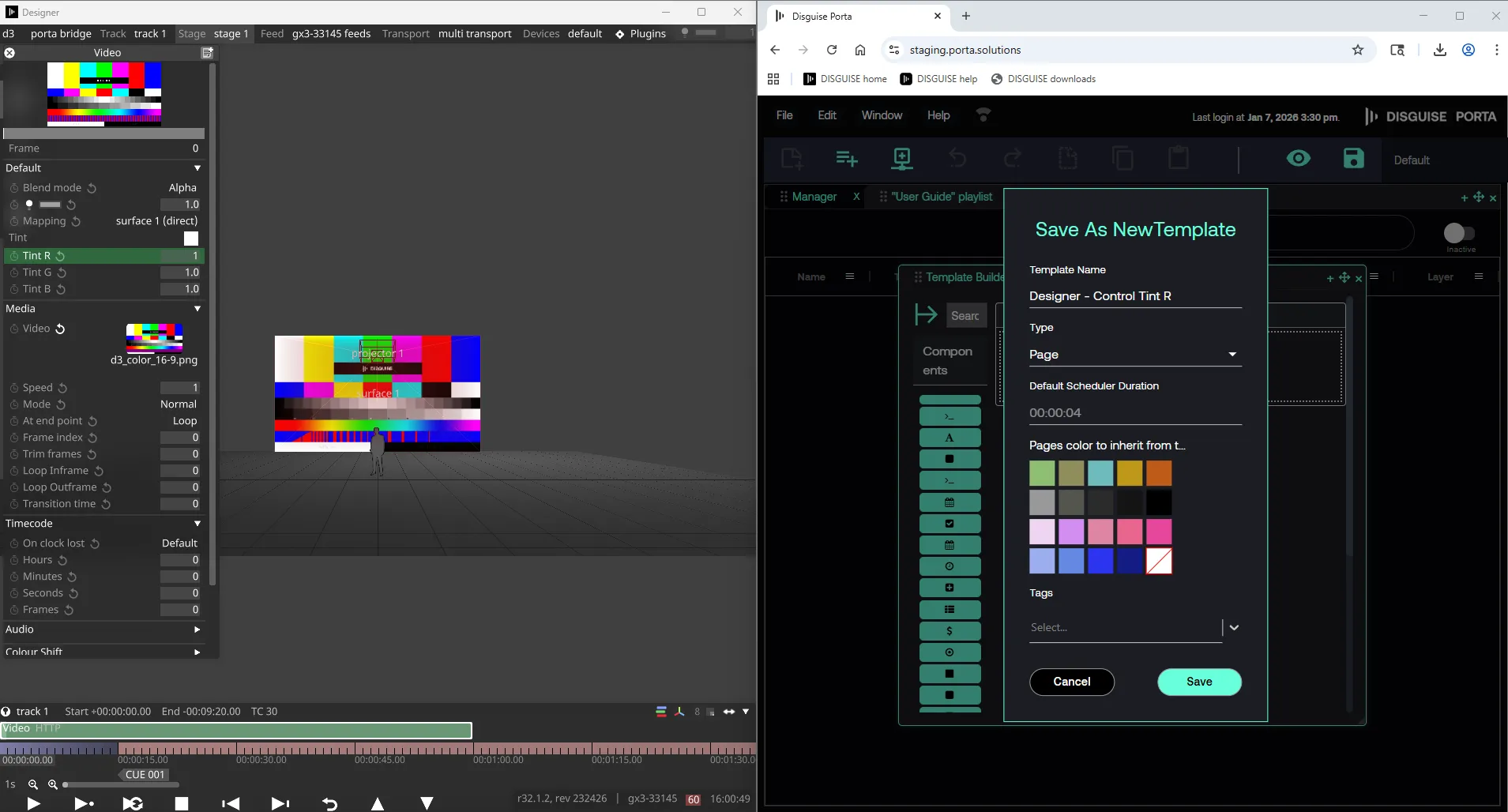
ステップ 5: プログラミング用のページを作成する
Section titled “ステップ 5: プログラミング用のページを作成する”- 特定のプログラミング用に、新しいページを作成します。
- 複数のページをプレイリストに追加します。
- ページをグループ化することもできます。
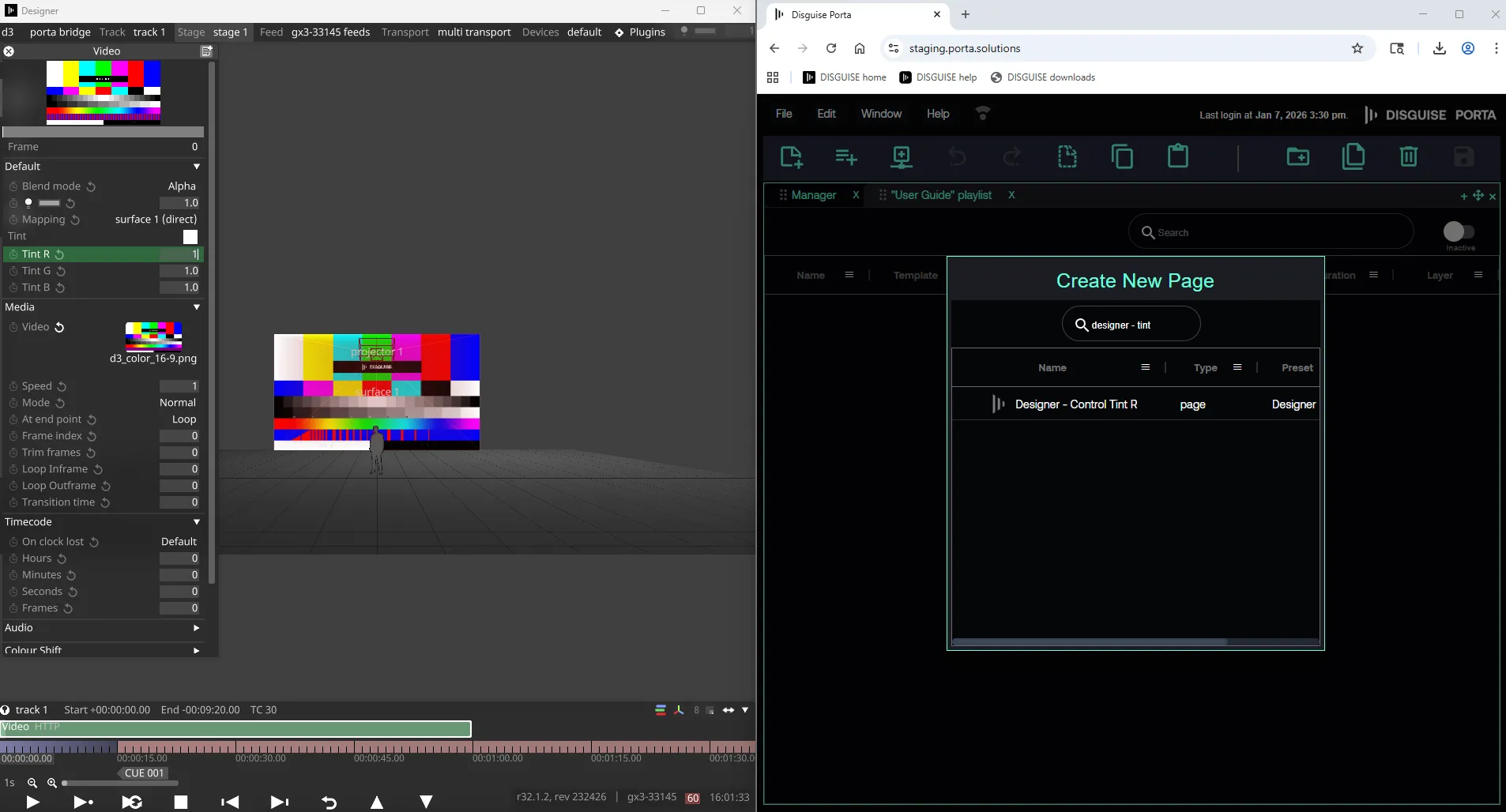
ステップ 6: Designer でパラメーターをトリガーする
Section titled “ステップ 6: Designer でパラメーターをトリガーする”これで、キューが Designer で目的の変更をトリガーします。