

タグの操作
タグは単に Cue(キュー)と呼ばれることもよくあります。タグは、すばやくジャンプしたいトラックの部分を表し、通常はセクション区切りと同じポイントにありますが、セクション区切りとは独立して機能することもできます。
タグには TC(タイムコード)、MIDI、CUE の 3 種類があります。これらはまったく同じ方法で管理されますが、各タグの形式は少しずつ異なります。
タグを Look 内に追加することはできません。Look はトラック上で Look Layer によって再生され、そのトラックのタイムラインが Look を実行します。タグは代わりに、Look Layer に沿った任意の位置でそのトラックに追加してください。
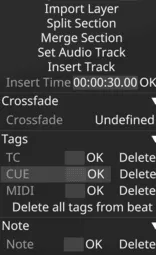
各タグタイプは特定の文字セットを受け付け、独自の形式に従います。タグエディターは使用できる文字を制限し、値が確定されると(Enter を押す、OK をクリックする、またはフィールドを離れることで)、Designer はテキストを保存形式に正規化します。
- TC タグ は数字(
0–9)と区切り文字:;,.を最大 11 文字まで受け付けます。値は 4 つのコロン区切りフィールド(タイムコード形式)に正規化されます。数字グループ間の区切り文字はすべて:に変換され、欠けているフィールドは0で埋められます。たとえば1.30は1:30:0:0に、1,2,3,4は1:2:3:4になります。ちょうど 8 桁の連続した数字(例:12345678)を入力すると、自動的に12:34:56:78に分割されます。 - CUE タグ は TC タグと同じ文字(数字と区切り文字
:;,.)を最大 11 文字まで受け付けます。値は最大 3 つのドット区切りの数値グループに正規化されます。数字グループ間の区切り文字はすべて.に変換され、末尾の.0グループは削除されます。たとえば1:2:3は1.2.3に、5,0は5になります。 - MIDI タグ は数字と
.区切り文字を最大 6 文字まで受け付けます。特定の MIDI チャネルを対象にするにはchannel.note形式を使い、すべてのチャネルで受信するにはノート番号だけを入力します。たとえば3.60はチャネル 3 のノート 60 を対象にし、60は任意のチャネルでノート 60 を受信します。先頭と末尾の.文字は無視されます。
プロジェクト全体でのタグの活用改善
Section titled “プロジェクト全体でのタグの活用改善”注: r31.3 以降、ユーザーは同じ拍に複数のタグタイプをより効率的に追加でき、よりスムーズで効果的なワークフローが可能になります。
- タグを追加したいバーを右クリックし、tag(タグ)テキストフィールドを左クリックして、追加したいタグデータを入力します。
- 3 種類のタグがそれぞれ別々の行に表示されるようになりました:
- TC Tag
- CUE Tag
- MIDI Tag
- Tab キーを使って、タグ作成ウィジェット内のすべてのフィールドを移動できるようになりました。
トラックにタグを追加するその他の方法
Section titled “トラックにタグを追加するその他の方法”CTRL+T を押すと、現在のカーソル位置でタグデータを入力または編集できます。
次のショートカットを使ってタグを追加することもできます:
- TC Tag -
CTRL+1 - CUE Tag -
CTRL+2 - MIDI Tag -
CTRL+3
トラックからタグを削除するその他の方法
Section titled “トラックからタグを削除するその他の方法”-
タグフィールドで追加済みのタグデータを選択し、Backspace キーを押してから Enter を押すか、OK ボタンを左クリックします。
-
あるいは、タグを右クリックし、トラックオプションエディターで Delete(削除)を左クリックします。
すべてのタグを削除する
Section titled “すべてのタグを削除する”タグを削除したいタイムラインのセクションを (Shift + ドラッグ) で選択し、影付きの領域を右クリックして Track Options(トラックオプション)ウィンドウを開くことで、トラックまたはトラックのセクションからすべてのタグを削除することもできます。ウィンドウが開いたら、Remove Tags(タグを削除)を選択します。
トラックに沿って複数のタグを選択する
Section titled “トラックに沿って複数のタグを選択する”Alt + 左ドラッグ
Section titled “Alt + 左ドラッグ”Alt + 左ドラッグ は、単一のセクション、タグ、またはノートを移動します。同じタグタイプやノートをまだ持っていない既存のキューには結合できますが、そうでない場合は次の拍にスリップします。Alt を押しながら項目をトラックに沿って水平にドラッグするだけです。
Ctrl + Alt + 左ドラッグ
Section titled “Ctrl + Alt + 左ドラッグ”Ctrl + Alt + 左ドラッグ は、セクション区切りを持つものだけでなく、キュー全体を移動します。タグは同じ行に留まり、既存のキューには結合できません。常に次の利用可能な拍にスリップします。