

関数リファレンス
関数は、式の中で値を使って処理を行うのに役立ちます。このページでは、さまざまなタスクに役立つ定義済みの関数を説明します。
Logic Functions
Section titled “Logic Functions”これらの関数は、式の結果に条件ロジックを組み込むのに役立ちます。
正と負のロジック信号を表す 2 つの定数値 true と false と組み合わせて使われ、主に式が期待どおりに動作するかをテストするために使います。
値は、非ゼロの結果になると true に評価されます。つまり、0 のみが false に評価されます。
比較演算子は、その数学的な定義どおりに true または false を返します。
if - Conditional evaluation
Section titled “if - Conditional evaluation”Usage: if(cond, if_true, if_false)
-
cond(boolean) : 確認する値 -
if_true(anything) :condが true の場合に返す値 -
if_false(anything) :condが false の場合に返す値
条件 cond を評価し、それが true に評価されるかどうかに応じて、次の 2 つの値のいずれかを返します。
たとえば、この関数はより大きな式の一部として、異なる値を「切り替える」ために使えます。
たとえば if(osc:myaddr > 0, osc:myaddr, self) は、OSC アドレス /myaddr の値が 0 以上の場合にのみ、レイヤーのアニメーション値を許可します。
グラフは if(x > 0.5, 1, -1) の結果を示しています。
and - Logical AND operation
Section titled “and - Logical AND operation”Usage: and(x, y)
-
x(number) : 確認する 1 つ目の値 -
y(number) : 確認する 2 つ目の値
x と y の両方が true としてテストされる場合に 1 を返します。
グラフは and(x, 1) の結果を示しています。
or - Logical OR operation
Section titled “or - Logical OR operation”Usage: or(x, y)
-
x(number) : 確認する 1 つ目の値 -
y(number) : 確認する 2 つ目の値
x または y のいずれか、または両方が true としてテストされる場合に 1 を返します。
グラフは or(x, 0) の結果を示しています。
step - Activation function
Section titled “step - Activation function”Usage: step(x, y)
-
x(number) : 比較する 1 つ目の値 -
y(number) : 比較する 2 つ目の値
x >= y の場合は 1 を、そうでない場合は 0 を返します。
データソースを「オンにする」ために、より大きな式の一部として使えます。
たとえば step(osc:myaddr, 0.5) * self は、OSC アドレス /myaddr の値が 0.5 以上の場合にのみ、レイヤーのアニメーション値を許可します。
グラフは step(x, 1) の結果を示しています。
Trigonometric functions
Section titled “Trigonometric functions”これらの関数は、角度や幾何学を扱うのに役立ちます。
定義済み定数 pi には、約 3.14159 の PI の値が含まれます。
sin - Trigonometric sine
Section titled “sin - Trigonometric sine”Usage: sin(x)
-
x(radians) : 変換する角度
指定した角度のサインを返します。
cos - Trigonometric cosine
Section titled “cos - Trigonometric cosine”Usage: cos(x)
-
x(radians) : 変換する角度
指定した角度のコサインを返します。
tan - Trigonometric tangent
Section titled “tan - Trigonometric tangent”Usage: tan(x)
-
x(radians) : 変換する角度
指定した角度のタンジェントを返します。
asin - Trigonometric arcsine
Section titled “asin - Trigonometric arcsine”Usage: asin(x)
-
x(sine) : 変換するサイン
アークサイン(サインの逆関数)。角度のサイン(x)から、ラジアンで測定された元の角度に変換します。
角度のサインは、単位円の円周上の点の y 座標と考えることができます。
acos - Trigonometric arccosine
Section titled “acos - Trigonometric arccosine”Usage: acos(x)
-
x(cosine) : 変換するコサイン値
アークコサイン(コサインの逆関数)。角度のコサイン(x)から、ラジアンで測定された元の角度に変換します。
角度のコサインは、単位円の円周上の点の x 座標と考えることができます。
atan - Trigonometric arctangent
Section titled “atan - Trigonometric arctangent”Usage: atan(x)
-
x(tangent) : 変換するタンジェント値
アークタンジェント(タンジェントの逆関数)。角度のタンジェント(x)から、ラジアンで測定された元の角度に変換します。
atan2 - Trigonometric arctangent (2-argument variant)
Section titled “atan2 - Trigonometric arctangent (2-argument variant)”Usage: atan2(x, y)
-
x(distance) : 角度を構築するための X 軸上の位置 -
y(distance) : 角度を構築するための Y 軸上の位置
これは atan(y / x) と同等ですが、x が 0 の場合やいずれかの値が負になりうる場合に、正確な角度を提供します。
グラフは atan2(x, -4) の結果を示しています。
この関数は、指定した軸の平面上で 2 つのオブジェクト間の角度を求める のに役立ちます。
radians - Convert from degrees to radians
Section titled “radians - Convert from degrees to radians”Usage: radians(x)
-
x(degrees) : 変換する角度
度からラジアンに変換し、上記の関数で使えるようにします。
この変換は線形関数で、単に pi / 180 を掛けます。
degrees - Convert from radians to degrees
Section titled “degrees - Convert from radians to degrees”Usage: degrees(x)
-
x(radians) : 変換する角度
ラジアンから度に変換し、度で作業するのに慣れた人に表示するのに適した形にします。
この変換は線形関数で、単に pi / 180 で割ります。
Mathematical functions
Section titled “Mathematical functions”exp - Exponent
Section titled “exp - Exponent”Usage: exp(x)
-
x(number) : 指数
e(オイラー数、約 2.71828)を x 乗します。なお e は disguise の式でも定数です。
log - Natural logarithm
Section titled “log - Natural logarithm”Usage: log(x)
-
x(number) : 値
入力数値 x の底 e に対する対数を取ります。つまり、これは exp の逆関数です。
log10 - Base 10 logarithm
Section titled “log10 - Base 10 logarithm”Usage: log10(x)
-
x(number) : 値
入力数値 x の底 10 に対する対数を取ります。これは、最上位の数字の後の桁数を取得するのに使えます(たとえば log10(1000) は 3 を返します)。
sqrt - Square root
Section titled “sqrt - Square root”Usage: sqrt(x)
-
x(number) : 値
それ自身を掛けると入力になる値を返します。
pow - Power function
Section titled “pow - Power function”Usage: pow(x, y)
-
x(number) : 底 -
y(number) : 指数
x を y 乗した値を返します。exp を実装するには、pow(e, x) と書きます。
abs - Absolute value
Section titled “abs - Absolute value”Usage: abs(x)
-
x(number) : 符号付きの値
入力値の符号に関係なく、絶対値(正の数)を返します。
floor - Rounding down
Section titled “floor - Rounding down”Usage: floor(x)
-
x(number) : 値
入力値を、その下の整数値に切り下げて返します。
ceil - Rounding up
Section titled “ceil - Rounding up”Usage: ceil(x)
-
x(number) : 値
入力値を、その上の整数値に切り上げて返します。
max - Maximum value
Section titled “max - Maximum value”Usage: max(x, y)
-
x(number) : 候補の値 -
y(number) : 候補の値
提供された 2 つの入力の最大値を返します。
グラフは max(x, 2) の結果を示しています。
min - Minimum value
Section titled “min - Minimum value”Usage: min(x, y)
-
x(number) : 候補の値 -
y(number) : 候補の値
提供された 2 つの入力の最小値を返します。
グラフは min(x, 2) の結果を示しています。
clamp - Restrict within the given range
Section titled “clamp - Restrict within the given range”Usage: clamp(x, min, max)
-
x(number) : クランプする値 -
min(number) : 操作の最小範囲 -
max(number) : 操作の最大範囲
入力値 x が min と max の間にある場合はそれを返し、そうでない場合はそれらの値にとどまります。
グラフは clamp(x, -1, 2) の結果を示しています。
lerp - Remap a value to a new range
Section titled “lerp - Remap a value to a new range”Usage: lerp(low, high, amount)
-
low(number) :amountが 0 のときに返される値 -
high(number) :amountが 1 のときに返される値
amount が 0 と 1 の間にあるとき、関数は low と high の間のある割合を返します。
amount が 0 と 1 の範囲外にあるとき、関数は low と high の範囲外で線形補間します。
グラフは lerp(2, 4, x) の結果を示しています。
Integer operations
Section titled “Integer operations”% や / のような通常の演算子は浮動小数点で実行されます。つまり、たとえば 3 / 2 は約 1.5 になります。
しかし、整数で演算を考えたい場合があります。
% - Remainder operator
Section titled “% - Remainder operator”Usage: x % y
-
x(number) : 被除数 -
y(number) : 除数
2 つの数値の整数除算後の余りを取得する演算子です(例: 5 % 2 == 1)。
グラフは x % 2 の結果を示しています。
int - Integer conversion
Section titled “int - Integer conversion”Usage: int(x)
-
x(number) : 変換する数値
入力値を切り下げたものを返します。これは floor と同等です。
int() 関数は、文字列を整数に変換することもできます。たとえば int("42") は 42 を返します。
さらに、int() は、指定した文字列内の数値の基数を指定するオプションの 2 番目の引数を受け付けます。これは、10 進数以外の表現を扱うときに便利です。例:
- 16 進数(基数 16):
int("FF", 16)は255を返します - 8 進数(基数 8):
int("77", 8)は63を返します - 2 進数(基数 2):
int("101", 2)は5を返します
idiv - Integer division
Section titled “idiv - Integer division”Usage: idiv(x, y)
-
x(number) : 被除数 -
y(number) : 除数
被除数の整数版を除数の整数版で割り、整数値を返します。
グラフは idiv(x, 2) の結果を示しています。
Timecode functions
Section titled “Timecode functions”これらの関数は、秒単位の時間値を人間が読めるタイムコード文字列に変換します。tSecElapsed や tSecRemaining などのビデオレイヤープロパティと組み合わせると特に便利です(式でのビデオレイヤー時間の使用 を参照)。
formatTimecode - Format seconds as timecode
Section titled “formatTimecode - Format seconds as timecode”formatTimecode(seconds, fps)
seconds(数値) — 整形する秒単位の時間fps(数値) — フレーム成分に使うフレームレート
秒単位の時間値を hh:mm:ss.ff 形式のタイムコード文字列に変換します。ff は指定した fps から導かれるフレーム番号です。
たとえば、video という名前のビデオレイヤーの経過時間をタイムコード文字列として表示するには:
formatTimecode(module:video.tSecElapsed, module:video.video.fps)
formatTimecodeDF - Format seconds as drop-frame timecode
Section titled “formatTimecodeDF - Format seconds as drop-frame timecode”formatTimecodeDF(seconds, fps)
seconds(数値) — 整形する秒単位の時間fps(数値) — フレーム成分に使うフレームレート
秒単位の時間値をドロップフレームのタイムコード文字列に変換します。これは 29.97fps のドロップフレームワークフロー(SMPTE 2997DF)での使用を想定しています。
Resource access function
Section titled “Resource access function”getByUID - Resource access
Section titled “getByUID - Resource access”システム内の Resource からプロパティにアクセスすることは、式を強化する非常に強力な方法です。Resource の参照は通常、名前で行います。 ただし、代わりに UID で Resource を参照することもできます。これにより、読みやすさを犠牲にして、元の Resource への強い参照が可能になります。 この読みにくい方法の利点は、Resource(レイヤーなど)の名前が変更されても参照が残ることです。 式は名前変更操作に応じて更新されません。これは UID による Resource へのアクセス でさらに説明しています。
ユーザーは Resource エディターのタイトルバーを右クリックし、Copy UID を選択します。次に、その UID をこの関数の引数として貼り付けます。
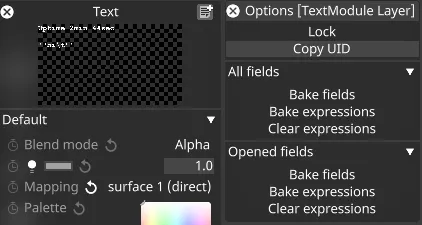
たとえば getByUID(0x123456789012345).description は、ユーザーが右クリックした Resource の名前を返します。
Resource のプロパティのセットは変更される可能性があります。詳しくは Resource へのアクセス をご覧ください。