

Camera Tracker Tester
CameraTrackerTester ドライバーは、カメラトラッキングデータをシミュレートするために使用できる PositionDriver の一種です。Camera Tracker Tester は、物理的なトラッキングシステムを接続せずにカメラトラッキングワークフローをシミュレートまたはプロトタイプ化する必要があるときに便利です。シーン内の別のカメラの位置と動きを使用して、仮想カメラを駆動できます。
このツールは、特に次のような場合に役立ちます。
- ハードウェアが利用可能になる前にカメラトラッキングの動作をテストする場合。
- オフライン環境で AR、xR、またはバーチャルプロダクションのセットアップをプロトタイプ化する場合。
- 位置または回転のオフセットが最終的なカメラ出力にどのように影響するかを検証する場合。
- 調整可能な遅延を使用してトラッキングレイテンシーをシミュレートする場合。
- 実際のエンコーダーデータを必要とせずに、ズーム/フォーカス応答のワークフローを開発または調整する場合。
- トレーニングまたは教育環境でカメラトラッキングの動作をデモンストレーションする場合。
Stage ビュー内の別のカメラからのトラッキング出力をシミュレートすることで、Camera Tracker Tester は、実際のトラッキングハードウェアを統合する前に、トラッキング動作を試したり、FOV のダイナミクスを理解したり、カメラの動作を微調整したりする安全で便利な方法を提供します。
ドライバープロパティ
Section titled “ドライバープロパティ”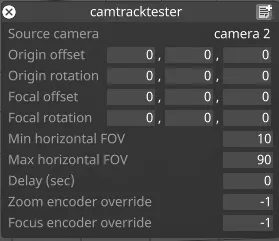
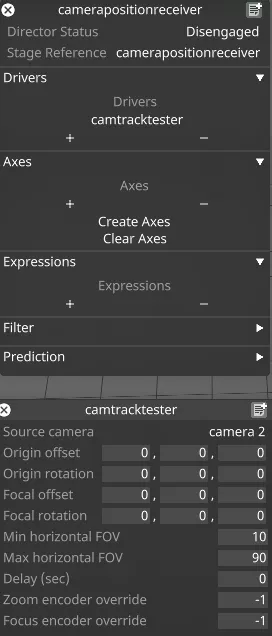
Source camera(ソースカメラ)
Section titled “Source camera(ソースカメラ)”位置データのソースとして使用するカメラです。
Origin Offset/Rotation(原点オフセット/回転)
Section titled “Origin Offset/Rotation(原点オフセット/回転)”ソースカメラの位置に適用するオフセット/回転です。
Focal offset/Rotation(焦点オフセット/回転)
Section titled “Focal offset/Rotation(焦点オフセット/回転)”カメラの焦点面に適用するオフセット/回転です。
Min/Max Horizontal FOV(水平 FOV の最小/最大)
Section titled “Min/Max Horizontal FOV(水平 FOV の最小/最大)”カメラの FOV をスケーリングするために使用する範囲の最小値/最大値です。
Delay (sec)(遅延(秒))
Section titled “Delay (sec)(遅延(秒))”ソースカメラのトラッキングデータに追加できる人為的な遅延時間です。
Zoom/Focus Encoder Override(ズーム/フォーカスエンコーダーのオーバーライド)
Section titled “Zoom/Focus Encoder Override(ズーム/フォーカスエンコーダーのオーバーライド)”ズーム/フォーカスエンコーダー値のオーバーライドです。
カメラトラッキングシミュレーションのセットアップ
Section titled “カメラトラッキングシミュレーションのセットアップ”- Stage メニューで 2 つの新しいカメラを作成します。camera 2 は、camera 1 にトラッキングデータを送信するカメラトラッキングシステムを表すために使用します。
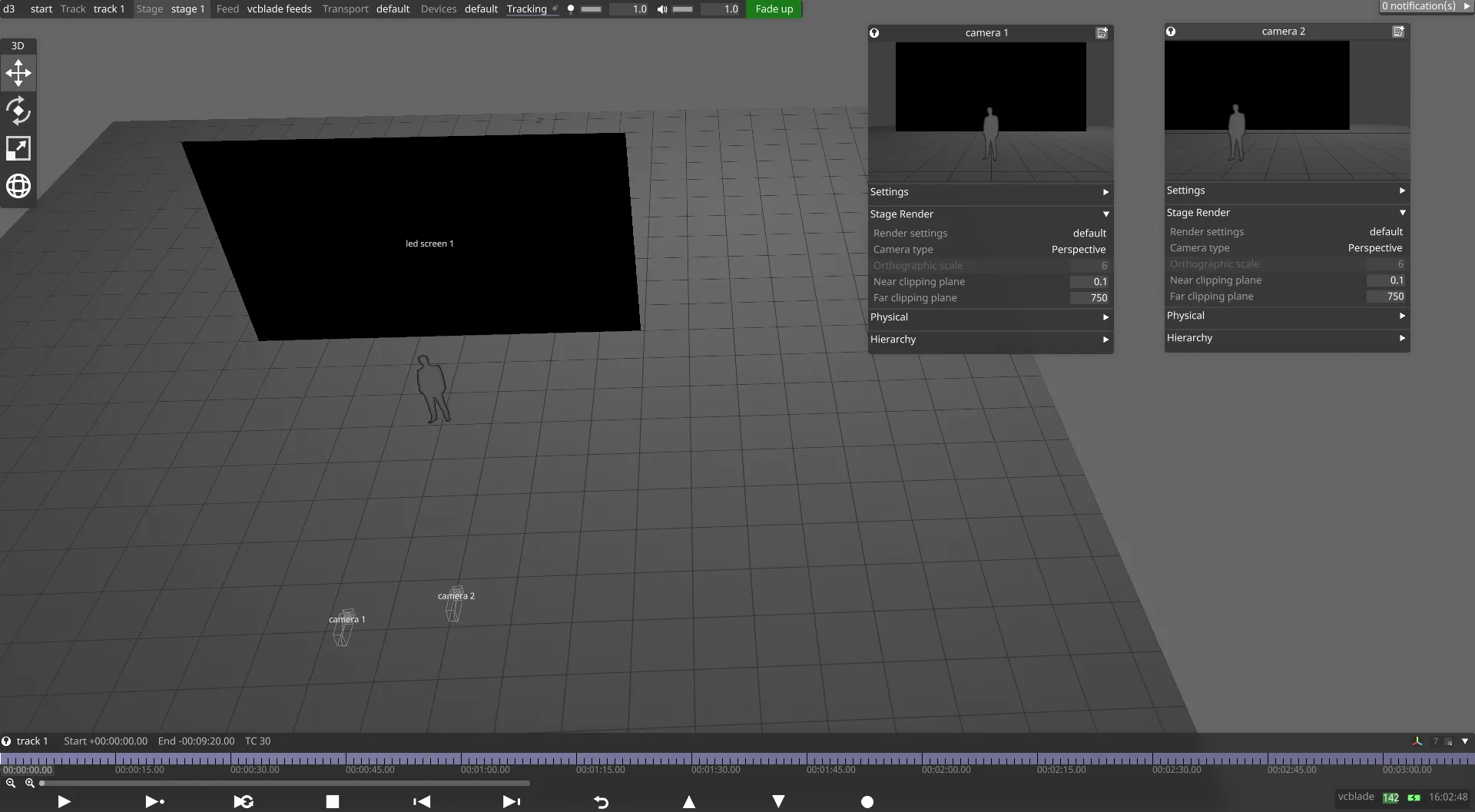
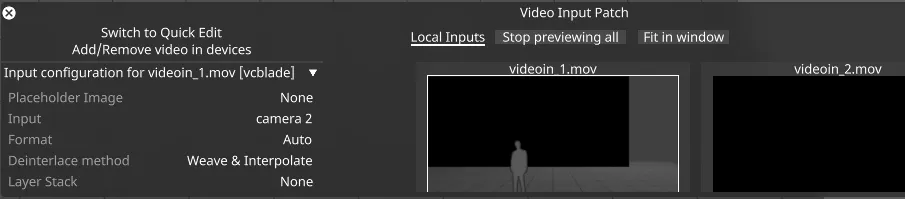
- Video Input Patch Editor を開きます。
- Camera 2 を空のビデオ入力にパッチします(下の画像は Camera 2 が video input 1 にマッピングされている様子を示しています)。
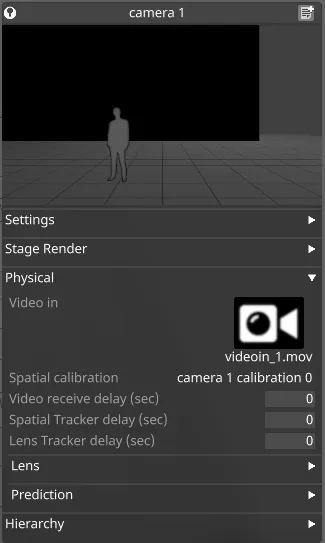
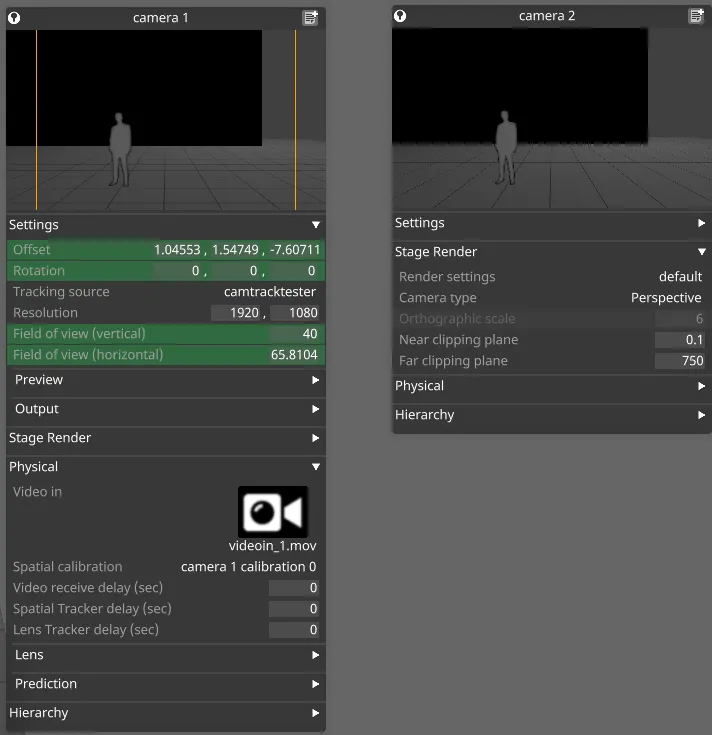
- camera 1 のプロパティメニューを開き、Physical タブを展開して、Video in フィールドを videoin_1.mov に割り当てます。これで、camera 1 のプレビューサムネイル内に camera 2 の出力が表示されるはずです。
- Devices メニューを開き、新しい PositionReceiver Device を追加します。
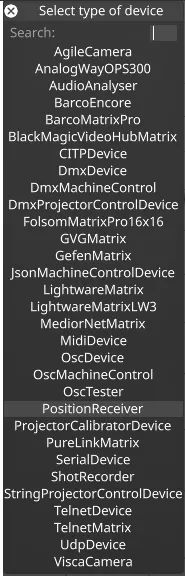
- PositionReceiver に新しいドライバーを追加し、Position Drivers のリストから CameraTrackerTester を選択します。
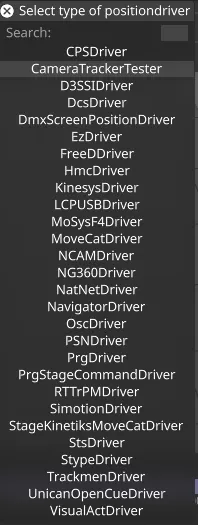
- CameraTrackerTester のソースカメラを Camera 2 に割り当てます。
- Camera 1 のプロパティメニューに戻り、Tracking source フィールドで CameraTrackerTester をソースとして割り当てます。Offset、Rotation、Fields of view が緑色になります。
- これで、Stage ビューで Camera 2 を動かすと、Camera 1 が自動的に追従します。
開発者ドキュメント