

DMX 入出力の設定
Designer における DMX の入出力は、DmxDevice によって処理されます。これは、USB またはイーサネット経由でマシンに接続された物理的な DMX コンバーターを論理的に表現したものです。DMX Screens、DMX Lights、または Fixture を作成する前に、少なくとも 1 つの DmxDevice が必要です。
ワークフローの概要
Section titled “ワークフローの概要”- ハードウェアを確認する。 DMX コンバーターが使用するプロトコル(Art-Net、sACN、Enttec、SoundLight、EzDMX、KiNET v1/v2 のいずれか)を確認します。
- DmxDevice を作成する。 物理コンバーター 1 台につき DmxDevice を 1 つ追加します。
- driver とアドレッシングを設定する。 driver プロパティでコンバーターのタイプを選択し、(イーサネットプロトコルの場合は)IP アドレスを設定し、start universe と universes でこのデバイスが担当するユニバースの範囲を定義します。
- 接続を確認する。 DmxDevice エディターから DMX Monitor を開き、各ユニバースでの入出力を確認します。
- グローバルな動作を設定する。 フェードの動作やランプのオン / オフコマンドなど、Designer が DMX を出力する方法に影響する設定については、グローバル DMX オプションを参照してください。
- ステージを構築する。 DMX Screens の作成または DMX Lights の作成に進みます。
DMX Device の作成
DmxDevice は、他のデバイスタイプと同じ方法で作成します。デバイスの作成手順については [デバイスの作成] (/ja/designer/devices/creating-devices) を参照し、デバイスタイプのメニューから DmxDevice を選択してください。
DMX Device の編集
- 新しい DmxDevice(この例では Art-Net)を右クリックして、DmxDevice エディターを開きます。
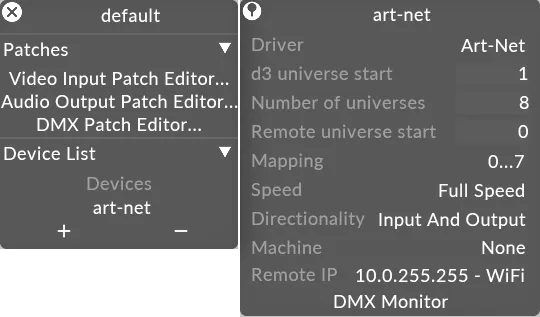
- driver を左クリックします。これは、コンバーターのデバイスタイプを選択するオプションスイッチです。
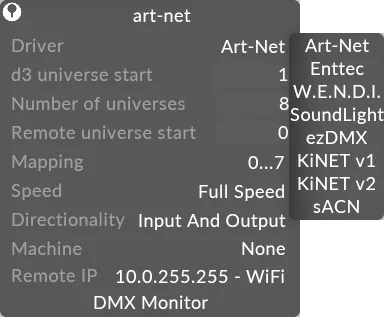
対応プロトコル
以下のオプションに対応しています。
Art-Net
Art-Net デバイスは、標準的なイーサネットネットワークと従来の DMX 照明システムとの間のブリッジとして機能し、入力と出力の両方を処理します。これは最も一般的に使用されている DMX over Ethernet プロトコルです。Art-Net は、1 本のイーサネットケーブルで最大 32,768 ユニバースのデータを伝送できます。
Art-Net Broadcast
Art-Net ブロードキャストは、Art-Net 照明プロトコルにおける初期の伝送方式で、ネットワーク上のすべてのデバイスに信号を送信して照明ノードを検出・設定します。Art-Net ブロードキャストを行うには、デバイスのリモート IP をネットワークのブロードキャストアドレスに設定します。たとえば、ノードの IP が 2.0.0.1 でサブネットマスクが 255.0.0.0 の場合、ブロードキャスト IP は 2.255.255.255 になります。
Art-Net IP Address Filtering
Art-Net / sACN 接続の管理方法を変更し、DMX データをより精密に重ね合わせられるようにしました。これにより、Disguise はデータを受信する IP アドレスについて、サブネット全体をリッスンしていた以前の動作よりも厳格になりました。この変更に伴い、ユーザーはリモート IP アドレスを入力する際に、正しいユニキャストアドレスまたはサブネットのブロードキャストアドレスのいずれかを使用するよう、より具体的に指定する必要があります。
sACN
Streaming-ACN(ANSI E1.31-2016 とも呼ばれます)は、Disguise が対応する、もう 1 つの DMX over Ethernet プロトコルです。ブロードキャスト(またはユニキャスト)プロトコルである Art-Net とは異なり、sACN はマルチキャストプロトコルであり、イーサネットネットワーク経由で最大 63,999 ユニバースの制御データを伝送できます。
Designer でマルチキャストトラフィック用のアダプターを選択すると、ローカルマシン上に存在するアダプターのリストが読み込まれます。sACN 信号の伝送に使用するアダプターの名前は、正しく接続するために、ネットワーク内の各サーバーで同じようにラベル付けされている必要があることに注意してください。
誤った例:
Server A (Director) NIC B labeled "B - sACN 1Gbit"
Server B (Actor) NIC B labeled "B - Artnet 1Gbit" (NIC B will not receive DMX)
正しい例:
Server A (Director) NIC B labeled "B - sACN 1Gbit"
Server B (Actor) NIC B labeled "B - sACN 1Gbit"
ENTTEC
これは、普及している ENTTEC Datagate 変換デバイスが対応するプロトコルです。
SoundLight
これは、SoundLight Inc. 製の DMX デバイスと通信する USB ベースのプロトコルです。
EzDMX
これは、Avolites EzDMX デバイスと通信する USB ベースのプロトコルです。
Kinet V1 and V2
これは、Color Kinetics デバイスが対応する照明制御プロトコルです。
この例では、次のように設定します。
-
driver コンバータータイプのリストから Art-Net を選択します。
-
IP-address を左クリックして、IP アドレスエディターを開きます。イーサネットベースのプロトコル(Art-Net、ENTTEC、WENDI)は、各物理デバイスを異なる IP アドレスで識別します。このプロパティは、USB ベースのプロトコル(SoundLight、EzDMX)では機能しません。
-
Manual address を左クリックして Select Remote Node ウィンドウを開き、デバイスの IP アドレスを入力します。この例では、GrandMA 照明卓の IP アドレスを入力しています。
-
IP アドレスの入力が終わったら OK を左クリックします。
-
start universe の値を入力します。ユニバース番号は常に 1 から始まります。start universe プロパティは、デバイスの最初のユニバース番号を指定します。Designer は任意の数の DMX ユニバースを利用可能にし、ユニバースの範囲を個々の DMX コンバーターデバイスにマッピングします。この番号は、このデバイスにマッピングされる最初のユニバースのユニバース番号を指定します。
-
universes の値を入力します。これは、DMX デバイスにマッピングするユニバースの数を指定します。上記の例では、ユニバース 1 から 8 が、10.0.0.83 にある Art-Net デバイスにマッピングされています。
DMX 入出力の確認
- デバイスエディターで DMX monitor を左クリックして、DMX モニターを開きます。DMX モニターは DMX の入出力を確認するために使用します。この例では Art-Net デバイスの確認を行っています。
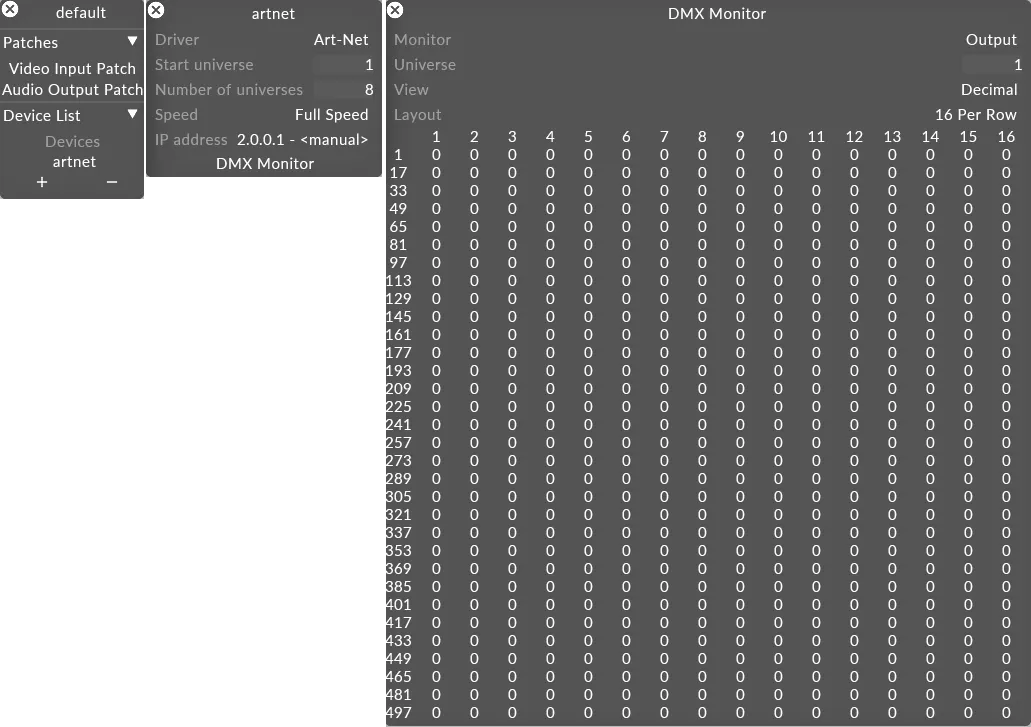
- ユニバースの値を入力して、特定のユニバースで DMX 入力を確認します。
- Monitor を左クリックして、値を Output から Input に変更します。
- 値が Designer に入力されているか確認します。
- DMX Device — Devices セクションにある DmxDevice のリファレンスページです。
- グローバル DMX オプション — グローバルな DMX 出力設定です。
- DMX Screens と DMX Lights の概要 — より広範なワークフローの文脈を説明します。