

ヘッド構成
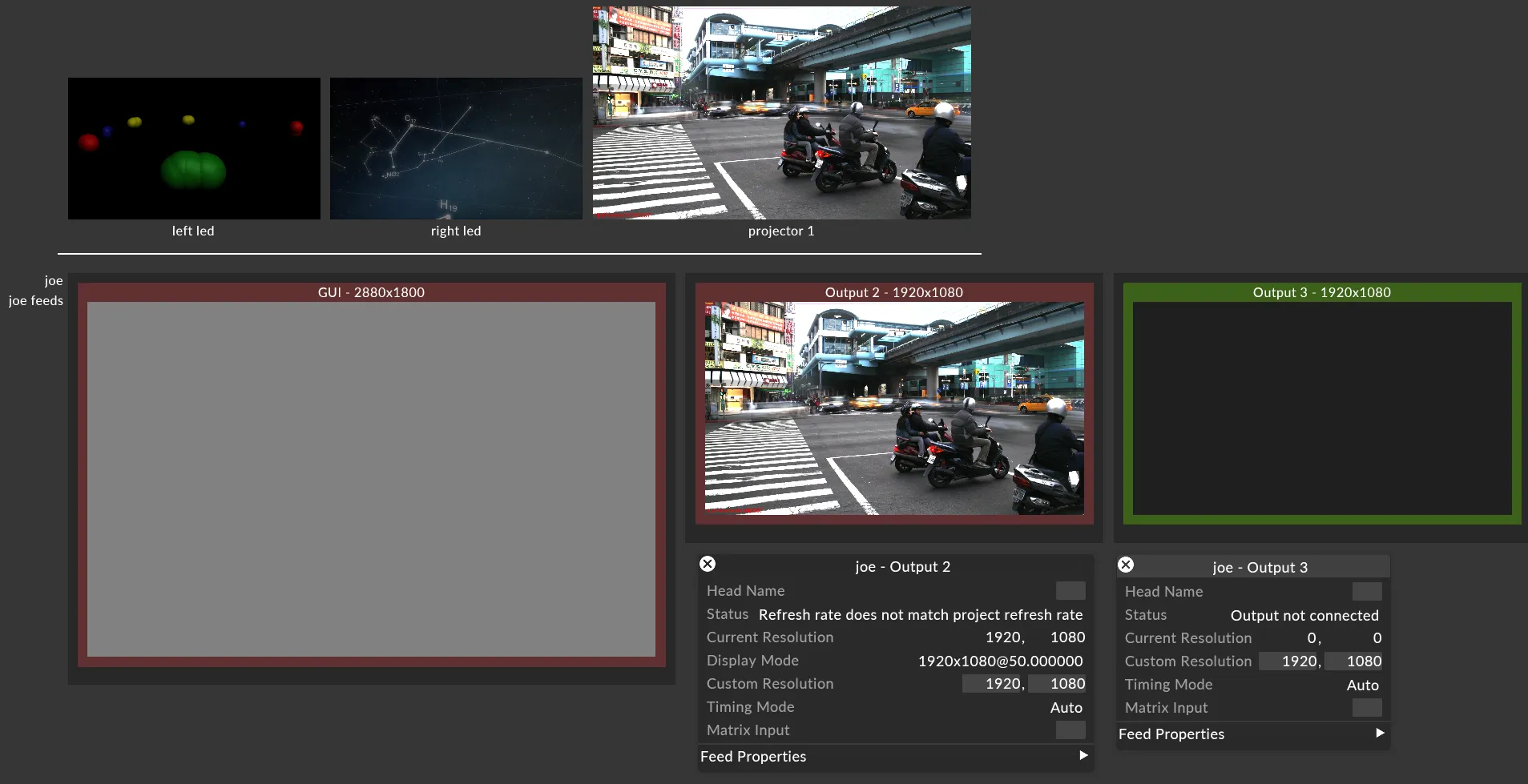
output head(出力ヘッド)とは、サーバー上の単一の物理ビデオ出力で、VFC カードのポートや標準のグラフィック出力などを指します。NVIDIA Mosaic™ で結合された複数の GPU 出力も、1 つの出力ヘッドとして認識されます。各ヘッドはその設定メニューから個別に構成し、色分けされた Feed view(フィードビュー)でステータスをひと目で確認できます。
ヘッドを構成するには:
- ヘッドの名前、またはその色付きボックス内の任意の場所を右クリックして、設定メニューを開きます。
- 解像度、タイミングモード、レイテンシなど、必要なプロパティを編集します(下記の Output Head Properties(出力ヘッドのプロパティ)を参照)。
- フィード設定を適用して、解像度やタイミングの変更を物理出力に反映します。その他の変更はライブで反映されます。
- Feed view でヘッドの色を確認し、ステータスを確認します。
Output Head Colour(出力ヘッドの色)
Section titled “Output Head Colour(出力ヘッドの色)”Feed UI では、シンプルな色分けシステムを通じて各ヘッドのステータスを視覚的に確認できます。これにより、ヘッドの色を見るだけで、どのディスプレイに注意が必要か、また発生している問題の深刻度をすばやく簡単に識別できます。
Green(緑) - ヘッド構成済み
Red(赤) - リフレッシュレートが異なる
Orange(オレンジ) - ヘッド設定が変更された。変更を反映するにはフィード設定を適用する必要がある
Blue(青) - Designer マシン
Grey(グレー) - 出力が未接続、またはマシンが存在しない
Flashing Blue and Grey(青とグレーの点滅) - マシンが現在フィード設定を適用中
Output Head Settings(出力ヘッド設定)
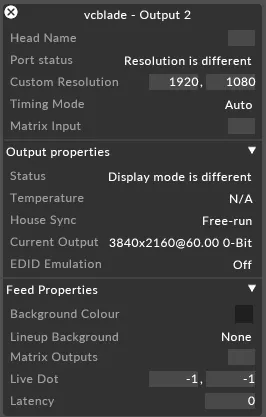
Section titled “Output Head Settings(出力ヘッド設定)”各出力ヘッドの設定メニューでは、ヘッドの設定を監視・変更できます。利用できるプロパティは以下のとおりです。
Output Head Properties(出力ヘッドのプロパティ)
Section titled “Output Head Properties(出力ヘッドのプロパティ)”Head Name(ヘッド名)
Section titled “Head Name(ヘッド名)”各出力ヘッドに固有の名前を入力できます。非 VFC マシンではデフォルトで Output 1、2 などに、Quad VFC の各ヘッドでは A、B、C、D に設定されます。
Port Status(ポートステータス)
Section titled “Port Status(ポートステータス)”各ヘッドのステータスを監視できます。発生した問題はここに一覧表示されます(上記の Output Head Colour のセクションを参照)。問題が検出されない場合は Normal と表示され、ヘッドの色は緑になります。
Custom Resolution(カスタム解像度)
Section titled “Custom Resolution(カスタム解像度)”このフィールドは、対応するポートにカスタム解像度を設定するために使います。
Timing Mode(タイミングモード)
Section titled “Timing Mode(タイミングモード)”出力のビデオ信号タイミングの決定方法を設定します:
- Auto: 出力の解像度とリフレッシュレートに対応する標準のタイミングを Designer が使用します。
- SMPTE: 特定の放送仕様に準拠する必要がある SDI 出力向けに、標準的な放送(SMPTE)信号タイミングを強制します。
Matrix Inputs(マトリックス入力)
Section titled “Matrix Inputs(マトリックス入力)”マトリックスに接続されているとき、入力を直接ルーティングできます。詳しくは Direct Matrix Routing のページをご覧ください。
Output Properties(出力プロパティ)
Section titled “Output Properties(出力プロパティ)”
Status(ステータス)
Section titled “Status(ステータス)”出力の構成のステータスを示し、問題が検出された場合は報告します。
Temperature(温度)
Section titled “Temperature(温度)”出力の現在の動作温度を表示します。
House-Sync(ハウスシンク)
Section titled “House-Sync(ハウスシンク)”この出力が genlocked(ジェンロック)されているか、つまり外部の「house sync」基準信号にロックされ、その信号を共有する他のすべての出力やマシンとフレームタイミングが揃っているかどうかを示します。マシン間でフレーム単位の同期を取るには、すべての出力が共通の基準信号に genlock されている必要があります。
Current Output(現在の出力)
Section titled “Current Output(現在の出力)”この出力の現在の解像度とリフレッシュレート。
EDID Emulation(EDID エミュレーション)
Section titled “EDID Emulation(EDID エミュレーション)”EDID は、ディスプレイが自身を識別し、対応する解像度やタイミングを伝えるために送り返すデータです。メディアサーバーの出力は、使用可能な EDID を提示しない LED プロセッサーやディスプレイを駆動することが多く、また接続状況にかかわらず固定の解像度を維持する必要がある場合があります。そのため Designer は、保存された(「エミュレートされた」)EDID を GPU に提示でき、ディスプレイが接続されていない場合でも出力を安定させられます。
利用できる EDID エミュレーションモードは次のとおりです:
- Always: ディスプレイが接続されていない場合でも、常に EDID をエミュレートします。
- If Connected: ディスプレイが出力に接続されている場合のみ EDID をエミュレートします。
- Unmanaged: 現在の EDID エミュレーションを変更しません。
- Force Off: EDID をエミュレートせず、設定されている場合は既存のものを削除します。
Feed Properties(フィードプロパティ)
Section titled “Feed Properties(フィードプロパティ)”Feed Properties ドロップダウンメニューには、主にヘッドがフィードシーンに表示される方法に関する変更が含まれます:
Background Colour(背景色)
Section titled “Background Colour(背景色)”カラーピッカーの色を使って、各ヘッドの背景色を変更できます。接続されたディスプレイに出力されます。
Lineup Background(ラインアップ背景)
Section titled “Lineup Background(ラインアップ背景)”Feed Rectangle の位置合わせ用に、出力に背景画像を配置できます。接続されたディスプレイには出力されません。
Matrix Outputs(マトリックス出力)
Section titled “Matrix Outputs(マトリックス出力)”マトリックスに接続されているとき、出力を直接ルーティングできます。詳しくは Direct Matrix Routing のページをご覧ください。
Live Dot(ライブドット)
Section titled “Live Dot(ライブドット)”出力が正常に動作していることを視覚的に確認できる、1 つの点滅ピクセルを追加できます。黒や静止コンテンツを出力するときに便利です。
Latency(レイテンシ)
Section titled “Latency(レイテンシ)”この出力ヘッドを指定したフレーム数だけ遅延させ、他のヘッドや下流の機器と揃えられます。範囲は −30 〜 +30 フレームです。正の値はこのヘッドを遅延させ、負の値は代わりに他のすべてのヘッドを遅延させます。これは、このヘッドの出力が遅れているときに、他のヘッドを合わせて遅らせたい場合に便利です。