

Feed Outputs の概要
Feed View(フィードビュー)には Feed Scene(フィードシーン)が含まれ、Stage のコンテンツをどのように配置して物理出力ヘッドに届けるかを決定します。
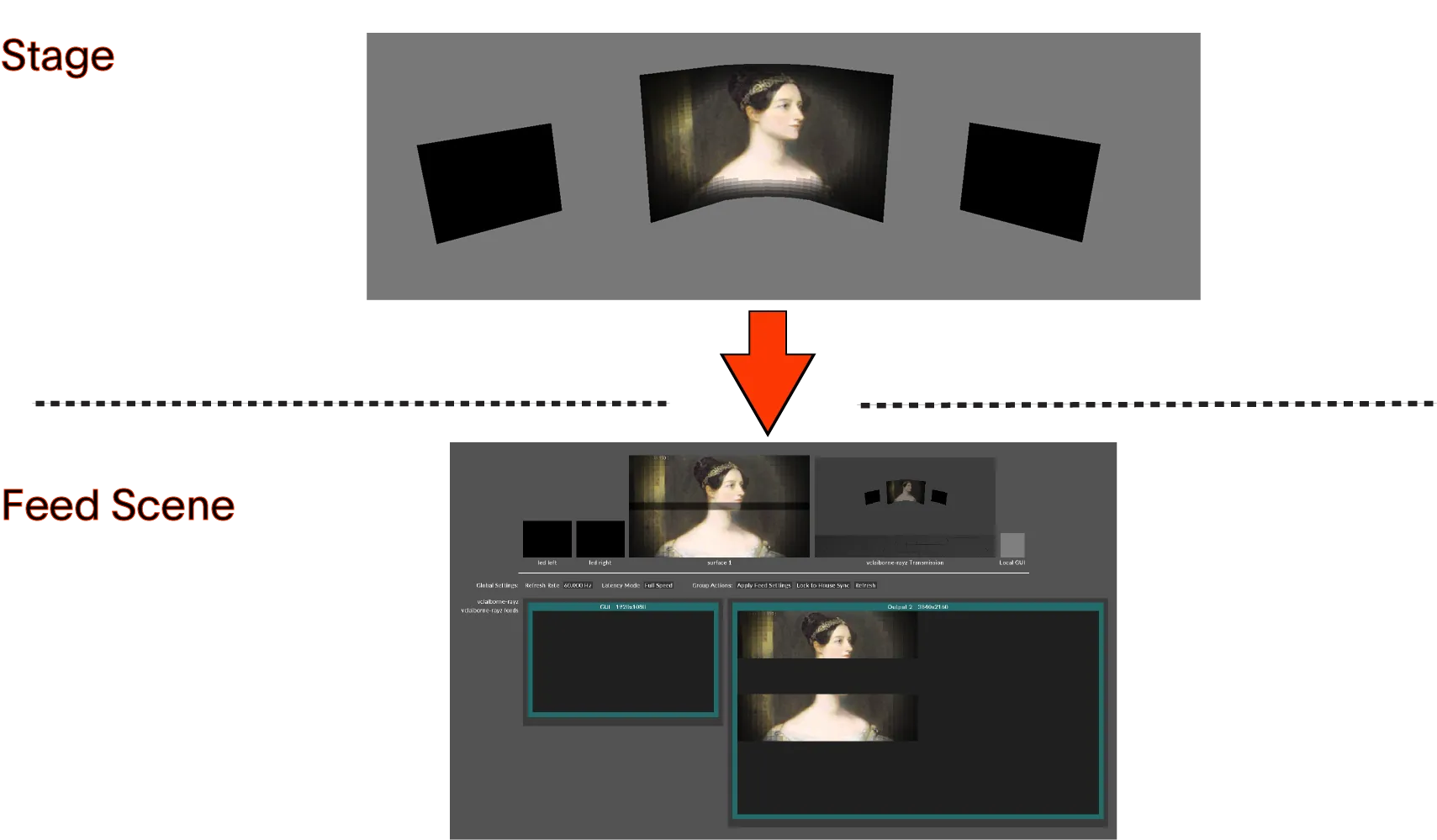
Feed Scene とは?
Section titled “Feed Scene とは?”Feed Scene は、視覚的なコンテンツを Stage レベルの Screen からシステムの出力ヘッドへどのように転送するかを定義します。
これは、Stage コンテンツの一部を抽出し、出力デバイス上に正確に配置するマッピングレイヤーとして機能します。
各 Feed Scene には複数の Feed Rectangle(フィードレクタングル)が含まれ、次のことを指定します:
- Source Screen(ソース Screen)– コンテンツの発生元。
- Content region(コンテンツ領域)– Screen のどの領域を使うか。
- Transformations(変形)– クロップ、スケール、回転、配置。
- Destination(出力先)– コンテンツが出力ヘッドのどこに表示されるか。
これにより Designer は、コンテンツを柔軟にコピー・再配置でき、幅広いディスプレイ構成に対応できます。
なぜ複数の Feed Rectangle を使うのか?
Section titled “なぜ複数の Feed Rectangle を使うのか?”1 つの Feed Scene には、各 Screen に対して複数の Feed Rectangle を含めることができます。これにより、次のことが可能になります:
- 1 つの Screen を複数のコンテンツ領域に分割する。
- Screen のコンテンツを異なる順序で再構成する。
- クロップした Screen の領域を LED プロセッサーにマッピングする。
- 通常とは異なるディスプレイレイアウトやプロジェクター構成に合わせて映像を調整する。
LED ウォール、プロジェクションシステム、複雑なマルチ出力デザインのいずれを扱う場合でも、Feed Rectangle は各出力に送られる内容をきめ細かく制御できます。
Feed Movie のレンダリング
Section titled “Feed Movie のレンダリング”Designer は Feed Scene の出力を Feed Movie にレンダリングすることもできます。これは、インストール、再生、プレビズ用に事前レンダリングされたコンテンツが必要な場合に便利です。
詳しくは、Feed Movie のレンダリング と メディアのレンダリング のページをご覧ください。
Feed Outputs のドキュメント
Section titled “Feed Outputs のドキュメント”以下のページでは、Feed view の表示と操作、ハードウェア関連のフィード設定、リフレッシュレートの設定、ビデオ信号の動作の調整について説明します。Feed view 環境の理解と、出力の生成方法に影響するシステムコンポーネントの構成に焦点を当てています。
Feed レベルとシステム構成
Section titled “Feed レベルとシステム構成”- Feed レベルの表示
- Feed レベルのナビゲーション
- d3Net フィード設定の構成
- VFC カードスロットの構成
- VFC カードポートの構成
- 複数の VFC カードの構成
- プロジェクトのリフレッシュレートの設定
- Video Timings
- 10-bit ディスプレイ
以下のページでは、Feed Rectangle の定義、Screen コンテンツの出力へのマッピング、Rectangle の複製や変更、ブレンディング・マスキング・ワーピングによる出力ジオメトリの調整に使うツールとワークフローについて説明します。実際の出力レイアウト、編集、操作に焦点を当てています。
出力ヘッドの構成は 2 段階のワークフローで、3 つのページにわたって説明されています。出力設定の構成 はプロセスの概要、ヘッド構成 は各ヘッドの設定(ヘッドの色のステータスを含む)の監視と編集、フィード設定の適用 は解像度やタイミングの変更を物理出力に反映する方法を説明します。