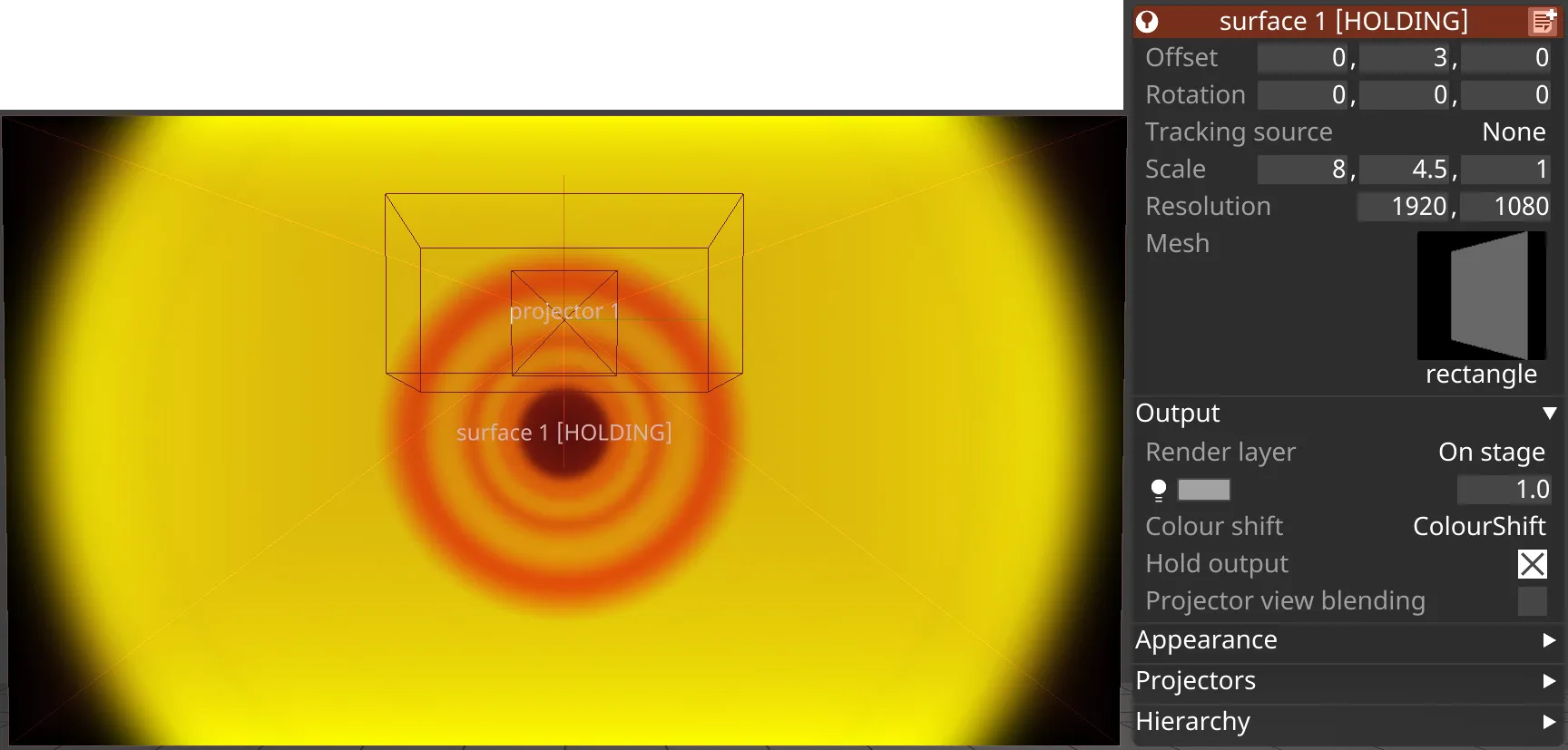
出力プロパティ
出力プロパティは、スクリーンの出力に影響するその他のプロパティを制御します。
Render layer(レンダーレイヤー)
Section titled “Render layer(レンダーレイヤー)”レンダーレイヤー機能を使用すると、スクリーンがどこにレンダリングされるかを定義できます。
On Stage - スクリーンはカメラとプロジェクターのビューポートにレンダリングされます。
Off Stage - スクリーンはステージ上にありますが、まったくレンダリングされません。
Frontplate (AR) - スクリーンはステージ内にありますが、カメラのフロントプレートにのみレンダリングされます。
Master fade(マスターフェード)
Section titled “Master fade(マスターフェード)”これは、Output Feeds level に送信される際のスクリーンの出力レベルを制御します。範囲は 0〜1 です。これを使用して、カメラやその他の明るさの低いフィクスチャーを補正するために、物理スクリーンの明るさを下げます。Master Fade を下げても、ステージレベルのスクリーンコンテンツの明るさには影響しません。
Colour shift(カラーシフト)
Section titled “Colour shift(カラーシフト)”各スクリーンには Colour shift プロパティがあり、Feed Outputs に送信される際のスクリーンのカラーバランスを制御するために使用できます。これは、異なる LED 技術の異なる色や明るさの特性を補正するために使用でき、異なる技術を混在させて使用する場合でも一貫した色と明るさを出力できます。このパラメーターは、ディスプレイハードウェアの不整合を修正するためにのみ使用されるため、ビジュアライザーでは効果がありません。Colour shift プロパティの完全な説明については、Common Layer Properties の Colour Shift セクション のトピックを参照してください。
Colour profile(カラープロファイル)
Section titled “Colour profile(カラープロファイル)”スクリーンに Colour profile を指定できます。
Colour LUT(カラー LUT)
Section titled “Colour LUT(カラー LUT)”スクリーンに LUT ファイルを適用できます。これは、スクリーンのカラープロファイルを変更する必要がある場合に便利です。これは LED スクリーンプロセッサーまたはオンボードのスクリーンハードウェアで行うことをお勧めします。ただし、それが不可能な場合や、その他のクリエイティブな用途のために、LUT を介して行うオプションも存在します。
Projector view blending(プロジェクタービューのブレンド)
Section titled “Projector view blending(プロジェクタービューのブレンド)”プロジェクタービューのブレンドの動作が、透明な面をサポートするように変更されました。従来のプロジェクタービューのブレンドの動作を使用するには、Advanced Machine Settings で useLegacyProjectViewBlending オプションスイッチを有効にしてください。
projection surfaces にのみ適用されます。
プロジェクタービューで面を半透明にできます。これを機能させるには、プロジェクション面のブレンドを Alpha に設定する必要がある点に注意してください。
この機能の仕組み、用途、および従来の動作に戻す方法の詳細については、Projector View Blending を参照してください。
Hold output(出力をホールド)
Section titled “Hold output(出力をホールド)”hold output 機能を使用すると、プロジェクトレベルの Hold 機能と同様に、スクリーンの出力をフリーズできます。これにより、シーケンスを続けながら、1 つまたは選択した複数のスクリーンで出力フレームをホールドできます。