

プロジェクションの例 - ダウンステージカーテン
この手法は、移動中に物理的な位置トラッキングが利用できないダウンステージカーテンやガーゼ面で使用されることがあります。目的は、カーテンが上がる際にシーナリーが目に見えて「スナップ」するのを防ぐ回避策を提供し、代わりにカーテンとシーナリーのコンテンツの間に滑らかなブレンドを作り出すことです。
ステージのセットアップ
Section titled “ステージのセットアップ”- 複数のプロジェクター(proj1、proj2、…)
- プロジェクションマッピングされたシーナリー(scenery)
- ダウンステージカーテンのプロジェクション面(curtain)- 手動で上げ下げできます。カーテンの位置はトラッキングされません。
ステージの演出
Section titled “ステージの演出”物理的なショーの条件を理解するために、以下のキューをステージの演出として示します。
- カーテンが下りている - curtain が下がっており、観客から見えています。curtain の後ろではセットチェンジやその他のイベントが行われています。curtain にはショーのロゴがマッピングされています。
- シーンに入る - curtain が上がります。シーナリーは常にプロジェクションマッピングされている必要があります。カーテンのロゴはフェードアウトします。
- シーンから出る - カーテンが下がります。カーテンが完全に下りるまで、シーナリーはプロジェクションマッピングされたままである必要があります。カーテンのロゴが表示されます。
curtain はトラッキングされておらず、ステージの演出として scenery を常にプロジェクションマッピングする必要があるため、いつ scenery がプロジェクターから見えるようになるかを知ることができません。
さらに、非常に異なる 2 つの「ブレンドシーン」(カーテンが下りている状態と上がっている状態)があり、それぞれプロジェクション面が良好に見えるよう異なるブレンドが必要なため、プロジェクターに単一のブレンドを適用することは不可能です。
したがって、curtain が下りている間に scenery をマッピングできます。そして物理的なカーテンが上がっている間に、curtain 上のコンテンツをフェードアウトします。
実世界での考え方としては、物理的なカーテンを素早く上げ、curtain と scenery のコンテンツをクロスフェードすることで、物理的なカーテンが上がりコンテンツがクロスフェードしている間の不正確なプロジェクションマッピングに観客が気づかないようにします。
プロジェクトのセットアップ
Section titled “プロジェクトのセットアップ”ステージのセットアップ
Section titled “ステージのセットアップ”効果を正しく実行するには、ステージ内のスクリーンとプロジェクターが正しく構成されていることを確認する必要があります。
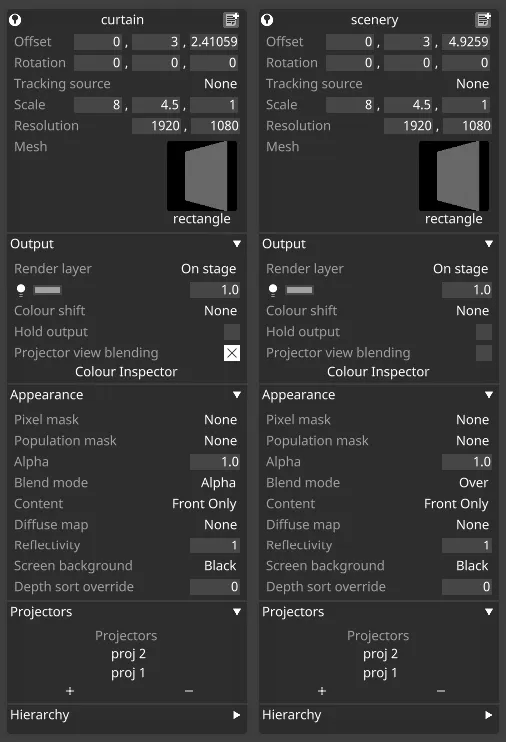
- すべてのプロジェクターのサーフェスに curtain と scenery の両方を含めます。
- curtain で Projector View Blending を有効にします。
- すべてのプロジェクターで Dynamic Blend を有効にします。
- シーナリーで適切に揃い、下りたカーテンでも許容できる整合になるようプロジェクターをキャリブレーションします。
- マルチデプスのプロジェクションは 2D ワーピングと互換性がないため、ワープは最小限に抑えます。
- 最も重要なシーン要素(通常は物理的なカーテンよりもステージ上のシーナリー)にフォーカスを優先します。
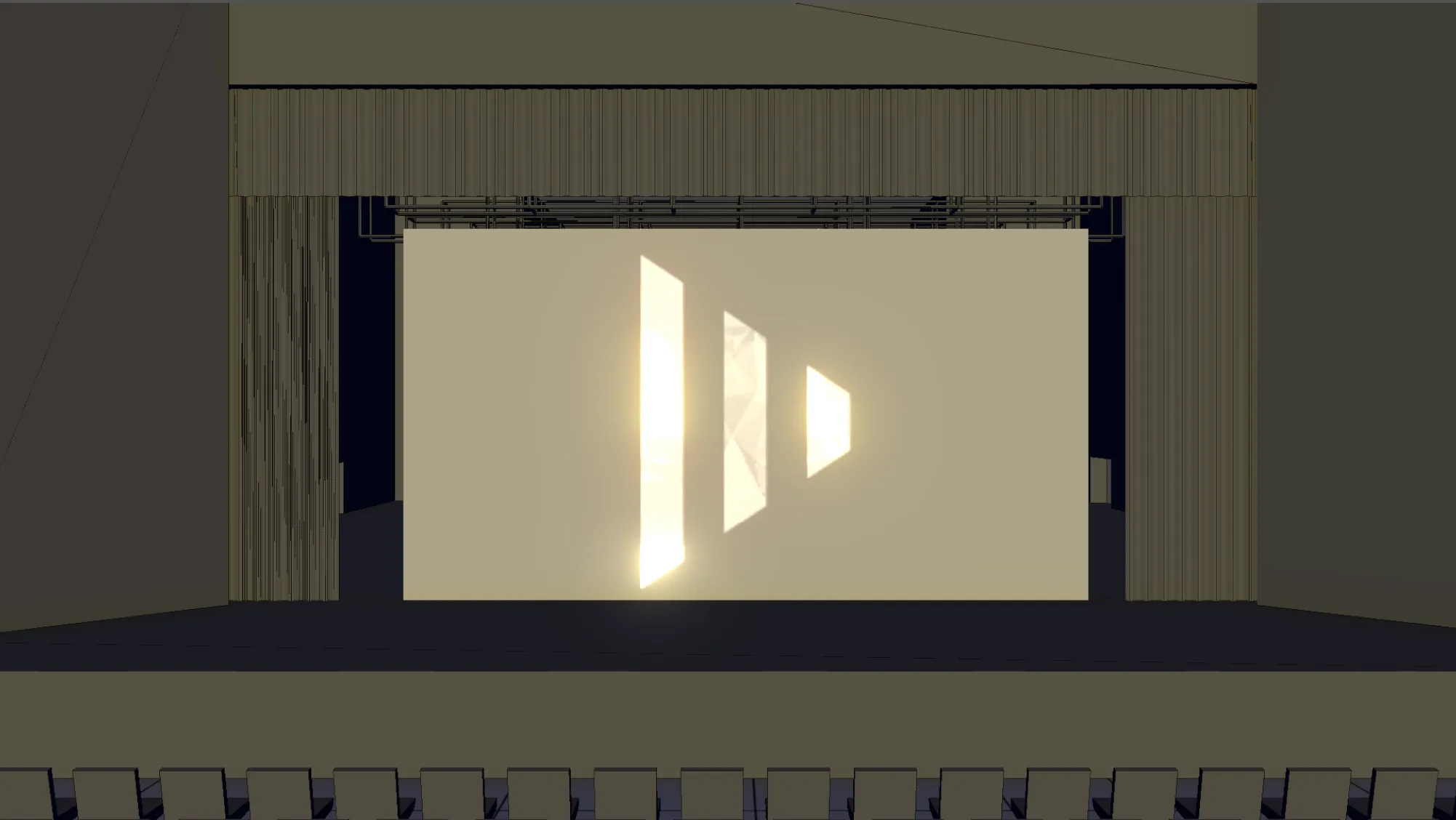
カーテンが下りているキュー
Section titled “カーテンが下りているキュー”カーテンのコンテンツが表示されている(シーナリーがまだ現れていない)場合、可能な限り最良の再現になるようコンテンツの外観を最適化します。
このキューで正しいルックを確保するには、以下をプログラムする必要があります。
- 適切なコンテンツ(例: ロゴ)を持つ 1 つ以上のレイヤーを curtain にマッピングします。
- curtain の Alpha を
1.0(完全に不透明)に設定します。 - コンテンツをプロジェクション全体に適切に広げて、ブレンドゾーンの視認性を最小限に抑えます。
ブレンドは curtain ではなく scenery を対象としているため、カーテン上にブレンドゾーンが見える場合がある点に注意してください。以下のスクリーンショットは最悪のケースを示しています。これを軽減するには、以下を検討してください。
- curtain を 1 台のプロジェクターのみに追加する — これによりブレンド領域がなくなりますが、明るさが低下します。
- ブレンドゾーンがカーテンのコンテンツと重ならないよう、プロジェクターの位置やコンテンツの配置を調整する — これはより技術的/クリエイティブですが、最良の結果が得られます。
「シーンに入る」キュー
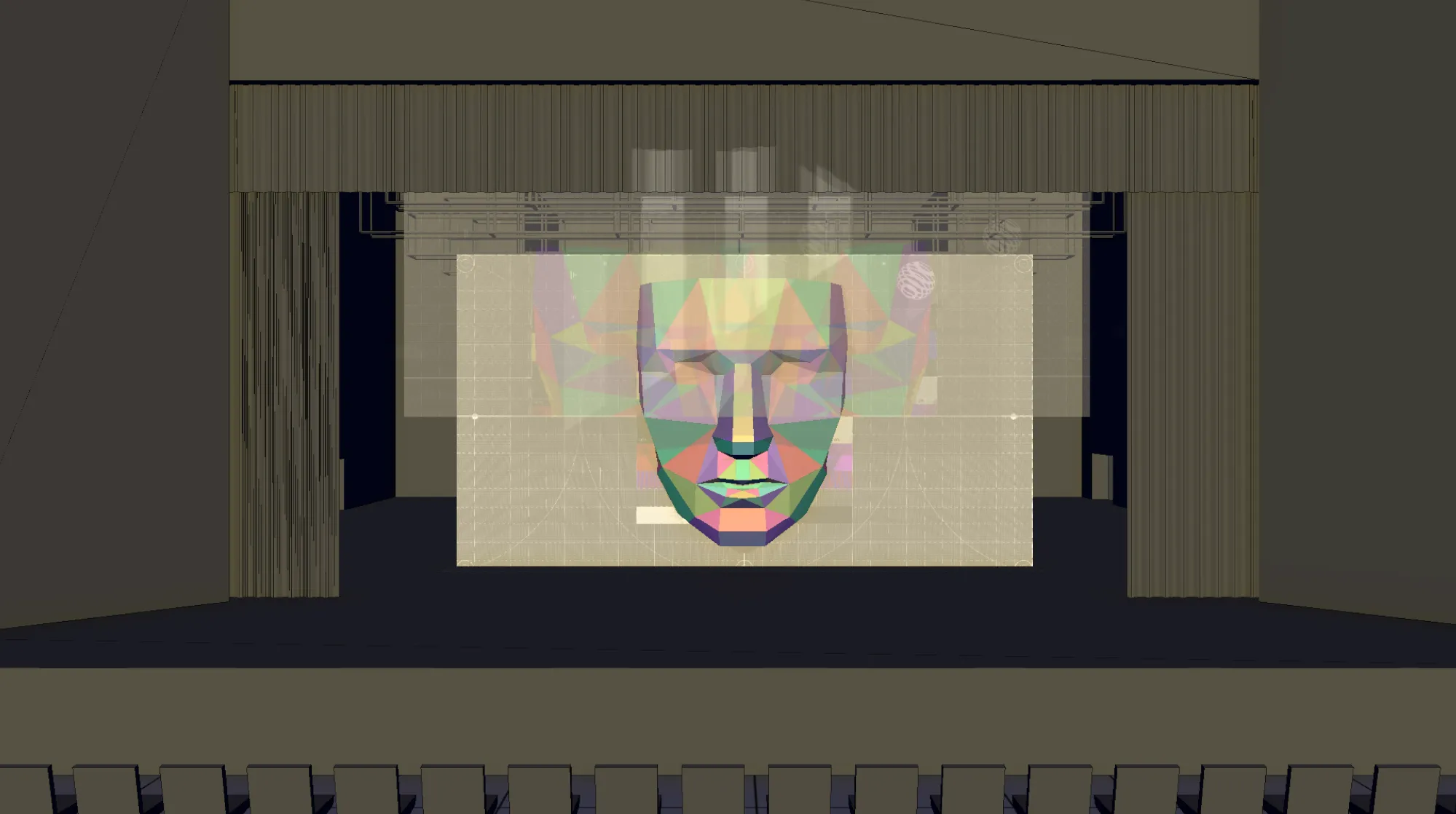
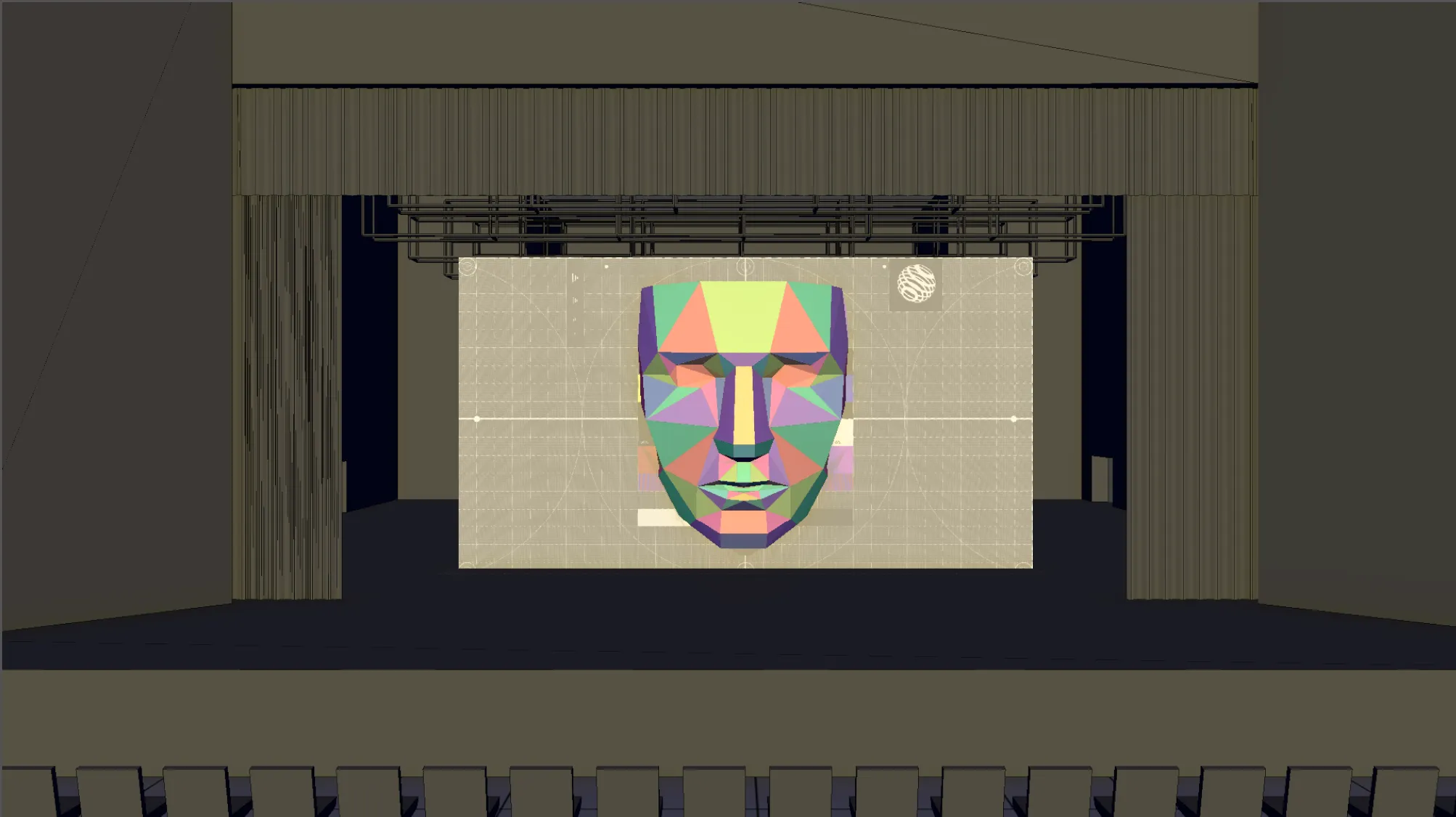
Section titled “「シーンに入る」キュー”カーテンが上がる際、両方の面(scenery と curtain)にコンテンツがマッピングされている必要があります。トランジション中にコンテンツを適切にクロスフェードするには、Universal Crossfade の使用を検討してください。目的は、観客がステージに注目する際、scenery に投影されるコンテンツが可能な限り良好に見えるようにすることです。
- 適切なコンテンツ(例: ロゴ)を持つ 1 つ以上のレイヤーを curtain にマッピングします。
- 適切なコンテンツを持つ 1 つ以上のレイヤーを scenery にマッピングします。
- トランジション中にシーナリーを徐々に明らかにするため、キュー内の定義された時点で curtain の Alpha を
0.0(完全に透明)にフェードします。例えば、これはカーテンのアルファプロパティにマッピングした open layer を使用して実現できます。 - オプションで、カーテンが上がるのに合わせて curtain の位置をアニメーションし、物理的なカーテンに追従させます。これは必須ではありませんが、視覚的な結果を向上させることができます(以下のスクリーンショットはこのアプローチを示しています)。
「シーンから出る」キュー
Section titled “「シーンから出る」キュー”このキューは「シーンに入る」シーケンスを逆にしたものです。カーテンが下りる際にカーテンのコンテンツを優先するため、カーテンのアルファを 1.0 に戻してフェードします。