
レイヤーの矢印
矢印は、複数のレイヤーを合成する方法を提供します。例えば、Video レイヤーの出力を Notch レイヤーに送り込んで、ビデオコンテンツに Notch のエフェクトを適用できます。
複数のレイヤーを連鎖させることもできます。例えば、Notch レイヤーの出力を SpinBitmap レイヤーに送り込むことができます。
- カーソルをソースレイヤーの上に置き、Alt を押しながらマウスボタンを押して、ソースレイヤーから離れるようにドラッグします。カーソルに追従する矢印が表示されます。
- マウスカーソルを宛先レイヤーに移動し、マウスボタンを離します。これにより、ソースレイヤーと宛先レイヤーの間に新しい矢印が作成されます。
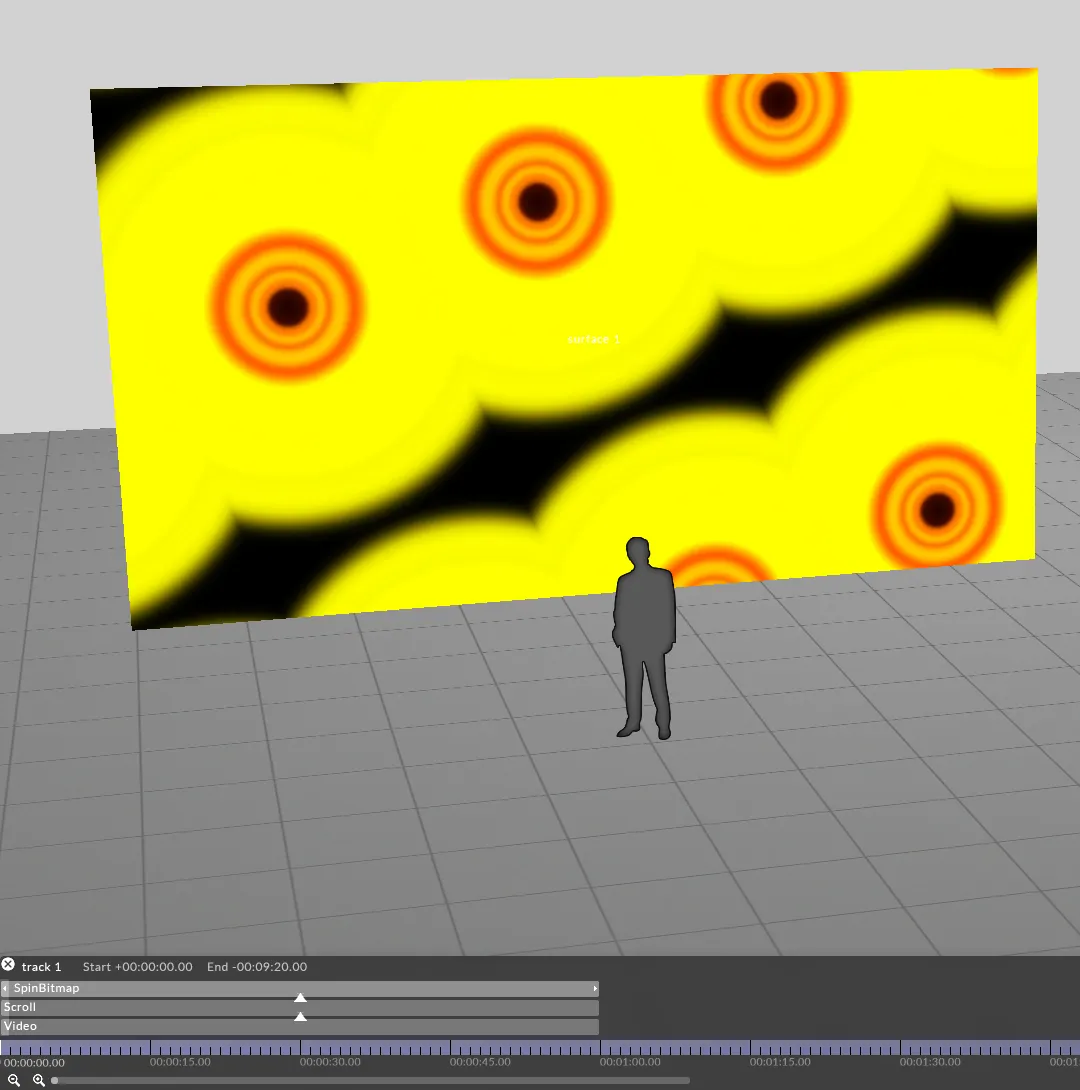
矢印を削除するには、Alt を押しながら矢印の根元を右クリックします。
矢印の解像度
Section titled “矢印の解像度”矢印によって転送されるコンテンツの解像度は、ソースレイヤーのマッピングによって決まります。矢印のコンテンツに使用したい解像度で空の(スクリーンのない)ダイレクトマッピングを作成し、そのマッピングをソースレイヤーに割り当てることを推奨します。
ソースレイヤーのマッピングが非常に高解像度の場合、宛先レイヤーは高解像度のコンテンツを処理する必要があるため、そのパフォーマンスに影響が出ることがあります。これはソースレイヤーのコンテンツが低解像度であっても発生します。コンテンツは、矢印で送られる前にマッピングの解像度に合わせてリサンプリングされるためです。
矢印に対応したレイヤー
Section titled “矢印に対応したレイヤー”すべての Content レイヤーは、別のレイヤーにコンテンツを送り込むために使用できます。ただし、すべてのレイヤーが送り込みの対象として対応しているわけではありません。すべての Effect レイヤーと、一部の Generative レイヤー(Generative コンテンツの種類によります)が送り込みの対象に対応しています。矢印の入力に対応しているかどうかは、各レイヤータイプのドキュメントで確認してください。
矢印の代替手段
Section titled “矢印の代替手段”矢印はレイヤーの合成をすばやく実装するのに非常に便利ですが、より複雑なデザインや、レイヤー間で送り込むコンテンツをより細かく制御する必要がある場合は、次のいずれかの代替手段を検討してください。
- Source from background: 矢印を受け付けるレイヤーの入力には、すべて from background(背景から)オプションもあります。入力が 1 つのレイヤーでは Source from background、複数あるレイヤーでは Source 1 from background、Source 2 from background のように表示されます。これを有効にすると、その入力はレイヤーのスクリーンにすでにレンダリングされているコンテンツ、つまりタイムライン上でそのレイヤーより下にあり、同じマッピングを共有するすべてのレイヤーを読み込みます。矢印を一切引かずにレイヤーのスタック全体を 1 つの入力に合成できるため、下にあるすべてのものをレイヤーで処理したい場合に最もシンプルな選択肢です。
- PreComp: PreComp はレイヤーがレンダリングする仮想スクリーンで、他のレイヤーはそれをテクスチャとして読み込みます。PreComp は、複数のトランスポートにまたがって作業する場合、同じコンポジションを複数の場所で再利用する場合、または複数のコンテンツを 1 つの入力に合成する場合に特に便利です。
© 2026 Disguise