

Ipsum
このコンテンツはまだ日本語訳がありません。
The Ipsum Platform is a data aggregation and content scheduling system for the Vizrt Ticker and Unreal platforms. Ipsum can be hosted on the cloud or on a local network. Ipsum supports manual entry of ticker headlines, weather data, and election data as well as custom integration to data sources.
Ipsum also provides an API to read and manipulate content from external applications.
Ipsum integrates with Porta with the following data streams:
- Ipsum Weather
- Ipsum Sports
- Ipsum Server
Troubleshooting
Section titled “Troubleshooting”Graphics Hub Connection
Section titled “Graphics Hub Connection”Issue:
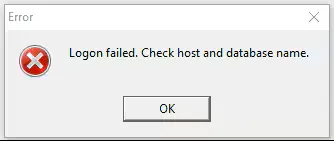
Viz Trio, Viz Artist, or Viz Engine cannot connect to the Graphics Hub. The software fails to start or displays empty content lists after previous use.
Troubleshooting steps
Section titled “Troubleshooting steps”-
Check overall network health and ensure connectivity between client and Graphics Hub machine.
- Use ping [GraphicsHub_IP] to verify communication.
-
Confirm the following processes are running on the Graphics Hub machine:
VizGHVizGHNamingService
-
Verify that the license is valid and up to date.
Viz World Server / Map Server Connection
Section titled “Viz World Server / Map Server Connection”Issue:
Flights unavailable, regions or borders in the map scenes not working.

Troubleshooting steps
Section titled “Troubleshooting steps”- Check network connectivity between the client and the Viz World machine.
- Use ping
[VizWorld_IP]to verify.
- Use ping
- Ensure the VizWorldServer process is running.
- Verify that the license is current and active.
Could not connect to Media Sequencer (on [localhost/IP]
Section titled “Could not connect to Media Sequencer (on [localhost/IP]”Issue:
![Could not connect to Media Sequencer (on [localhost/IP]](/_astro/vizrt3.B-Zvtfvw_Z2j6J8v.webp)
Viz Trio cannot start because the Media Sequencer (MSE) is unavailable.
Explanation:
Viz Trio is a GUI (Graphical User Interface) for the Viz Media Sequencer (MSE) service. MSE must be running for Viz Trio to operate correctly.
Troubleshooting steps
Section titled “Troubleshooting steps”- If using a local (default) Viz Trio shortcut:
- Verify that Viz Media Sequencer is running on localhost.
- If it has stopped or crashed, restart the Viz Media Sequencer application.
- If Viz Trio is configured to connect to a remote MSE instance:
- Check network connectivity to the destination IP.
- Ensure MSE is running on the target machine.
How to Check MSE Target Location:
Section titled “How to Check MSE Target Location:”- Right-click the Viz Trio shortcut and select Properties.
- Review the Target field. It should look similar to:
To check MSE location: Right-click on shortcut, see target:
"C:\Program Files (x86)\Vizrt\Viz Trio\trio.exe" -mse[localhost or IP] -control -lang en -loglevel 5Additional Notes:
Section titled “Additional Notes:”- MSE automatically generates local backup copies of its configuration file
(default.xml). - Refer to the Vizrt Software Documentation for details on maintaining this file..
Weather Imagery Errors
Section titled “Weather Imagery Errors”Issue:
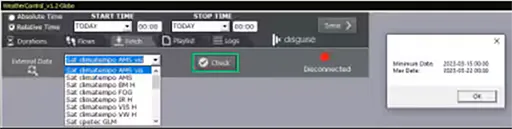
Imagery display or loading — including missing, incorrect, or outdated satellite and radar data.
Common Causes:
Section titled “Common Causes:”- The selected Source Type has no files available for the specified Time Range.
- Attempting to load visible imagery during a nighttime time range.
- Only one imagery provider or type is failing, indicating a localized data issue.
- The WXImagery Feed application has not run recently or has encountered errors.
- The imagery storage drive is not accessible or is full.
Troubleshooting Steps
Section titled “Troubleshooting Steps”- Verify Source and Time Range
- Ensure that the selected Source Type contains imagery files for the specified Time Range.
- Check Imagery Type vs. Time of Day
- If the selected imagery type is Visible, confirm that the chosen time range corresponds to daylight hours.
- Visible imagery will not display correctly for nighttime periods.
- Compare Multiple Providers
- If more than one imagery provider is configured, check whether the issue affects only one or all.
- If only one type fails, the issue is likely with that provider or data source.
- If all types fail, the issue may be with the system configuration or network access.
- Check the WXImagery Feed Application
- Verify the last time the WXImagery feed application successfully ran.
- You can manually run it again if needed.
- If any errors appear in the log, provide contact Disguise Support, and provide the logs.
- Verify Imagery Storage Drive
- Confirm that the imagery location drive is visible to the system and not full.
- A disconnected or full drive will prevent imagery from being fetched and displayed.
Missing Weather Symbols
Section titled “Missing Weather Symbols”Issue:
Missing weather symbols — affecting automatic data only, or both manual and automatic sources.
Scenario 1: Missing Symbols (Automatic Data Only)
Section titled “Scenario 1: Missing Symbols (Automatic Data Only)”Issue: Manual weather symbols display correctly, but automatic symbols do not appear.
Troubleshooting Steps
Section titled “Troubleshooting Steps”-
Verify Ipsum Feeds Are Running
Ensure that the Ipsum Feeds application is running.
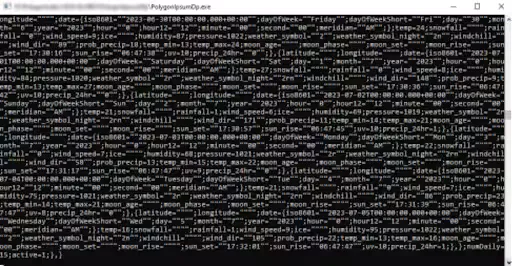
- Use the desktop shortcut to “Ipsum” to confirm.
- Example: Image: PolygonIpsumDp.exe console feed (symb1.png)
-
Allow Time for Datapool Initialization
After starting Viz Trio or Viz Engine, wait a few seconds for the Datapool Scene Plugin (with UDP=ON) to initialize.
- Reload the scene after 10 seconds to ensure the Datapool is fully updated.
-
Verify Viz Configuration Settings
Check that the Viz Config files have not been modified due to:
- Machine name changes
- Software version upgrades
- Configuration resets
-
Navigate to: Communication → Additional Communication
- Ensure UDP and Multicast are both selected.

Scenario 2: Missing Symbols (Automatic and Manual Data)
Section titled “Scenario 2: Missing Symbols (Automatic and Manual Data)”Issue:
Both manual and automatic weather symbols fail to display.
Troubleshooting Steps
Section titled “Troubleshooting Steps”-
Check Symbol Files on Graphics Hub
- All weather symbols are GEOMS (geometry files) or images stored on the Viz Graphics Hub server.
- Confirm that no folders or assets have been moved, renamed, or deleted.
-
Verify Symbol File Locations
- Some customers configure symbols to reference local or shared drives for image sequences.
- Consult with the design team to confirm the expected file paths.
- Verify that the folder locations and names match the configuration and have not been changed.
Weather Points Not Available
Section titled “Weather Points Not Available”Issue:
Weather point locations are not visible in automatic (Ipsum data) mode, while the manual version works correctly.
Troubleshooting Steps
Section titled “Troubleshooting Steps”-
Check Data Provider Status
- The data provider may be offline or unavailable.
- Verify that the provider is up and running.
- The provider should supply a private API URL for testing connectivity.
-
Verify Ipsum Feed Application
- Confirm that the Ipsum Feed (PolygonIpsumDp.exe) application is running.
- Check the console for any error messages or connection issues.
-
Check Ipsum Server (Azure or Local)
- If your setup uses Azure, verify the Ipsum service status.
- If your setup uses a local server, ensure it is online and responsive.
- If services appear down, contact Disguise Support for assistance.
- Restart the local machine if the system appears blocked or unresponsive.
-
Verify Datapool Scene Plugin and UDP Setting
- Ensure that the Datapool Scene Plugin is present in the loaded scene.
- Confirm that Enable UDP is set to ON.
- The default communication port is
7124.

- Allow Datapool Initialization Time
- When Viz Trio or Viz Engine are first started, the Datapool may need several seconds to initialize.
- Reload the scene after a few seconds to refresh the data.
Specific Locations Not Visible
Section titled “Specific Locations Not Visible”-
Check Data Availability in Ipsum / Provider API
- Verify that the location exists in the Ipsum client or provider API, as referenced by its Render ID.
- Confirm that the location has valid data.
-
Validate Geographic Coordinates
- If data exists but the location is still not visible, check the longitude/latitude (LONG/LAT) values in the Ipsum database.
- Locations with coordinates at 0.0 / 0.0 may appear misplaced (e.g., in the ocean or outside the visible region). Image: Location coordinate example (weather2.png)
Weather Points Not Visible (Automatic and Manual)
Section titled “Weather Points Not Visible (Automatic and Manual)”Issue:
Location data is not visible in both manual and automatic modes.
Troubleshooting Steps
Section titled “Troubleshooting Steps”-
Symbols Missing, Temperatures Visible
If symbols are missing but temperatures appear, refer to:
- Symbols Case B1
- Symbols Case B2
-
Temperature Missing (Auto + Manual)
If temperatures are missing in both modes, it may indicate a new engine installation without required plugins.
- Verify that the following are installed and active:
- Control Plugins
- Datapool Plugin
- VizWorld Plugin